
The People feature in the iPhone Photos app helps you group pictures by the faces it recognizes. Once it has identified a person, you can name them, browse all their photos in one place, and make it easier to find specific memories later.
If you have a large photo library, this feature can save a lot of time compared with scrolling through albums or search results. It also improves over time as you add names and confirm which photos belong to each person.
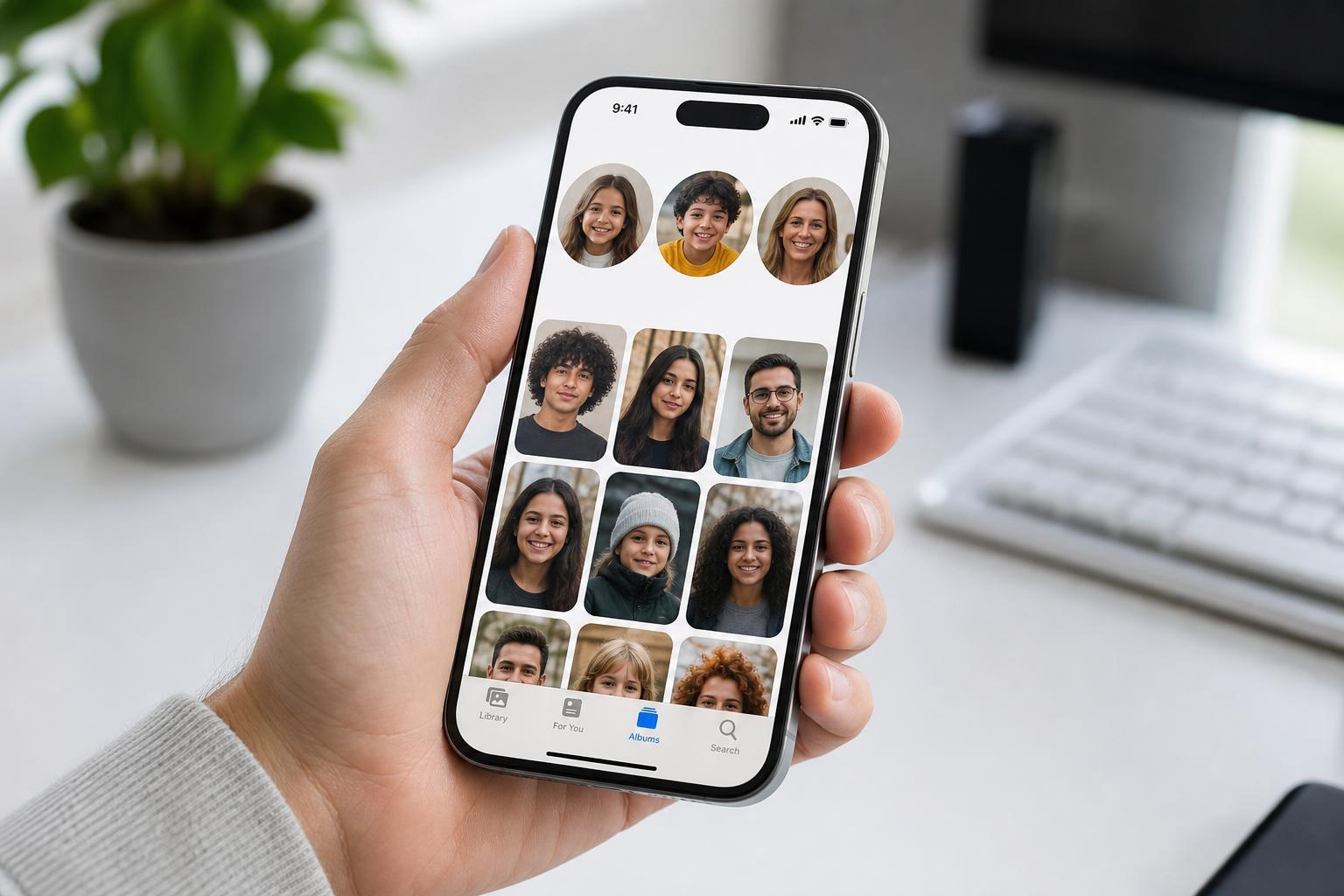
What the People Feature Does
The People album scans your photo library for faces and creates separate collections for each person it detects. After that, you can assign a name, merge duplicate entries, and choose key photos so each person is easier to recognize.
How to Find the People Album
- Open the Photos app on your iPhone.
- Tap Albums at the bottom of the screen.
- Scroll down to the People & Pets section.
- Tap People to view the face groups Photos has created.
How to Name a Person
- Open the People album and tap the face you want to name.
- Tap Add Name or the name label if one already exists.
- Type the person’s name.
- Tap Done to save it.
Once you name someone, Photos uses that name when you search for them. It also helps the app identify similar faces more accurately in the future.
How to Confirm or Correct Faces
- Open a person’s collection in the People album.
- Tap Select.
- Choose photos that do or do not belong to that person.
- Use the available options to confirm the match or mark a photo as not that person, depending on what your version of iOS shows.
This is useful when Photos groups the wrong face with someone else or misses a few images. Correcting mistakes helps the app improve the collection over time.
How to Set a Key Photo
- Open the person’s album in People.
- Tap Select.
- Choose the photo you want to use as the main thumbnail.
- Look for the option to make it the key photo or use the sharing and options menu if needed.
A key photo is the thumbnail you see in the People album. Choosing a clear, front-facing image makes the album easier to scan at a glance.
How to Merge Duplicate People
- Open the People album.
- Look for two entries that appear to be the same person.
- Open one entry, tap the more options menu, and choose the merge option if available.
- Confirm the merge so all photos are grouped under one name.
Duplicate entries can happen when the app first starts identifying faces or when it is unsure whether two similar faces belong to the same person. Merging them keeps the album organized.
How to Remove a Name Without Deleting Photos
- Open the person’s page in People.
- Tap the name or more options menu.
- Choose the option to remove the name or delete the person from People.
- Confirm the change.
Removing a name only affects the face grouping and label. It does not delete the photos from your library.
How to Make People Easier to Find
- Name important people as soon as they appear.
- Choose a clear key photo for each person.
- Merge duplicate entries when you notice them.
- Correct obvious mistakes so the app learns over time.
- Use search if you want to jump directly to a person’s name or a related photo.
When the People Feature Is Missing or Not Working
Sometimes the People album appears incomplete, or face recognition seems slow. That can happen if your library is still being scanned, if the device has not had enough time connected to power and Wi-Fi, or if the face groups need more correction before they become accurate.
- Leave the iPhone plugged in for a while and check again later.
- Make sure you are looking in Albums, not the main Photos tab.
- Open a face group and add or correct names to improve recognition.
- Check that Photos has full access to your photo library in Settings if you recently changed permissions.
A Simple Workflow That Saves Time
- Open People and name the most important faces first.
- Pick a good key photo for each person.
- Merge duplicates whenever you notice them.
- Use Search when you need a specific person or event.
- Do occasional cleanup so the People album stays accurate.
A little maintenance goes a long way. Once your main family members and frequent contacts are named correctly, the People feature becomes one of the fastest ways to browse your photo library.





