
Quick Share is Samsung’s fast wireless sharing feature for Galaxy phones and other compatible devices. It lets you send photos, videos, documents, links, and more without using messaging apps or email.
This guide shows how to turn on Quick Share, send files, receive items, and troubleshoot the most common problems on Samsung Galaxy phones.
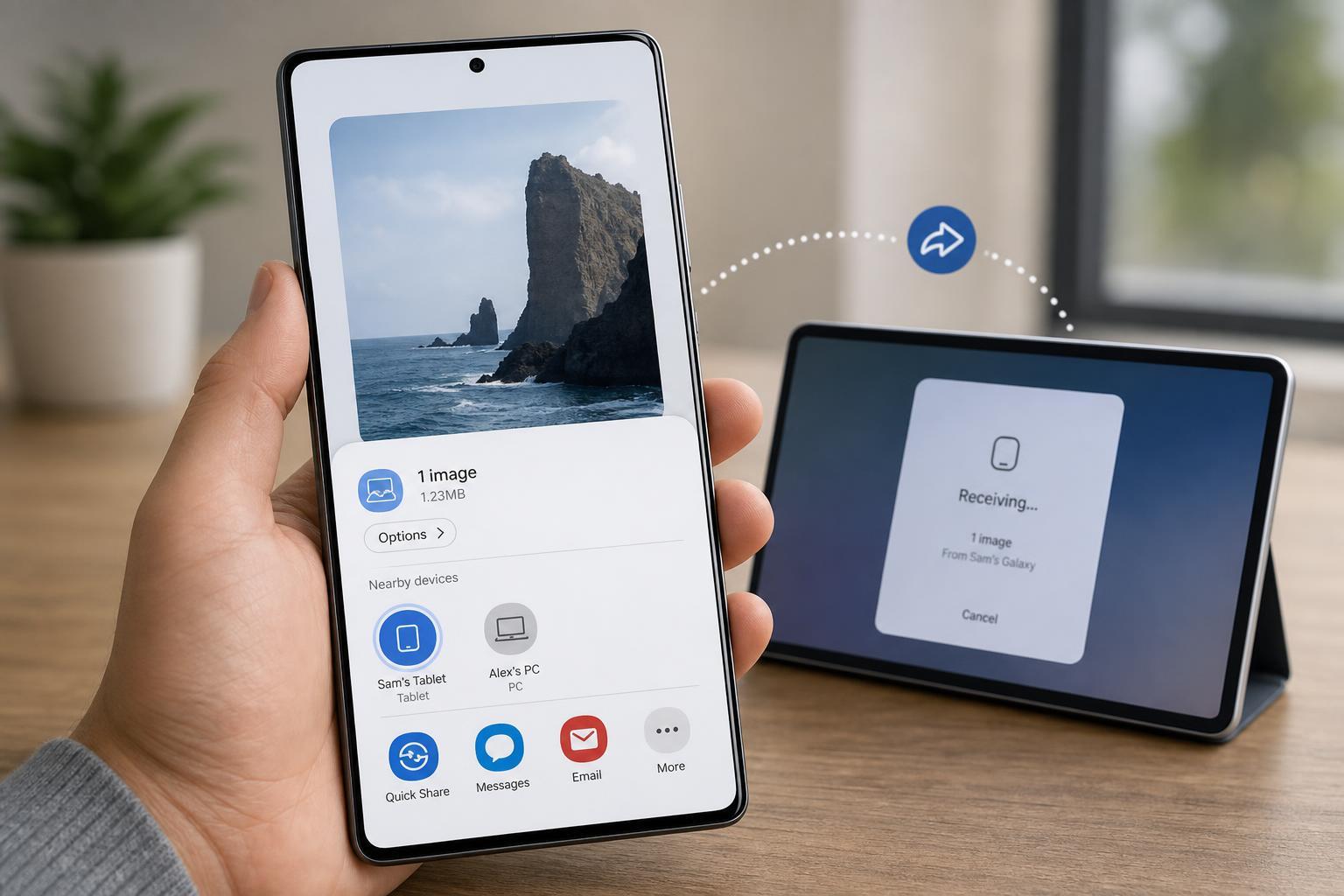
What Quick Share Does
Quick Share is designed for nearby device-to-device transfers. On Samsung Galaxy phones, it can use Bluetooth to discover devices and Wi‑Fi Direct or nearby network connections to move the actual file more quickly than Bluetooth alone.
Before You Start
- Make sure Quick Share is turned on in Quick Settings.
- Keep both devices close together.
- Enable Wi‑Fi and Bluetooth on both devices.
- Check that the receiving device can accept files from nearby devices.
- Confirm the recipient has enough storage space for the file.
How to Send Files with Quick Share
- Open the photo, video, document, or other file you want to share.
- Tap the Share button.
- Select Quick Share from the sharing options.
- Wait for nearby compatible devices to appear.
- Tap the device you want to send to.
- If prompted, confirm the transfer on the receiving device.
For large files, keep both devices unlocked and close together until the transfer finishes. Moving too far away can interrupt the connection.
How to Receive Files on a Galaxy Phone
- Swipe down from the top of the screen to open Quick Settings.
- Tap Quick Share to open its settings or receiving screen.
- Choose who can see your phone, such as Contacts only or Everyone nearby, depending on your version of One UI.
- Wait for the sender to select your device.
- Tap Accept when the transfer request appears.
If you want to receive a file from someone who is not in your contacts, you may need to temporarily allow broader visibility. Turn that back down after the transfer if you prefer more privacy.
How to Share Links or Content from Apps
Some apps let you use Quick Share for links or content directly from the share menu. This is useful when you want to send a webpage, article, or supported item without copying and pasting it manually.
- Open the app or page you want to share.
- Tap Share.
- Choose Quick Share if it appears.
- Select the nearby device.
- Wait for the recipient to accept the item if required.
How to Change Quick Share Settings
Samsung lets you control who can find your phone, whether transfers use nearby devices, and how long your phone stays visible. These settings help balance convenience and privacy.
- Open Quick Share from Quick Settings or Settings.
- Look for visibility options such as Contacts only or Everyone nearby.
- Adjust device name if you want your phone to be easier to identify.
- Review any options related to links, nearby sharing, or data usage.
- Save the changes or exit the menu once finished.
Common Quick Share Problems and Fixes
- The other phone does not appear: make sure Quick Share is enabled on both devices and keep them close together.
- Transfer fails partway through: move the devices closer and keep the screens awake until the file is complete.
- Recipient cannot accept the file: check whether the receiving device has storage available and permission to receive.
- Quick Share is missing from the Share menu: update One UI or look for the feature in Quick Settings and settings.
- Connection seems slow: larger transfers work best when both devices have Wi‑Fi and Bluetooth turned on.
If you are still having trouble, test with a small photo first. That can help you tell whether the problem is with the file type, size, or device visibility settings.
When Quick Share Is the Best Choice
Quick Share is especially handy when you want fast local sharing without uploading files to the cloud or opening a messaging app. It is less useful when the other device is far away or not supported.





