
The Google Translate app on iPhone is a handy way to translate typed text, spoken conversations, handwritten words, and even signs or menus using your camera. If you travel, study a language, or need quick translations on the go, it can save a lot of time.
This guide walks through the main features of Google Translate on iPhone and shows how to use them effectively.
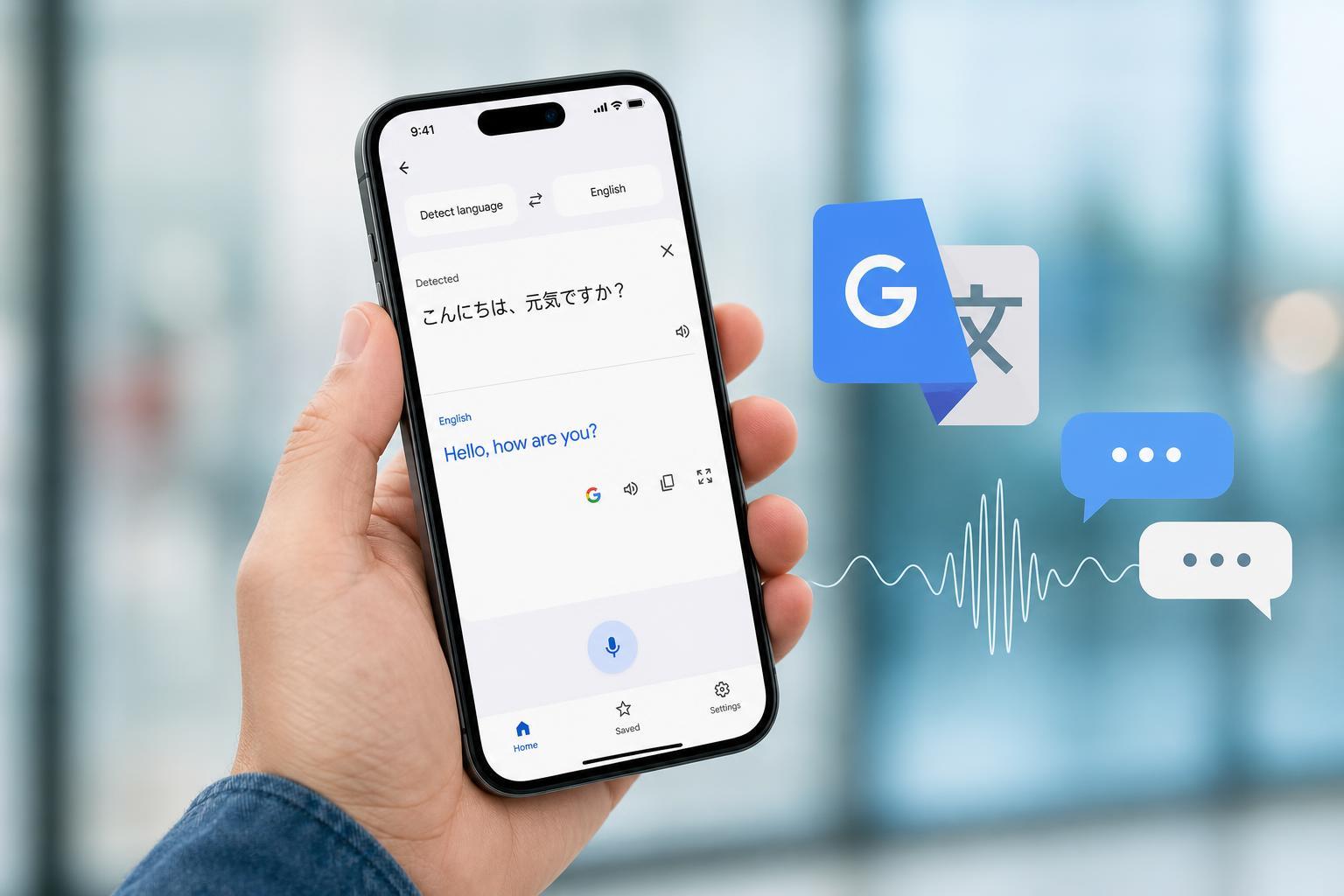
Install and Open Google Translate
- Open the App Store on your iPhone.
- Search for Google Translate.
- Tap Get or the download icon to install the app.
- Open the app and choose your preferred setup options, such as allowing microphone and camera access when prompted.
Set Your Languages
When you open the app, you will usually see two language boxes at the top of the screen. The left language is the one you want to translate from, and the right language is the one you want to translate into.
- Tap the left language to choose the source language.
- Tap the right language to choose the language you want the translation in.
- Use the swap button between them if you need to switch directions quickly.
- If you are not sure what language is being shown, tap Detect language on the source side when available.
Translate Typed Text
Typing text is the simplest way to use the app. It is best for short phrases, single words, emails, messages, and anything you can copy or type easily.
- Tap the text input area.
- Type or paste the text you want translated.
- The app will usually show the translation immediately.
- Tap the translated text if you want to copy it, share it, or listen to it spoken aloud.
Use Voice Translation
Voice translation is useful for conversations, pronunciation practice, and quick spoken phrases. On iPhone, you can speak into the app and hear the translation read back to you.
- Tap the microphone icon.
- Allow microphone access if iPhone asks for permission.
- Speak clearly and pause when you finish.
- Review the translated text on screen, then tap the speaker icon to hear it aloud if needed.
Use Conversation Mode
Conversation mode helps two people speak in different languages more naturally. It is especially helpful when you need back-and-forth communication instead of single phrases.
- Tap the Conversation option in the app.
- Choose the two languages being used.
- Start speaking when prompted, or let the app listen for both speakers if available.
- Read or listen to each translated response before continuing.
Translate with the Camera
The camera feature lets you translate signs, labels, menus, instructions, and printed documents without retyping the text. This is one of the most useful features for travel and everyday use.
- Tap the Camera option.
- Point your iPhone camera at the text.
- Wait for the app to detect the words and overlay the translation.
- For better control, take a photo or import an image from your photo library if that option is available.
Translate Text in Other Apps
If you come across text in Safari, Mail, Notes, or another app, you can often copy it and paste it into Google Translate. This is useful when you want a more accurate translation or need to translate a large section of text.
- Select the text in another app and tap Copy.
- Open Google Translate and paste the text into the input field.
- Review the translation and use the share or copy options if you need to send it elsewhere.
- If the source language is not obvious, let the app detect it first.
Save Useful Translations
Google Translate can save phrases you use often, such as travel questions, common greetings, or important directions. This makes it easier to find them later without retyping.
- Open a translation you want to keep.
- Tap the star or save icon.
- Access saved phrases from the phrasebook or saved section inside the app.
- Organize the phrases you use most often so they are quick to find.
Download Languages for Offline Use
If you will not always have internet access, download language packs before you need them. Offline translation is useful for travel, but it may not support every feature the online version offers.
- Open the app settings or language download section.
- Choose the languages you want to keep offline.
- Download them while connected to Wi-Fi if possible.
- Test a few translations before traveling so you know the packs are working.
Helpful Tips for Better Results
- Use short, clear sentences instead of complex paragraphs.
- Avoid slang or abbreviations if you want the most accurate translation.
- Check the correct source and target languages before translating.
- In voice mode, speak at a normal pace and avoid talking over background noise.
- For camera translation, make sure the text is well lit and in focus.
When Google Translate on iPhone Is Most Useful
The app is best when you need fast, practical translations rather than polished, professional-language results. It works well for travel, shopping, casual conversations, schoolwork, and understanding signs or instructions.
What to Watch Out For
Google Translate is a powerful tool on iPhone, but it works best as a practical assistant. Used carefully, it can help you communicate, understand unfamiliar text, and get around much more easily.





