
Apple’s Sensitive Content Warning feature can help you avoid unexpected nudity or other potentially disturbing images in supported apps and services. If you want more control over what appears on your screen, you can turn it on separately for iPhone, iPad, and Mac.
The setting is built into Apple’s privacy and safety options, and the exact location can vary a little depending on your device and software version. The steps below will help you find it and confirm it is enabled.
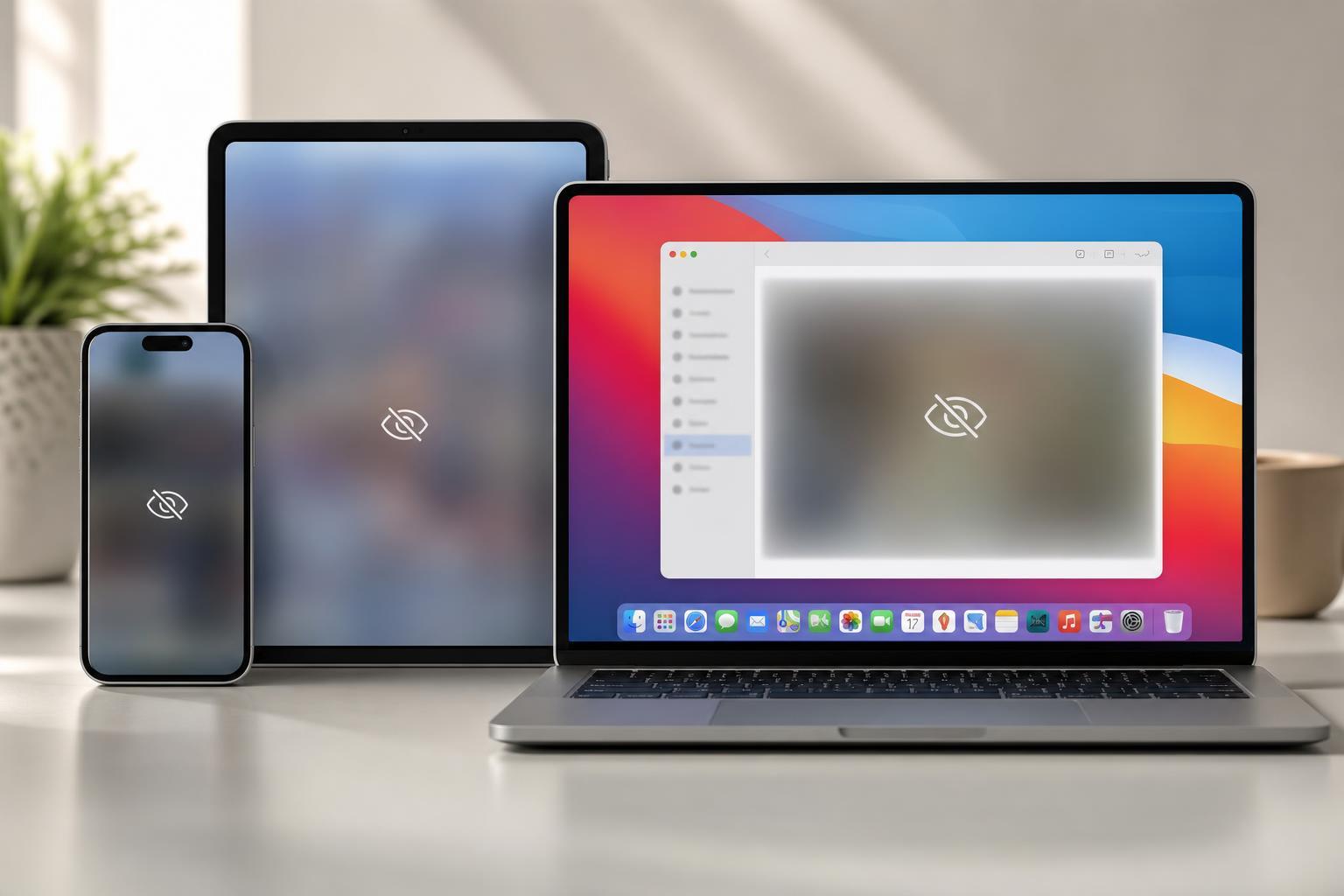
What Sensitive Content Warning Does
Sensitive Content Warning uses on-device processing to detect and blur certain images before you open them. When the feature is working, you may see a warning or a blurred preview instead of the full image.
How to Enable Sensitive Content Warning on iPhone and iPad
- Open the Settings app on your iPhone or iPad.
- Scroll down and tap Privacy & Security.
- Find and tap Sensitive Content Warning.
- Turn on Sensitive Content Warning.
- If available, review the apps and services covered by the feature to make sure they match what you want.
How to Enable It on Mac
- Click the Apple menu and open System Settings.
- Select Privacy & Security from the sidebar.
- Look for Sensitive Content Warning.
- Turn the feature on.
- Check any related options that appear for supported apps or communication services.
If You Don’t See the Setting
If Sensitive Content Warning is missing, the most common reason is that your device software is too old. Update iPhone, iPad, or Mac to a newer version of iOS, iPadOS, or macOS, then check again in Settings or System Settings.
- Your device is running an older operating system version.
- Screen Time or device management restrictions may be limiting privacy settings.
- You are looking in the wrong menu, especially after a recent software update.
- The feature may not be available in your region or on every device configuration.
How to Tell Whether It Is Working
Once enabled, supported content should appear blurred or be preceded by a warning in places where Apple applies the feature. If you are still seeing everything clearly, it may mean the image came from an app or service that does not support the warning system.
- The warning appears only for supported content sources.
- Some apps handle sensitive content using their own filters instead of Apple’s setting.
- Images already downloaded or viewed in unsupported apps may not be affected.
Related Settings Worth Checking
If you want stronger content controls, Sensitive Content Warning works best alongside other Apple privacy and safety settings.
- Screen Time content restrictions
- Communication Safety for family accounts
- App-specific safety or content filters
- Message filtering and contact controls
- Browser content restrictions if web access is a concern
What to Do If You Change Your Mind
You can turn Sensitive Content Warning off at any time by returning to the same settings screen and disabling the toggle. The change takes effect right away on that device.
If you use multiple Apple devices, you may want to check each one separately, since the setting does not always apply automatically everywhere.





