
Dark Mode changes the look of your device by using darker colors for menus, apps, and system backgrounds. If you prefer a brighter interface, want better visibility in some lighting conditions, or need to match an app or website theme, you can turn it off on most major platforms in just a few steps.
The exact menus differ slightly between Windows 10, macOS, Android, and iOS, but the idea is the same: switch the system appearance back to Light Mode or disable any automatic theme setting that keeps re-enabling Dark Mode.
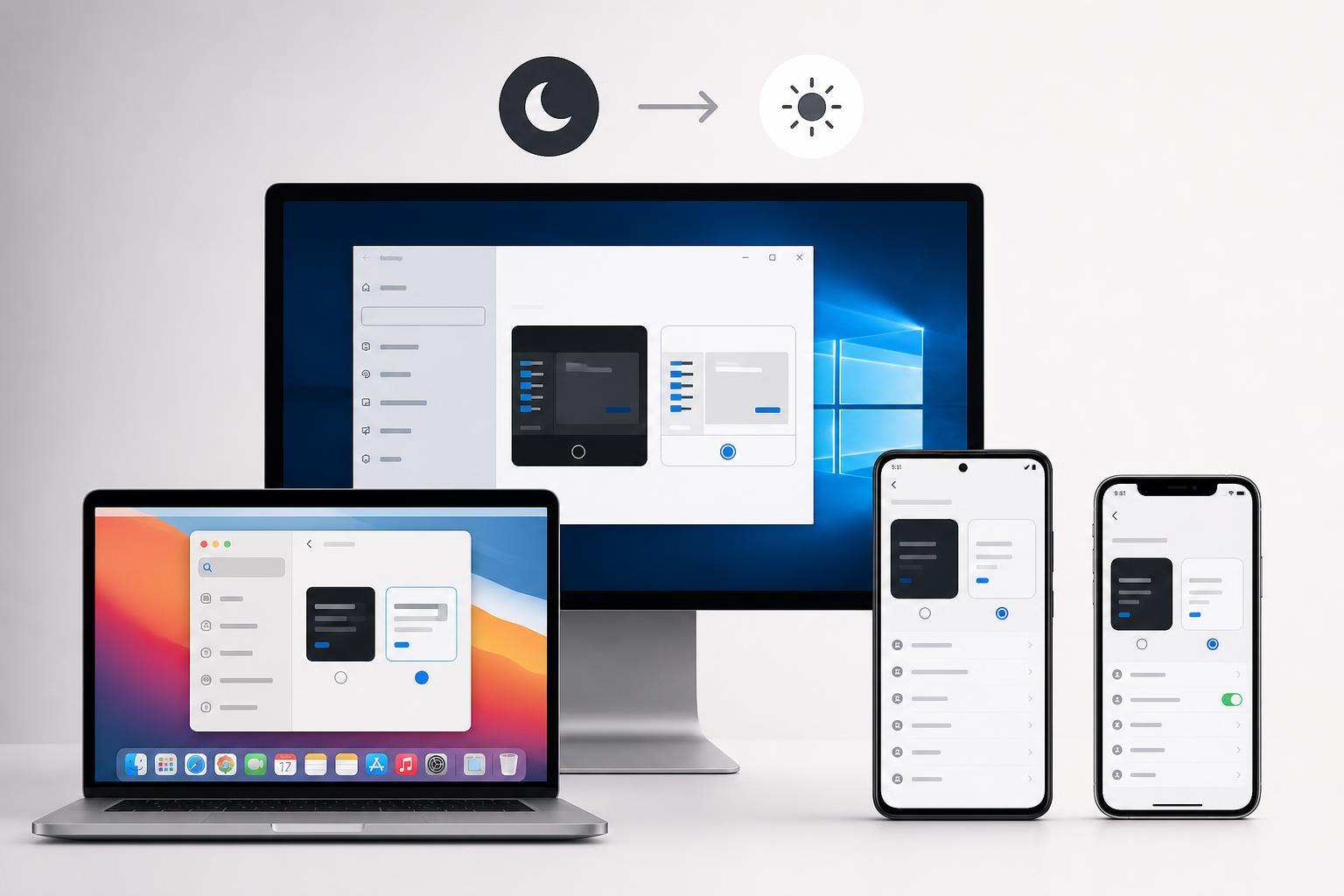
How to Disable Dark Mode in Windows 10
- Open the Start menu and select Settings.
- Go to Personalization.
- Select Colors from the left side menu.
- Under Choose your color, open the drop-down list.
- Select Light to turn off Dark Mode for Windows 10.
If you only want to change the app appearance without affecting the full system theme, Windows 10 also lets you choose a custom mode on some versions. In that case, make sure both Windows mode and app mode are set to Light if you want a bright interface everywhere.
How to Disable Dark Mode on macOS
- Open System Settings on newer versions of macOS, or System Preferences on older versions.
- Choose Appearance.
- Select Light to turn off Dark Mode.
If your Mac is switching themes automatically, check whether Auto or a scheduled appearance option is enabled. Turning that off will prevent macOS from changing between Light and Dark Mode on its own.
How to Disable Dark Mode on Android
- Open Settings on your Android device.
- Tap Display, or search for Dark theme if your device uses a different menu layout.
- Turn off Dark theme or select Light theme if that option is available.
Android phone menus vary by manufacturer, so the label may be Dark theme, Dark mode, or Theme. Some devices also offer a schedule, such as turning Dark Mode on at sunset. If you want it off all the time, disable the schedule as well.
How to Disable Dark Mode on iPhone and iPad
- Open the Settings app.
- Tap Display & Brightness.
- Under Appearance, tap Light.
If your iPhone or iPad keeps returning to Dark Mode, check whether Automatic is enabled in the Appearance section. Turning Automatic off will stop the device from switching themes based on time of day or sunset.
If Dark Mode Keeps Turning Back On
- Check for a scheduled appearance or automatic theme setting.
- Look for per-app dark theme settings in browsers, messaging apps, and third-party launchers.
- Make sure accessibility options such as display filters or contrast settings are not making the screen look darker than expected.
- Update your device software if theme settings do not seem to save properly.
Which Option Should You Change?
- Use the system appearance setting when you want the entire interface to switch to Light Mode.
- Use app-specific appearance settings when only one app should stay light or dark.
- Disable automatic scheduling if you want full control over the theme instead of a time-based switch.
Once you know whether the dark theme is coming from the device itself or from an individual app, it becomes much easier to turn it off and keep it off.





