
Samsung DeX can turn a supported Galaxy phone into a desktop-like experience on your PC, but it does not always connect properly to Windows 11. If DeX will not launch, fails to detect your phone, or connects and then immediately stops working, the cause is often a cable, driver, app, or permission problem rather than a fault with the phone itself.
This guide walks through the most useful fixes in a sensible order, starting with the easiest checks and moving to more advanced steps if needed.
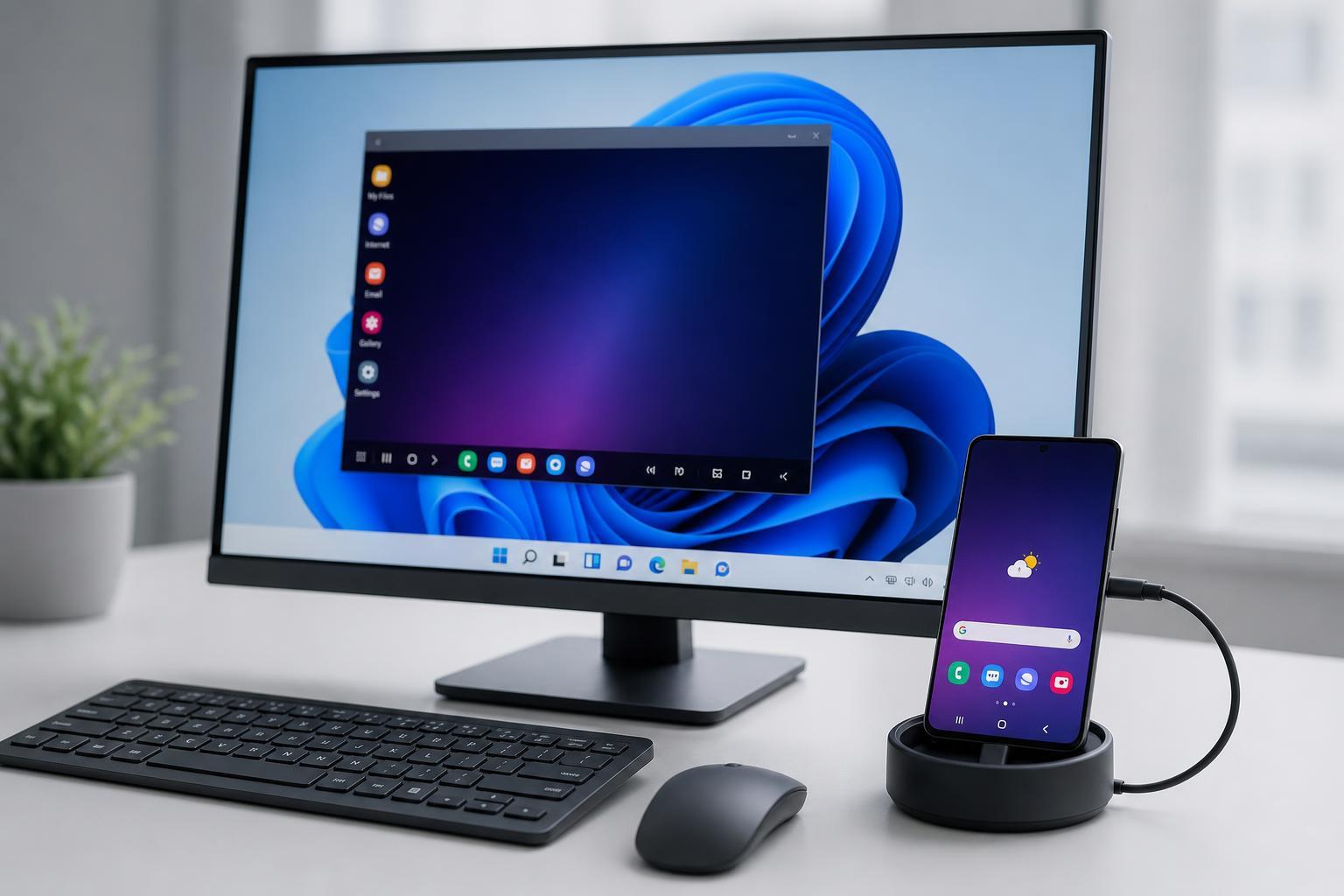
1. Check That Your Phone and PC Actually Support Samsung DeX
Before changing settings on Windows 11, confirm that your Galaxy device supports DeX and that you are using a Windows version that works with the Samsung software you installed. Some Galaxy phones and tablets support DeX only in certain connection modes, and older or unsupported devices may not work the way you expect.
- Check your phone model in Samsung’s settings or product information.
- Make sure you are trying the correct connection type, usually USB for Windows DeX support.
- Confirm that Windows 11 is fully updated if the DeX app refuses to start or detect the device.
2. Use a Known-Good USB Cable and Port
A surprising number of DeX problems come down to the cable. Some USB-C cables only charge a device and do not pass data properly. Others may work intermittently or disconnect when the phone switches into DeX mode.
- Disconnect the cable from both the phone and the PC.
- Use a different USB-C cable that supports data transfer, not just charging.
- Plug the cable directly into a port on the computer instead of using a hub or dock.
- Try another USB port, preferably a rear port on a desktop PC or a different side port on a laptop.
- Reconnect the phone and wait a few moments for Windows to detect it.
3. Unlock the Phone and Approve the Connection Prompt
Samsung DeX often needs the phone to be unlocked before it can complete the connection. If a permission prompt appears on the phone, Windows may look as if it is stuck even though it is waiting for approval.
- Unlock the Galaxy phone before connecting it to the PC.
- Watch the phone screen for a DeX or USB permission prompt.
- Allow access if the phone asks whether the PC can access data or start DeX.
- If the prompt disappears too quickly, unplug the cable and reconnect after unlocking the phone first.
4. Install or Update Samsung DeX for Windows
If you are using the desktop DeX app on Windows 11, an outdated or damaged installation can prevent the phone from being detected properly. Reinstalling the app is often one of the fastest ways to fix launch issues and missing device recognition.
- Open Apps in Windows 11 Settings and uninstall Samsung DeX if it is already installed.
- Download the latest version from Samsung’s official support page.
- Install it again using administrator permissions if prompted.
- Restart the DeX app and reconnect the phone.
5. Update Samsung USB and Device Drivers
Windows 11 relies on the correct USB and device drivers to communicate with your phone. If the driver is missing, outdated, or misidentified, DeX may fail to start or may connect only briefly.
- Open Device Manager in Windows 11.
- Expand Portable Devices, Universal Serial Bus controllers, and other relevant categories.
- Look for a Samsung device, an unknown device, or a warning icon.
- Right-click the device and choose Update driver.
- If that does not help, uninstall the device and reconnect the phone so Windows can reinstall it automatically.
6. Allow Samsung DeX Through Windows Security and Antivirus
Security tools can block DeX from opening device connections or creating the window it needs to run. This is more likely if the app was recently installed, Windows Security made a new policy change, or a third-party antivirus is controlling USB or app permissions.
- Open Windows Security and check whether any recent protection action mentions Samsung DeX.
- Temporarily allow the app through antivirus or firewall controls if it has been blocked.
- If your security software includes app control or device control features, add Samsung DeX as an allowed program.
- Test the connection again after changing the setting.
7. Turn Off Phone Features That Can Interfere With DeX
Some phone settings can interfere with a stable USB connection. Power-saving modes, restricted background activity, or certain USB handling options can stop DeX from completing the handshake with Windows.
- Disable power saving mode while testing DeX.
- Check whether battery optimization is restricting Samsung DeX or related Samsung services.
- If your phone offers USB options after connecting, make sure it is not set to charge-only mode.
- Close other phone features that may be taking over the USB connection, such as file transfer prompts or tethering.
8. Repair or Reset the Samsung DeX App in Windows 11
If the app installed correctly but still behaves badly, Windows app repair tools can fix corrupted files or settings without forcing a full reinstall first.
- Open Settings and go to Apps.
- Find Samsung DeX in the installed apps list.
- Open Advanced options if available.
- Try Repair first to preserve your current settings.
- If the problem continues, use Reset or reinstall the app completely.
9. Remove Conflicting Phone and PC Software
Other phone management tools, USB utilities, or screen-mirroring apps can conflict with Samsung DeX. They may install background services that try to control the same device connection, which can stop DeX from launching cleanly.
- Close other phone sync or mirroring apps before starting DeX.
- Unplug accessories such as docks or adapters that may interfere with USB detection.
- Check for leftover software from older Android phone tools that might still be running in the background.
- If needed, test DeX with a clean boot to see whether another app is causing the conflict.
How to Narrow Down the Cause Quickly
If you do not want to try every fix in order, use the symptoms to point you toward the most likely cause.
- No phone detection at all: cable, USB port, or driver issue.
- DeX opens but immediately closes: app corruption, security block, or conflicting software.
- Phone charges but DeX never starts: cable does not support data or the phone is locked.
- DeX worked before but stopped after an update: reinstall the app and check for driver or Windows updates.
When to Suspect a Hardware Problem
If DeX still will not work after trying a known-good cable, a different USB port, a fresh app installation, and updated drivers, the issue may be hardware-related. That could mean a damaged USB port on the phone, a failing cable, or a PC port that is not communicating correctly.
What Usually Fixes Samsung DeX on Windows 11 Most Often
For most people, the fastest solution is usually one of these: a data-capable USB-C cable, unlocking the phone before connecting, reinstalling Samsung DeX for Windows, or updating the USB/device drivers. If DeX used to work and suddenly stopped, app corruption or a Windows update-related driver issue is especially worth checking first.





