
If your Android screen stays on during calls, won’t turn off near your face, or keeps lighting back up while you’re talking, the proximity sensor may not be working correctly. That can lead to accidental button presses, dropped calls, and a very frustrating phone experience.
In many cases, the problem is caused by something simple such as a dirty screen, a case blocking the sensor, or a call app issue. In other cases, it can point to a software glitch or a hardware fault. The steps below start with the easiest checks and move toward deeper troubleshooting.
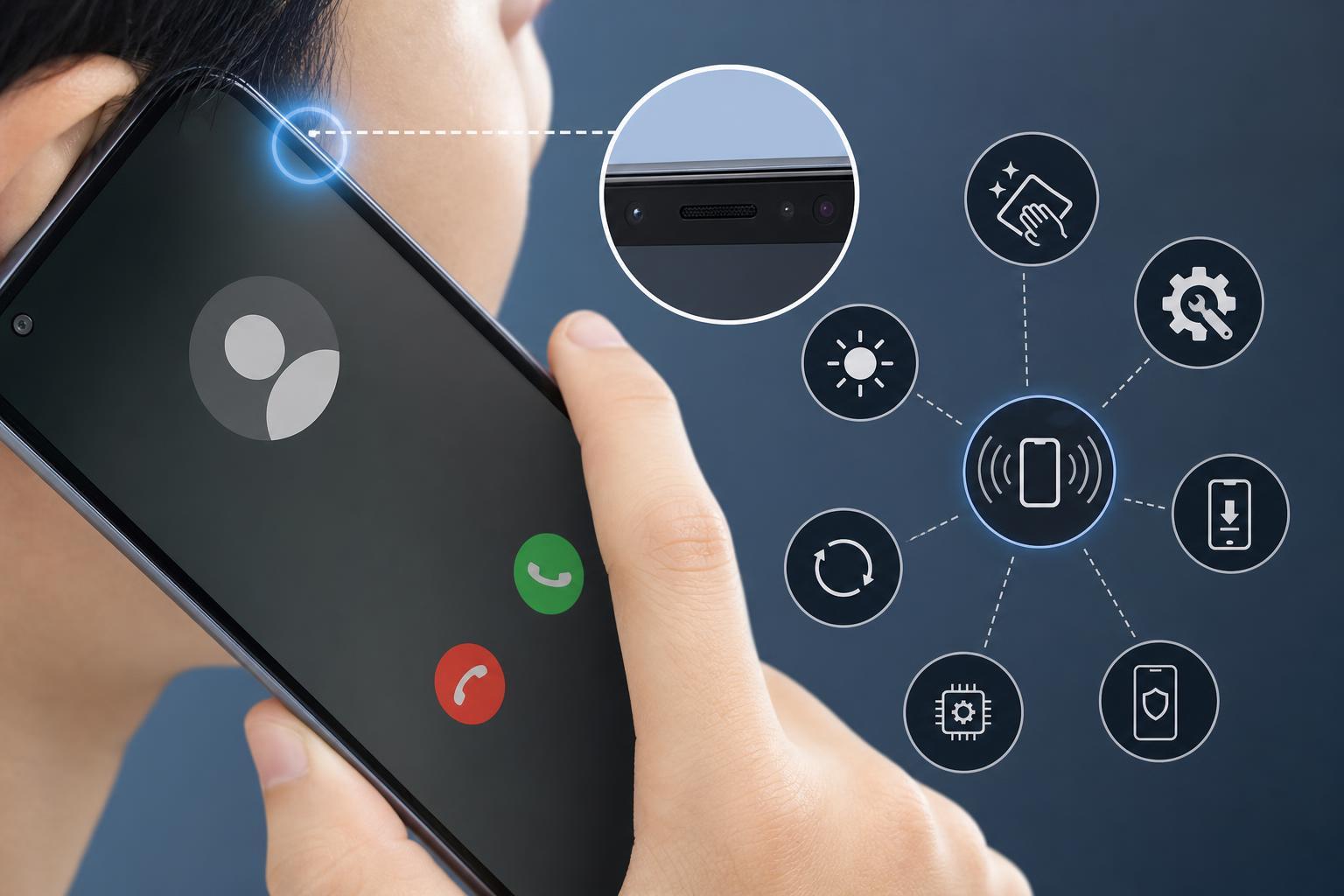
1. Clean the area around the proximity sensor
The proximity sensor is usually near the top of the front display, close to the earpiece and front camera area. If that area is covered by fingerprints, dust, makeup, oil, or debris, the sensor may not detect your face properly.
- Wipe the top-front part of the screen with a clean microfiber cloth.
- Remove any sticky residue or dust near the earpiece and front camera cutout.
- If you use a screen protector, check whether it covers the sensor area.
2. Remove or adjust your case and screen protector
Some thick cases, fold-over covers, privacy screen protectors, or badly aligned glass protectors can block or confuse the proximity sensor. This is one of the most common reasons the screen refuses to turn off during calls.
- Take the phone out of its case and test a call again.
- If you use a screen protector, look for bubbles, cracks, or misalignment near the top of the display.
- Try calling with the protector temporarily removed if you suspect it is covering the sensor.
- Avoid cases that wrap over the front top edge of the phone if they interfere with the sensor area.
3. Make sure the phone is not using speakerphone or another call mode that changes screen behavior
Some phones behave differently when a call is routed through Bluetooth, speakerphone, wired headphones, or a smartwatch. In those cases, the phone may not rely on the proximity sensor in the same way it does for a normal ear-to-phone call.
- Disconnect Bluetooth devices and test a regular handset-style call.
- Turn off speakerphone and try holding the phone normally to your ear.
- If you are using earbuds or a headset, test the phone without them.
- Check whether the issue happens in the Phone app only or in all calling apps.
4. Restart the Phone app and clear its cache
If the proximity sensor seems to fail only during calls, the dialer or Phone app may be temporarily stuck. Clearing the app cache can fix corrupted temporary data without deleting your contacts or call history in most cases.
- Open Settings.
- Go to Apps or Apps & notifications.
- Find your Phone app.
- Tap Storage & cache.
- Choose Clear cache.
- If needed, force stop the app and try another call.
5. Check for conflicting accessibility or display settings
Certain Android features can change how the screen behaves during calls. While these settings do not always break the sensor directly, they can make it seem like the sensor is not working.
- Screen timeout set too long, making the display seem unresponsive to proximity changes
- Accidental touch protection settings that behave differently on some phones
- Accessibility features that keep the screen awake
- Face-related features or gesture controls that affect lock-screen behavior
- Open Settings and review Display settings.
- Check for options related to accidental touch protection, pocket mode, or lift-to-wake.
- Look in Accessibility for features that may keep the screen active.
- Temporarily disable suspicious settings and test a call again.
6. Test the sensor with a built-in diagnostic tool or test code
Many Android phones include hardware diagnostics or hidden test menus that can help confirm whether the proximity sensor is responding at all. The exact path varies by manufacturer, but the goal is the same: see whether the sensor changes state when you cover and uncover the top of the phone.
- Look in the phone’s support or diagnostics app if one is included by the manufacturer.
- Search the Settings app for device diagnostics, hardware tests, or phone information.
- If your phone supports a hardware test menu, use the proximity sensor test to confirm whether the reading changes when covered.
7. Update Android and your calling apps
Software bugs can affect sensor behavior, especially after a system update or after app changes. Updating the operating system and the Phone app can fix known issues and improve device compatibility.
- Open Settings and check for system updates.
- Install any available Android updates.
- Open the Play Store and update your Phone app and related calling apps.
- After updating, test a few calls to see whether the issue is gone.
8. Reset app preferences or perform a factory reset only if needed
If the sensor worked before and still fails after cleaning, removing accessories, updating, and testing diagnostics, the problem may be caused by deeper software corruption. Resetting app preferences can fix missing permissions or disabled system components without wiping your data.
- Open Settings and search for Reset app preferences.
- Use this option if available on your phone.
- If the issue still remains and diagnostics suggest the sensor itself works inconsistently, back up your data before considering a factory reset.
- Use a factory reset only after you have ruled out accessory, app, and software causes.
How to tell whether it is a hardware problem
If the proximity sensor fails in every call app, never responds in diagnostic tests, and still misbehaves after removing cases and screen protectors, the sensor itself may be damaged or disconnected. This can happen after a drop, screen repair, liquid exposure, or pressure on the top edge of the phone.
- The screen never turns off near your face during calls
- The sensor test shows no response at all
- The issue started after physical damage or a repair
- Other sensors or front-panel features are also acting strangely
Which fix should you try first?
Start with the simplest checks: clean the top of the screen, remove the case, and test without a screen protector. If the problem is still there, move on to the Phone app cache, software updates, and diagnostic tests. Those steps solve many proximity sensor issues without risking your data.
If nothing changes after those checks, the phone may need professional repair, especially if the sensor never responds in hardware tests. That is the clearest sign you are dealing with a hardware fault rather than a settings problem.





