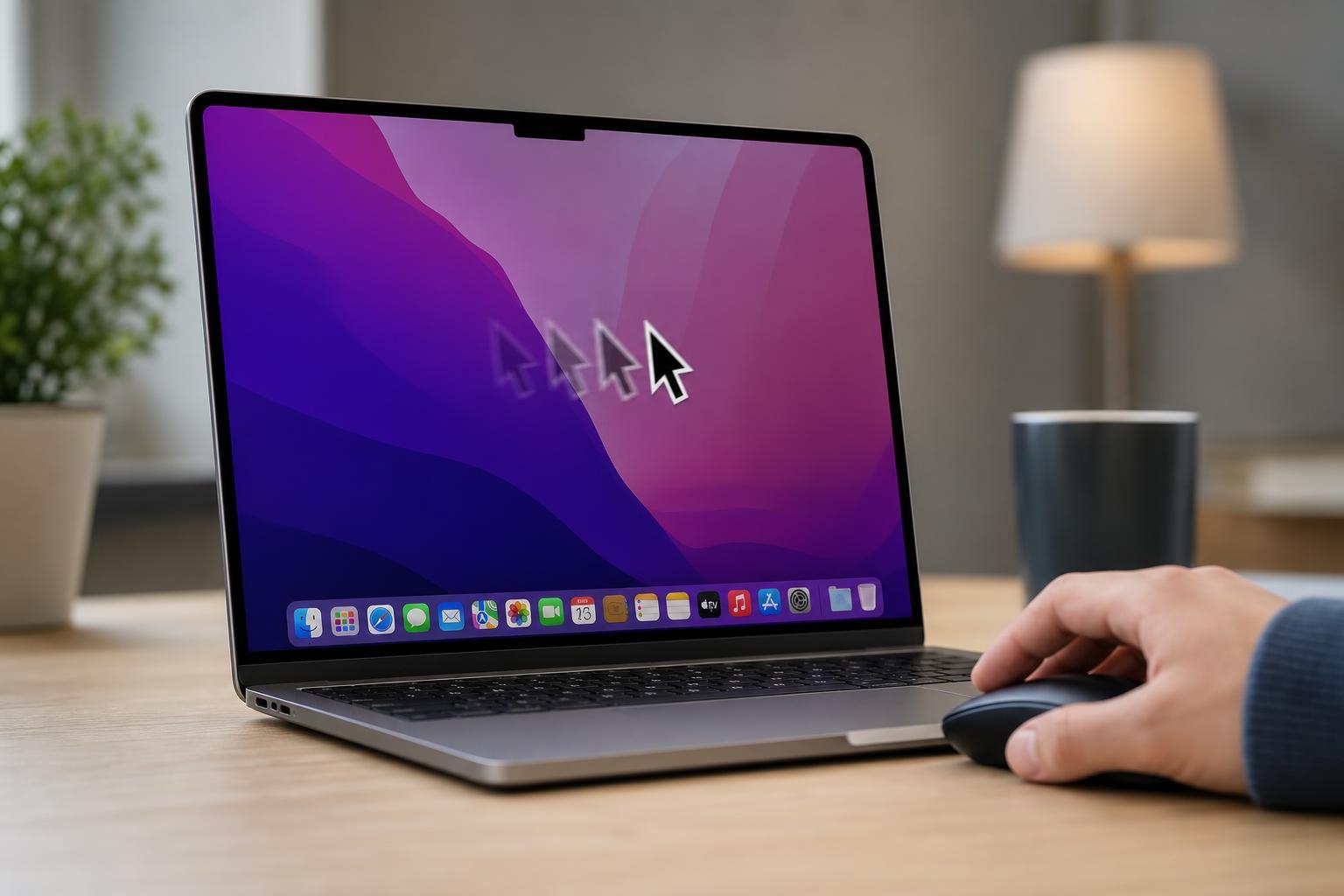
A mouse cursor that lags on a Mac can make simple tasks frustrating, especially when the pointer stutters, skips, or responds a moment after you move it. The cause is often a setting, a wireless connection issue, or a temporary system slowdown rather than a broken mouse.
This guide walks through the most practical fixes, starting with the easiest things to check and moving toward more advanced troubleshooting if the problem keeps coming back.
1. Check the Mouse Battery and Wireless Connection
If you use a Bluetooth mouse or a wireless mouse with a receiver, weak power or an unstable connection is one of the most common causes of cursor lag. Low battery can make the mouse feel delayed, while Bluetooth interference can cause the pointer to jump or freeze briefly.
- Charge the mouse fully or replace the batteries if it uses disposable ones.
- If it uses a USB receiver, make sure the receiver is firmly connected.
- Try moving the receiver to a different USB port if the Mac has one available.
- Keep the mouse closer to the Mac if it is wireless, especially during testing.
- Remove other nearby wireless devices temporarily if the lag seems to come and go.
2. Clean the Mouse Sensor and Surface
A dirty sensor or an unsuitable surface can make the pointer appear sluggish or uneven. This is especially true for optical and laser mice, which can struggle on reflective, glossy, or highly textured surfaces.
- Wipe the sensor area gently with a dry, soft cloth.
- Check for dust, hair, or debris stuck around the sensor.
- Try the mouse on a plain mouse pad or matte desk surface.
- Avoid glass, shiny tables, and highly reflective surfaces if possible.
3. Restart Bluetooth on the Mac
For Bluetooth mice, the connection can become unstable without any obvious warning. Turning Bluetooth off and back on can force the Mac and mouse to reconnect cleanly.
- Open Control Center or System Settings.
- Go to Bluetooth.
- Turn Bluetooth off for a few seconds.
- Turn Bluetooth back on and reconnect the mouse if needed.
- Test the cursor movement again.
4. Remove and Re-Pair the Mouse
If restarting Bluetooth does not help, forget the mouse and pair it again. This can clear a faulty connection profile and fix repeated delays or random disconnections.
- Open System Settings and go to Bluetooth.
- Find your mouse in the device list.
- Choose the option to forget, remove, or disconnect the device.
- Put the mouse into pairing mode.
- Pair it with the Mac again and test the cursor.
5. Adjust Tracking Speed and Related Mouse Settings
Sometimes what feels like lag is actually an overly slow tracking speed or a setting that makes the pointer feel less responsive. This does not fix true hardware lag, but it can make the cursor feel much smoother and easier to control.
- Open System Settings.
- Go to Mouse or Trackpad, depending on your device.
- Increase the tracking speed a little at a time.
- Check any secondary options such as scrolling speed or gesture behavior if you use them.
- Test the cursor after each small change.
6. Close Apps That May Be Overloading the Mac
A heavily loaded Mac can make input feel delayed, especially if background apps are using a lot of CPU, memory, or disk activity. In that case, the mouse is not the real problem, but the system is too busy to respond smoothly.
- Open Activity Monitor from Applications > Utilities.
- Look for apps using a large amount of CPU or memory.
- Close anything unnecessary, especially browsers with many tabs or demanding creative apps.
- Check whether the cursor becomes smoother after reducing the load.
7. Update macOS and Mouse Software
Mac updates often include fixes for Bluetooth, USB, input devices, and performance issues. If your mouse has its own software or firmware updater, that can matter too.
- Install any pending macOS updates.
- Check the mouse manufacturer's app if the mouse uses one.
- Look for firmware updates for gaming or productivity mice.
- After updating, test the mouse again to see whether the lag is gone.
8. Test the Mouse on Another Mac or Try a Different Mouse
If the lag continues after the usual fixes, test the mouse on another computer or connect a different mouse to your Mac. This is the fastest way to separate a mouse problem from a Mac problem.
- If the same mouse lags on another device, the mouse is likely at fault.
- If another mouse works normally on your Mac, the original mouse is the likely problem.
- If every mouse lags on your Mac, the issue is probably with Bluetooth, USB, system performance, or macOS itself.
When the Problem Is More Than Just the Mouse
If cursor lag happens across multiple mice and keeps returning after updates and re-pairing, the issue may be related to Bluetooth interference, a failing USB port, conflicting software, or a deeper macOS problem. At that point, checking the Mac in Safe Mode or creating a new user account can help narrow down whether third-party software is involved.
Which Fix Should You Try First?
Start with the simplest checks: battery level, surface quality, and Bluetooth connection. Those solve many cursor lag problems on Mac without much effort. If the issue remains, move on to re-pairing the mouse, adjusting tracking speed, and checking system performance before assuming the mouse is defective.