
If Google Meet audio is not working, the problem could be with your microphone, speakers, browser permissions, device settings, or the meeting itself. The good news is that most audio issues can be fixed with a few quick checks before moving on to deeper troubleshooting.
This guide covers the most effective ways to get Google Meet audio working again on Windows, Chrome, and other common setups.
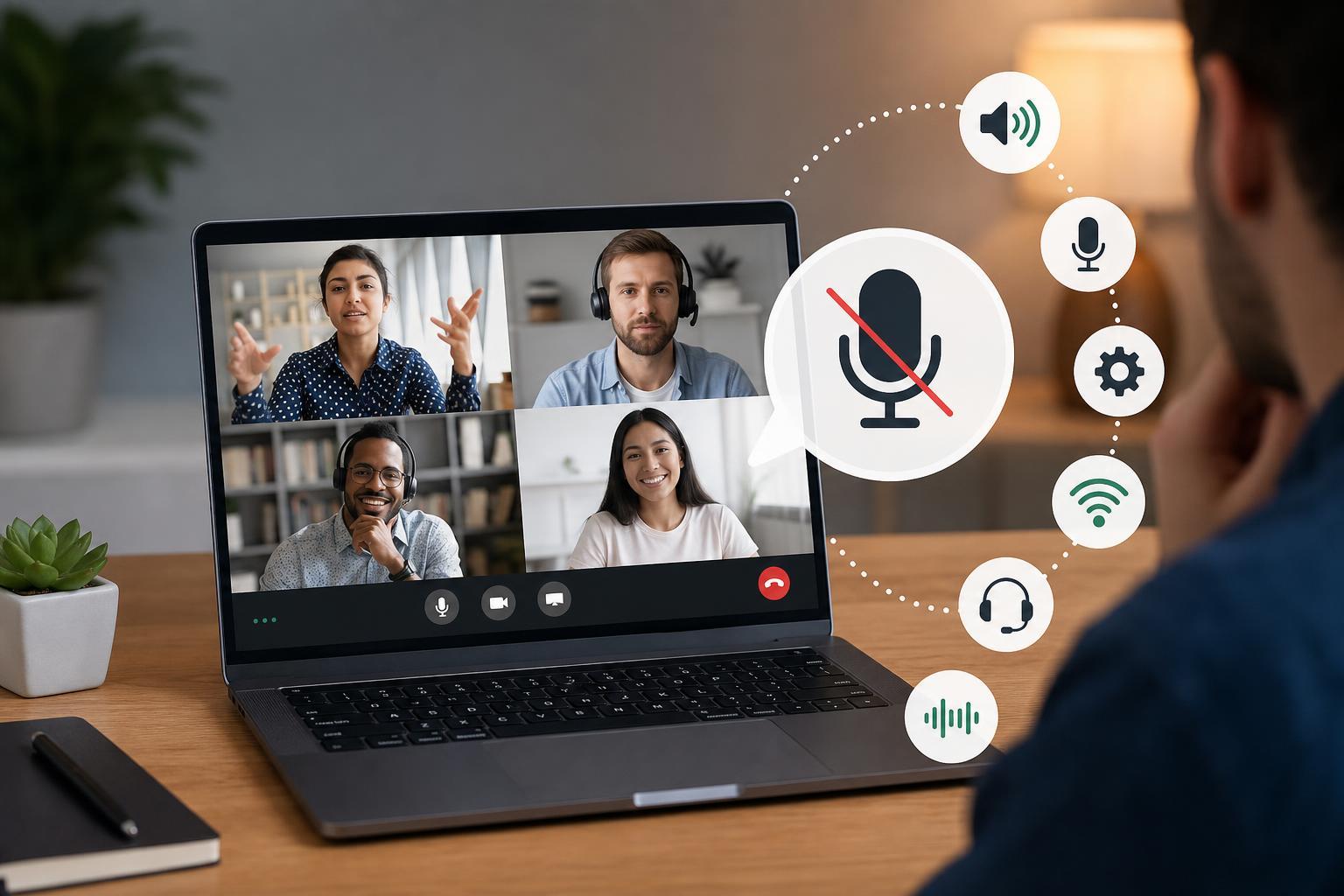
1. Check the Microphone and Speaker You Selected in Google Meet
The first thing to check is whether Google Meet is using the right input and output devices. If you have a headset, webcam, external microphone, or Bluetooth device connected, Meet may be sending audio to the wrong device.
- Join or open the meeting.
- Click the three-dot menu and choose Settings.
- Open the Audio section.
- Select the correct Microphone and Speaker devices.
- Speak into the microphone and watch the input meter if available.
If the wrong device is selected, Meet may appear connected but you still will not hear anyone or others will not hear you.
2. Make Sure Your Browser Has Permission to Use the Microphone
Google Meet runs in your browser, so it must have permission to access your microphone. If that permission was denied earlier, audio input will fail even if your hardware is working properly.
- In Chrome or Edge, click the lock icon next to the address bar.
- Check that Microphone permission is set to Allow.
- Refresh the meeting tab after changing the permission.
- If needed, open the site settings and remove any blocked microphone setting for meet.google.com.
3. Confirm Windows Is Using the Correct Input and Output Device
If Google Meet settings look correct but audio still fails, Windows may be sending sound to a different device or using the wrong default microphone. This is especially common after plugging in a headset, connecting Bluetooth headphones, or switching between laptop speakers and an external monitor.
- Right-click the speaker icon in the taskbar and open Sound settings.
- Under Output, choose the correct speakers or headphones.
- Under Input, choose the correct microphone.
- Test the microphone in Windows to confirm it picks up sound.
- If needed, open More sound settings and check the Recording and Playback tabs.
4. Check for Muted Tabs, Muted Meeting Controls, or Hardware Mute Switches
Sometimes the problem is not a failed device at all. The tab may be muted, the meeting controls may be muted, or your headset or laptop may have a physical mute button or switch enabled.
- Look for the muted speaker icon in the browser tab.
- Check the microphone button in Google Meet to make sure you are not muted.
- Inspect your headset for an inline mute switch.
- Look for a keyboard shortcut or function key that mutes the microphone on your laptop.
- If you are using Bluetooth earbuds, check the companion app if they have one.
5. Close Other Apps That May Be Using the Microphone
Another app may already be using the microphone or changing its audio behavior. Voice chat apps, recording software, conferencing tools, and even browser tabs can interfere with Google Meet.
- Discord
- Zoom
- Teams
- OBS or other recording software
- Voice assistants or dictation tools
- Other browser tabs with microphone access
Close anything that might be holding onto the microphone, then reload Google Meet and test again. If the microphone starts working after closing another app, that app was likely controlling the input device or preventing access.
6. Restart the Browser or Try a Different One
Browser glitches can stop Google Meet audio from initializing correctly. If permissions and device settings look fine, a fresh browser session can clear temporary problems with audio handling.
- Close all Google Meet tabs.
- Fully exit the browser, not just the tab.
- Reopen the browser and join the meeting again.
- If the issue continues, try Chrome if you were using another browser, or try Edge if Chrome is failing.
7. Update or Reinstall the Audio Driver
If Google Meet still cannot hear you or you cannot hear others, the audio driver itself may be corrupted or outdated. This is more likely if the problem affects every app, not just Google Meet.
- Open Device Manager in Windows.
- Expand Audio inputs and outputs, and Sound, video and game controllers.
- Right-click your microphone or audio device and choose Update driver.
- If updating does not help, uninstall the device and restart the computer so Windows can reinstall it.
When the Problem Is Not Your Computer
Sometimes the audio issue is on the other end. If you can speak in Google Meet but cannot hear one specific person, the problem may be their microphone, their browser permissions, or their muted audio settings. If nobody in the meeting has audio, the meeting organizer may also need to check whether the call or presentation is muted at the source.
- Ask another participant whether they can hear you.
- Test your microphone in a different app or website.
- Try Google Meet on another device to see whether the issue follows your account or device.
- If you are on a work or school device, check whether admin restrictions are blocking microphone access.
What to Try First if You Are in a Hurry
If you need the fastest path to a fix, start with the most common causes: choose the correct microphone and speaker in Google Meet, allow microphone access in the browser, and confirm Windows is using the right input device. Those three checks solve a large share of Google Meet audio problems.





