Safari is fast, built into macOS, and easy to personalize once you know where to look. A few small changes can make it cleaner to use, easier to navigate, and better suited to the way you browse every day.
This guide covers six of the most useful ways to customize Safari on Mac, from changing the start page and toolbar to adjusting privacy settings and using extensions.
1. Customize the Safari Toolbar
The toolbar is one of the easiest places to start because it controls the buttons you use most often. You can add shortcuts for features like Home, Sidebar, Reading List, iCloud Tabs, or any other available Safari control.
- Open Safari on your Mac.
- Choose View from the menu bar, then select Customize Toolbar.
- Drag buttons into or out of the toolbar.
- Reorder items by dragging them to a new position.
- Click Done when you are finished.
2. Change the Start Page
Safari’s Start Page appears when you open a new window or new tab. It can show favorites, frequently visited sites, Siri Suggestions, privacy reports, and your Reading List.
- Open a new tab or window in Safari.
- Scroll to the bottom of the Start Page and click Edit.
- Choose which sections you want to show or hide.
- Turn on a background image if you want a more personal look.
- Close the panel to save your changes.
3. Adjust How Tabs Work
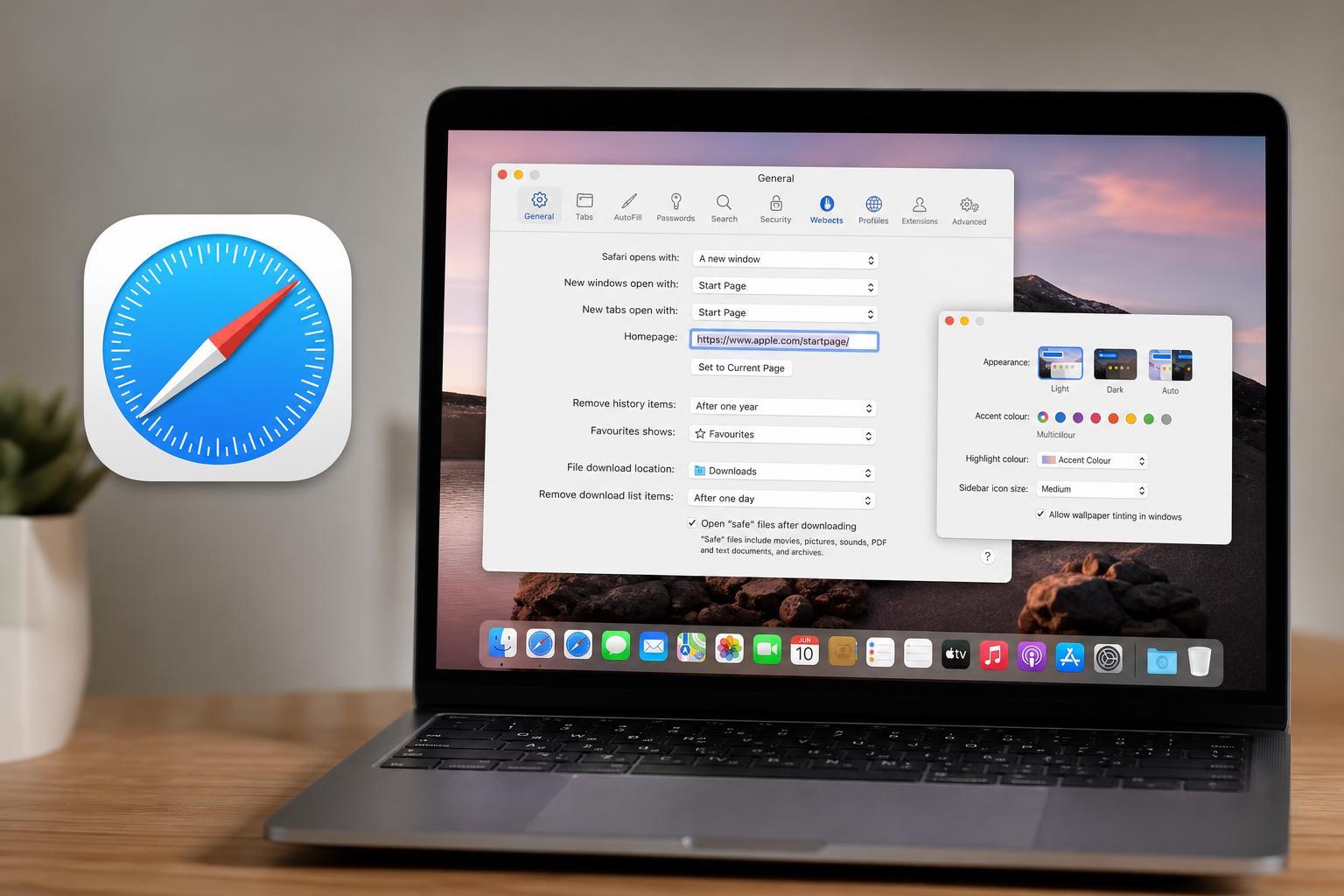
Safari offers several tab-related settings that can make browsing easier, especially if you keep many pages open at once. You can choose whether new tabs open with the Start Page, whether tabs are compact, and how links open.
- Use Tab Groups to separate work, personal, and research tabs.
- Set new tabs to open with your Start Page or a blank page.
- Change tab layout preferences in Safari settings if you prefer a cleaner or denser view.
- Open links in new tabs when you want to keep your current page available.
4. Tweak Privacy and Website Permissions
Safari includes privacy controls that let you decide what websites are allowed to do. These settings can reduce tracking, limit pop-ups, control camera and microphone access, and manage location requests.
- Open Safari Settings.
- Go to the Privacy or Websites section, depending on what you want to adjust.
- Review options for content blockers, cross-site tracking, camera, microphone, and location access.
- Set site-specific permissions if a website needs special access.
- Remove permissions later if you no longer want them.
5. Install and Manage Extensions
Safari extensions can add helpful features such as ad blocking, password tools, shopping aids, productivity helpers, and note-taking support. The key is to keep them limited to the ones you actually use.
- Open Safari Settings and look for the Extensions section.
- Browse the available extensions in the Mac App Store.
- Install only extensions from developers you trust.
- Enable or disable extensions as needed.
- Remove extensions you no longer use to keep Safari lean.
6. Set Up Website-Specific Preferences
Some websites work better when you control how Safari handles them. You can change page zoom, allow or block auto-play, manage pop-ups, and set how a site behaves when you return to it.
- Adjust page zoom for sites with text that is too small or too large.
- Block pop-ups on sites that open unwanted windows.
- Allow auto-play only when a site genuinely needs it.
- Use Reader mode when you want a clean, distraction-free article view.
A Better Safari Experience Starts with a Few Small Changes
You do not need to customize every Safari setting to get a better browsing experience. In most cases, changing the toolbar, start page, tab behavior, and privacy controls makes the biggest difference.
If Safari already feels familiar, try one change at a time so you can see what helps most. Small adjustments often make the browser faster to navigate and more comfortable to use every day.