If you want every link you click in Chrome to open in a new tab instead of replacing the page you are on, there are a few different ways to do it. Some are built into Chrome behavior, while others rely on shortcuts, mouse actions, or extensions.
The best method depends on whether you want a quick one-time trick or a more consistent way to browse. This guide covers four useful options, along with the limitations of each one.
1. Use a New Tab Command Instead of a Normal Click
Chrome does not have a simple built-in setting that forces every standard left-click to open links in new tabs on all websites. In normal browsing, a regular click is meant to follow the link in the same tab. If you want a new tab, you usually need to use a different action.
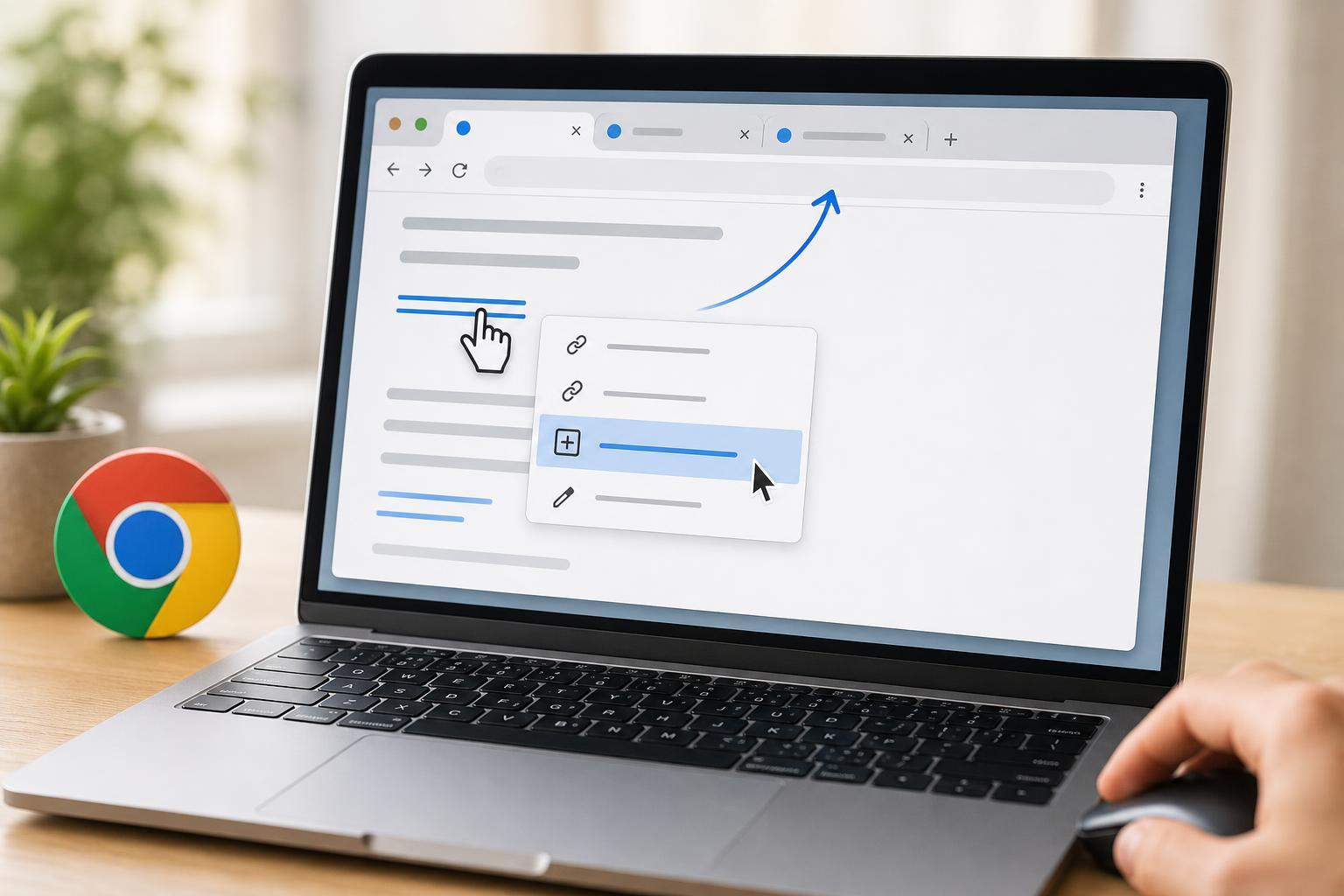
- Right-click the link and choose Open link in new tab.
- Middle-click the link with the mouse wheel button, if your mouse has one.
- Hold Ctrl on Windows or Command on Mac while clicking the link.
- On a touchpad, use the browser context menu if there is no middle button available.
2. Use a Mouse or Touchpad That Supports Middle Click
If you open lots of links in new tabs, middle-clicking is often the fastest method. In Chrome, middle-clicking a link usually opens it in a background tab without moving away from the current page.
- Best for desktop and laptop users with a physical mouse
- Usually the fastest way to open many links one by one
- Works well on search result pages, forums, and article indexes
- May not be available on all touchpads or compact mice
3. Open Links from the Keyboard
Keyboard shortcuts are useful when you want to keep your hands off the mouse or when a site is difficult to navigate with a pointer. Chrome supports a few quick ways to open and manage tabs.
- Press Ctrl+Enter after typing a URL in the address bar to open it in a new tab in some workflows, depending on context.
- Use Ctrl+Click on links to open them in a new tab on Windows and Linux.
- Use Command+Click on links to open them in a new tab on macOS.
- Press Ctrl+L to focus the address bar, type a site address, then use the browser’s tab controls if you want to keep the current page open.
4. Use an Extension or Custom Browsing Tool
If you want a more automated approach, Chrome extensions can change how links behave on certain pages or add new-tab features. This can be helpful if you regularly browse sites where you want almost every link opened in a new tab.
- Useful for power users who want more control over link behavior
- Can add rules for specific websites or page types
- May help on pages with heavy navigation or lots of outbound links
- Requires trusting a third-party extension with access to your browsing activity
Which Method Is Best?
For most people, the simplest answer is to use Ctrl+Click, Command+Click, or middle-click when needed. Those methods are built into Chrome and do not require extra software.
- Use right-click if you only occasionally need a new tab.
- Use middle-click if you open links in new tabs constantly.
- Use keyboard shortcuts if you prefer the keyboard or use accessibility tools.
- Use an extension only if you need a more automatic, site-specific solution.
Troubleshooting If Links Still Open in the Same Tab
If one of these methods does not work, the issue is usually with the site, your mouse settings, or an extension interfering with normal browser behavior.
- Try a different site to see whether the issue is website-specific.
- Test the middle mouse button in another app to confirm it is working.
- Disable browser extensions temporarily if link behavior seems inconsistent.
- Check whether your touchpad or mouse software has remapped the click action.
- Make sure you are using the correct modifier key for your operating system.
If a website uses custom buttons instead of standard links, Chrome may not treat them like normal anchor links. In that case, the context menu or extension-based solution is usually more reliable.