
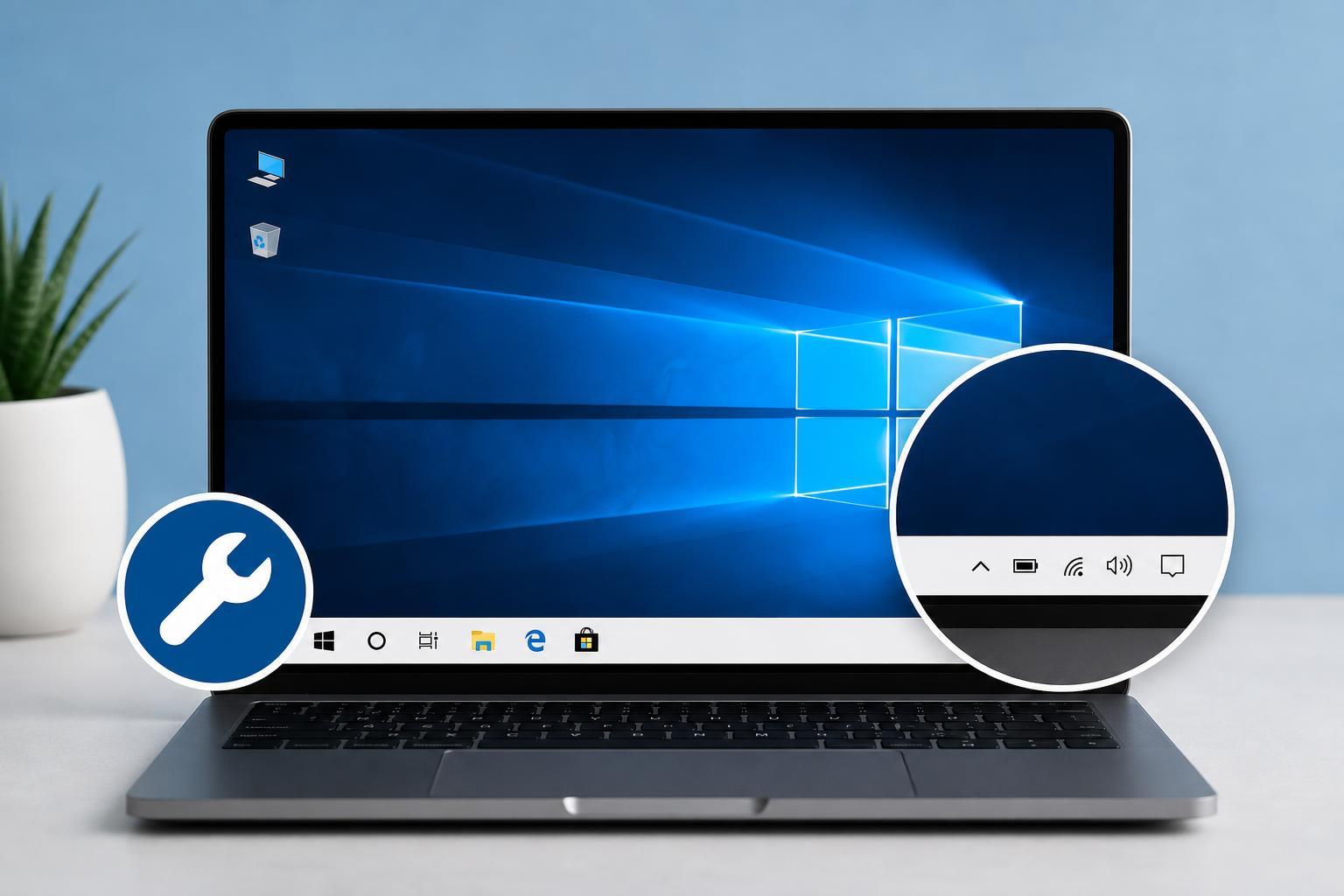
If your Windows 10 taskbar suddenly turns white, it is usually caused by a color setting, personalization glitch, graphics issue, or a Windows theme problem rather than permanent damage. The good news is that this is often fixable without advanced tools.
Below are four practical ways to restore the taskbar color and narrow down the cause if the problem keeps coming back.
1. Check Windows Color and Personalization Settings
Windows can force the taskbar to a light look if your accent color or theme settings are not configured the way you expect. This is the most common place to start because it can change the taskbar appearance immediately.
- Right-click the desktop and select Personalize.
- Open Colors from the left panel.
- Choose your preferred Windows mode and app mode. If you want a darker taskbar, set the relevant mode to Dark.
- Turn on Show accent color on the following surfaces.
- Make sure Start, taskbar, and action center is selected.
- Pick an accent color that is not too close to white or very pale gray.
2. Switch Off Tablet Mode or Theme Conflicts
Some Windows 10 theme combinations can make the taskbar look white or washed out, especially after display changes, docking and undocking, or a switch between tablet-style and desktop-style behavior.
- Open Action Center or press Windows + A.
- Check whether Tablet mode is enabled and turn it off if you are using a normal desktop or laptop setup.
- Go back to Personalization and open Themes.
- Select a different theme, then switch back to the one you want.
- If you use a custom theme, try one of the default Windows themes to see whether the white taskbar disappears.
3. Update or Reinstall the Graphics Driver
A graphics driver problem can affect how Windows renders colors, transparency, and the taskbar itself. If the white taskbar started after a driver update, a Windows update, or a display change, the driver is worth checking.
- Right-click the Start button and open Device Manager.
- Expand Display adapters.
- Right-click your graphics adapter and choose Update driver.
- If updating does not help, open Properties and check the Driver tab for a Roll Back Driver option.
- If needed, uninstall the display adapter from Device Manager and restart Windows so it can reinstall the driver automatically.
4. Repair Windows System Files
If the taskbar still stays white after changing settings and checking the graphics driver, damaged Windows system files may be interfering with the desktop shell. Built-in repair tools can fix this.
- Open the Start menu, type cmd, and choose Run as administrator.
- Run the System File Checker command: sfc /scannow
- Wait for the scan to finish and follow any repair prompts.
- If the issue remains, run the Deployment Image Servicing and Management command: DISM /Online /Cleanup-Image /RestoreHealth
- Restart Windows after the repair process completes.
Other Clues That Help Identify the Cause
The way the taskbar turns white can tell you a lot about what is wrong.
- White taskbar only after signing in: often a personalization or theme issue
- White taskbar after a driver update: likely a graphics driver problem
- White taskbar after Windows updates: system files or settings may have changed
- White taskbar on only one display: possible multi-monitor or scaling issue
- White taskbar with other visual glitches: graphics composition or shell corruption may be involved
When You May Need a Deeper Fix
If none of the four methods works, the issue may be tied to a corrupted user profile, a third-party customization tool, or a Windows installation problem. At that point, checking for recently installed theme tools, creating a new user account for comparison, or performing an in-place repair upgrade may be necessary.
Which Fix Should You Try First?
Start with Personalization and Colors, since that is the fastest and most likely fix. If the taskbar still stays white, move on to theme changes, then the graphics driver, and finally system file repair. That order gives you the best chance of solving the problem without doing more work than necessary.





