
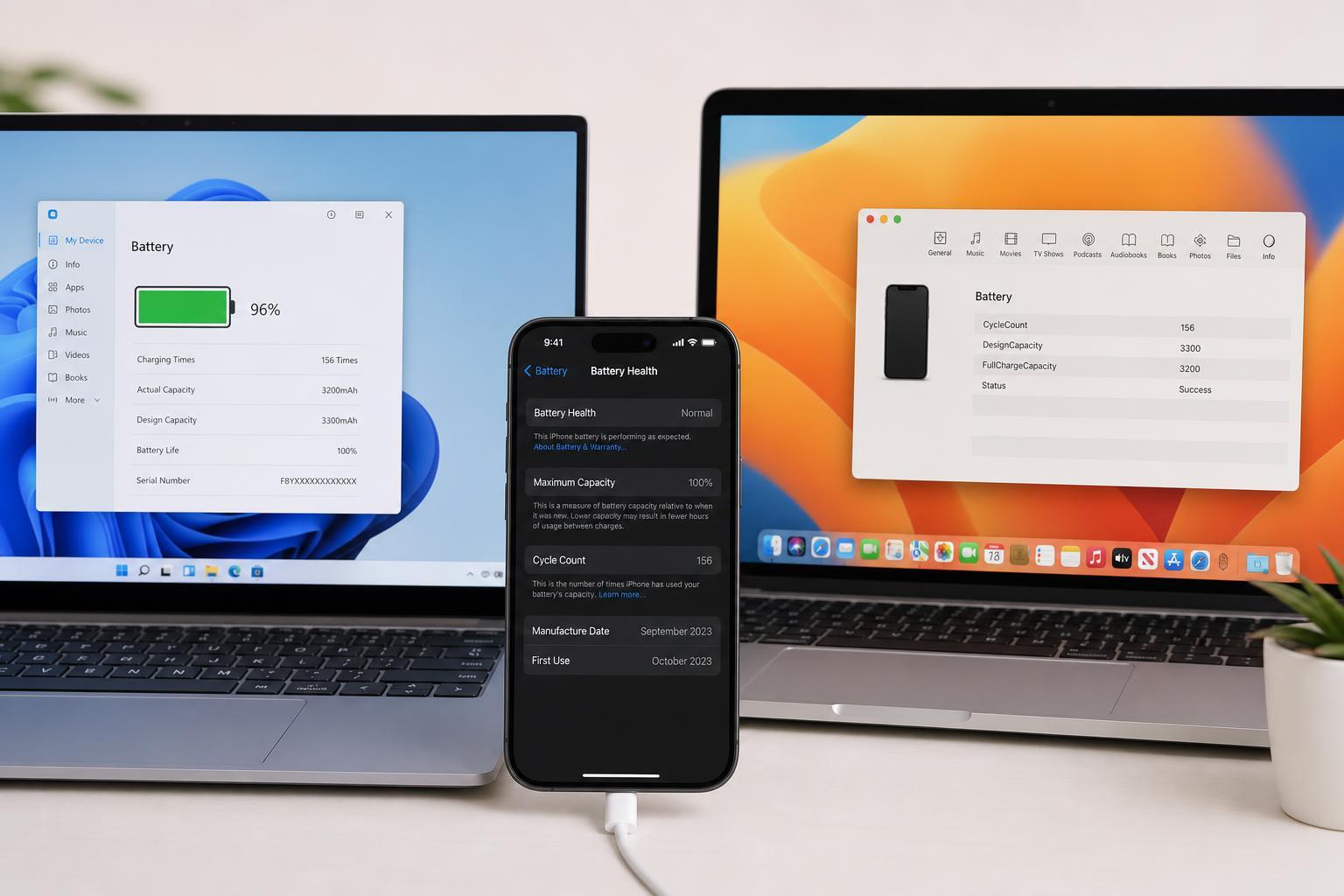
Your iPhone battery cycle count is one of the clearest ways to judge how much wear the battery has already seen. If you want to check it from a Windows PC or a Mac, there are a few reliable methods depending on how much detail you need and what tools you already have installed.
This guide covers three practical ways to find the cycle count, along with what the number means and when it is worth paying attention to battery health instead of just the count.
What a Battery Cycle Count Means
A battery cycle is not the same as simply plugging your iPhone in once. One full cycle is counted when you use up 100% of the battery’s capacity in total, even if that happens across several charges. For example, using 60% today and 40% tomorrow equals one cycle.
1. Check the Cycle Count on a Mac Using System Information
If you have a Mac, this is one of the simplest ways to check battery cycle count without installing extra software. It works when the iPhone is connected by cable and trusted by the Mac.
- Connect your iPhone to your Mac with a USB or USB-C cable.
- Unlock the iPhone and tap Trust This Computer if prompted.
- On the Mac, hold down the Option key and choose Apple menu > System Information.
- In the sidebar, open the USB section and select your iPhone.
- Look for the battery-related details in the device information, including the cycle count if it is shown by your macOS version and device data.
2. Use a Third-Party iPhone Utility on Windows or Mac
On Windows, the easiest option is usually a third-party iPhone management tool that can read battery statistics from the phone when it is connected by USB. Many of these tools also work on Mac, which makes this a flexible option if you switch between platforms.
- Connect the iPhone to the computer with a cable.
- Open the utility and let it detect the device.
- If needed, tap Trust This Computer on the iPhone.
- Find the battery or device health section in the app.
- Read the cycle count and any related battery data such as charge capacity or health percentage.
3. Check the Cycle Count from an iPhone Analytics Log
If you do not want to rely on desktop software, you can often find battery details in iPhone analytics logs. This method can work on either Windows or Mac because the data is gathered directly from the phone, though it is less user-friendly than a dedicated app.
- On the iPhone, open Settings.
- Go to Privacy & Security, then Analytics & Improvements.
- Make sure Share iPhone Analytics is enabled if you want new logs to be generated.
- Wait for analytics data to appear, then look for an analytics log that can be exported or shared.
- Search the log for battery-related entries such as CycleCount or similar battery health fields.
This method is less polished because the log format can be difficult to read, and the exact field names may vary. It is still useful if you want the information without installing extra software on a PC or Mac.
Which Method Should You Use?
- Use Mac System Information if you want the quickest built-in check on a Mac.
- Use a third-party utility if you are on Windows or want the clearest battery report.
- Use an analytics log if you want a no-software approach and can handle a more technical view.
What to Watch for After You Find the Number
A cycle count by itself does not tell the whole story. Two iPhones with the same count can behave differently depending on age, charging habits, heat exposure, and how the battery has been used.
- If the cycle count is high and battery life is noticeably shorter, the battery may be nearing replacement time.
- If the count is moderate but battery health is low, heat or age may have affected the battery more than expected.
- If the count is low but the phone still drains quickly, look for software or app-related battery drain as well.
Conclusion
The easiest way to check iPhone battery cycles depends on what computer you have and how much detail you want. Mac users can start with built-in device information, Windows users usually get the best results from a trusted utility, and both platforms can use iPhone analytics logs if needed. Once you have the cycle count, pair it with battery health data for a more complete picture of the battery’s condition.





