
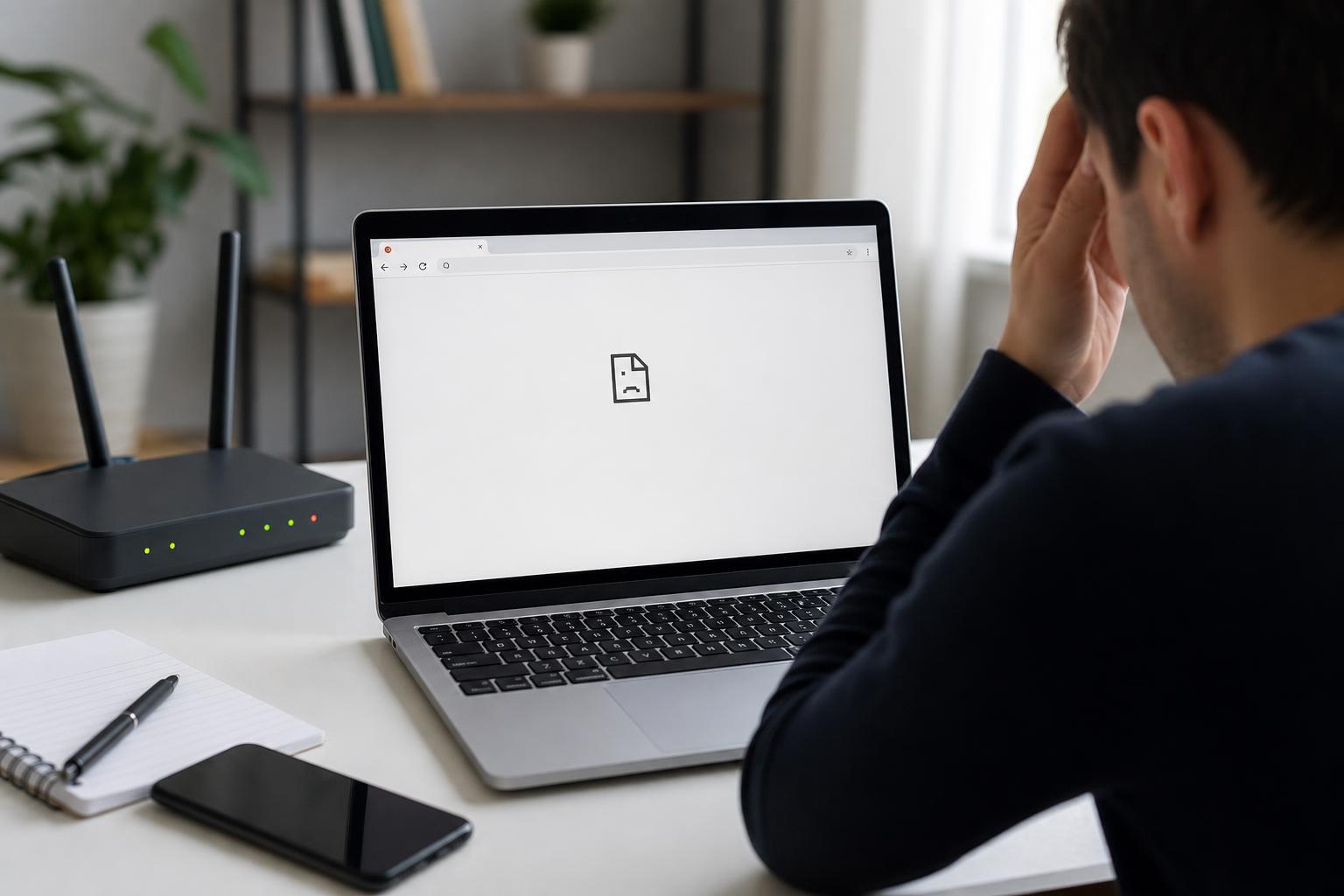
The “This site can’t be reached” message with “the connection was reset” usually means your browser started a connection to a website, but something interrupted it before the page could load. The cause can be a temporary network issue, a browser problem, a VPN or proxy conflict, or security software blocking the connection.
The fixes below start with the most common causes and move toward more advanced troubleshooting. You do not need to try every step if one of the earlier ones solves the problem.
1. Check Whether the Website Is Down for Everyone
Before changing settings on your PC, make sure the site itself is actually online. If the website is down, overloaded, or having certificate or server issues, the error can appear even if your connection is fine.
- Try opening a different website in the same browser.
- Check the site on your phone using mobile data instead of Wi-Fi.
- If you can, ask another person to test the same site from a different connection.
2. Refresh the Page and Try Again After a Short Wait
Sometimes the connection is reset because the server briefly dropped the connection or your network had a momentary interruption. Reloading the page can be enough if the problem is temporary.
- Press Ctrl + R or click the refresh button in your browser.
- If that fails, close the tab and open the site again.
- Wait a minute or two before trying again if the website seems busy or unstable.
3. Test Your Internet Connection
A weak or unstable internet connection is one of the most common reasons browsers show a reset connection error. If your connection is dropping packets or reconnecting repeatedly, the browser may lose contact with the site before the page loads.
- Open another website to see whether it loads normally.
- If possible, test the connection on another device using the same network.
- Switch between Wi-Fi and Ethernet if your PC supports both.
4. Restart Your Modem or Router
If several sites fail or the connection keeps resetting, restarting your network equipment can clear temporary faults in your router or modem.
- Turn off your modem and router.
- Unplug both devices from power for 30 seconds.
- Plug the modem back in first and wait until it fully reconnects.
- Plug in the router and wait for the wireless connection to return.
- Try the website again.
5. Disable VPN or Proxy Settings
VPNs and proxy servers can sometimes cause the connection to be reset if the remote server blocks them, the VPN server is unstable, or the proxy settings are incorrect.
- Turn off your VPN and try the site again.
- If you use a proxy, open your network settings and disable it temporarily.
- Test the page directly without any traffic filtering or tunneling software.
6. Clear Browser Cache and Cookies
Corrupted cache files or old cookies can interfere with how a site loads. Clearing them forces the browser to fetch fresh data from the website instead of reusing stored information that may be broken or outdated.
- Open your browser’s privacy or history settings.
- Clear cached images and files, and cookies for the affected site or for all sites if needed.
- Close the browser completely and open it again.
- Try loading the website again.
7. Open the Site in Another Browser
Trying a different browser helps separate a website problem from a browser-specific problem. If the site works in one browser but not another, the issue is likely tied to extensions, settings, or stored data in the failing browser.
- Test the site in Chrome, Edge, Firefox, or another browser you already have installed.
- If it works elsewhere, compare extension lists and privacy settings.
- Use the working browser temporarily while you troubleshoot the other one.
8. Disable Browser Extensions
Ad blockers, script blockers, privacy tools, coupon extensions, and security add-ons can interfere with page loading and sometimes trigger connection reset errors.
- Open the browser’s extensions menu.
- Disable all extensions temporarily.
- Reload the website.
- If the site works, re-enable extensions one at a time to find the one causing the issue.
9. Reset Browser Settings or Create a Fresh Profile
If the browser has become misconfigured, resetting settings can remove hidden problems without requiring a full Windows reset. A fresh browser profile is also useful when corrupted user data is the cause.
- Open the browser’s settings menu.
- Look for a reset option or create a new browser profile.
- Test the website in the clean profile before importing old settings.
- If needed, reset sync or sign-in settings only after the site works again.
10. Flush DNS and Renew the Network Connection
If your computer is using stale DNS information or a broken network lease, it may connect poorly to the site or fail to reach the correct server. Flushing DNS clears that old data and forces a fresh lookup.
- Open Command Prompt as an administrator.
- Run ipconfig /flushdns.
- Then run ipconfig /release followed by ipconfig /renew if you are on a network that supports renewing the address.
- Try the website again.
11. Temporarily Disable Antivirus Web Protection or Firewall Filtering
Some security suites include web protection, HTTPS scanning, or firewall filtering that can interrupt certain sites. If the browser shows a reset error only when security software is active, the protection layer may be the cause.
- Open your security software and look for web protection or HTTPS scanning settings.
- Temporarily disable the feature long enough to test the site.
- If the site loads, add an exception for the browser or the specific website.
- Turn protection back on after testing.
12. Check Hosts File, DNS Server, or Network Adapter Issues
If the error still happens after everything else, the problem may be deeper in your network configuration. A bad hosts file entry, unreliable DNS server, or malfunctioning adapter can break access to certain websites.
- Check whether the hosts file contains an entry for the site you are trying to visit.
- Switch to a different DNS server if your current one is unreliable.
- Update or reinstall the network adapter driver if connection problems affect many sites.
- If you recently changed network tools or security software, undo those changes and test again.
When the Problem Is on the Website’s Side
If the site fails for everyone, or only fails with one specific network while other sites work normally, the issue may be on the server side. In that case, you usually cannot fix it locally.
- Wait and try again later.
- Use a different network if the site is being blocked by your current connection.
- Contact the website owner or support team if the site is important and the issue continues.
Which Fix Should You Try First?
For most people, the best order is simple: confirm the site is online, test your connection, restart the router, disable VPN or proxy software, and clear browser cache or cookies. If the problem continues, move on to extensions, browser resets, DNS, and security software checks.
The key is to isolate whether the error comes from the website, your browser, or your network. Once you know which layer is failing, the solution is usually much easier to find.





