
The Samsung Galaxy Note 10+ has a versatile camera system, but getting better results takes more than just pointing and shooting. A few built-in settings and shooting habits can make a big difference in sharpness, exposure, color, and video quality.
These Samsung Note 10+ camera tips and tricks focus on practical ways to take cleaner photos, capture better low-light shots, use zoom more effectively, and make the most of features that are easy to miss.
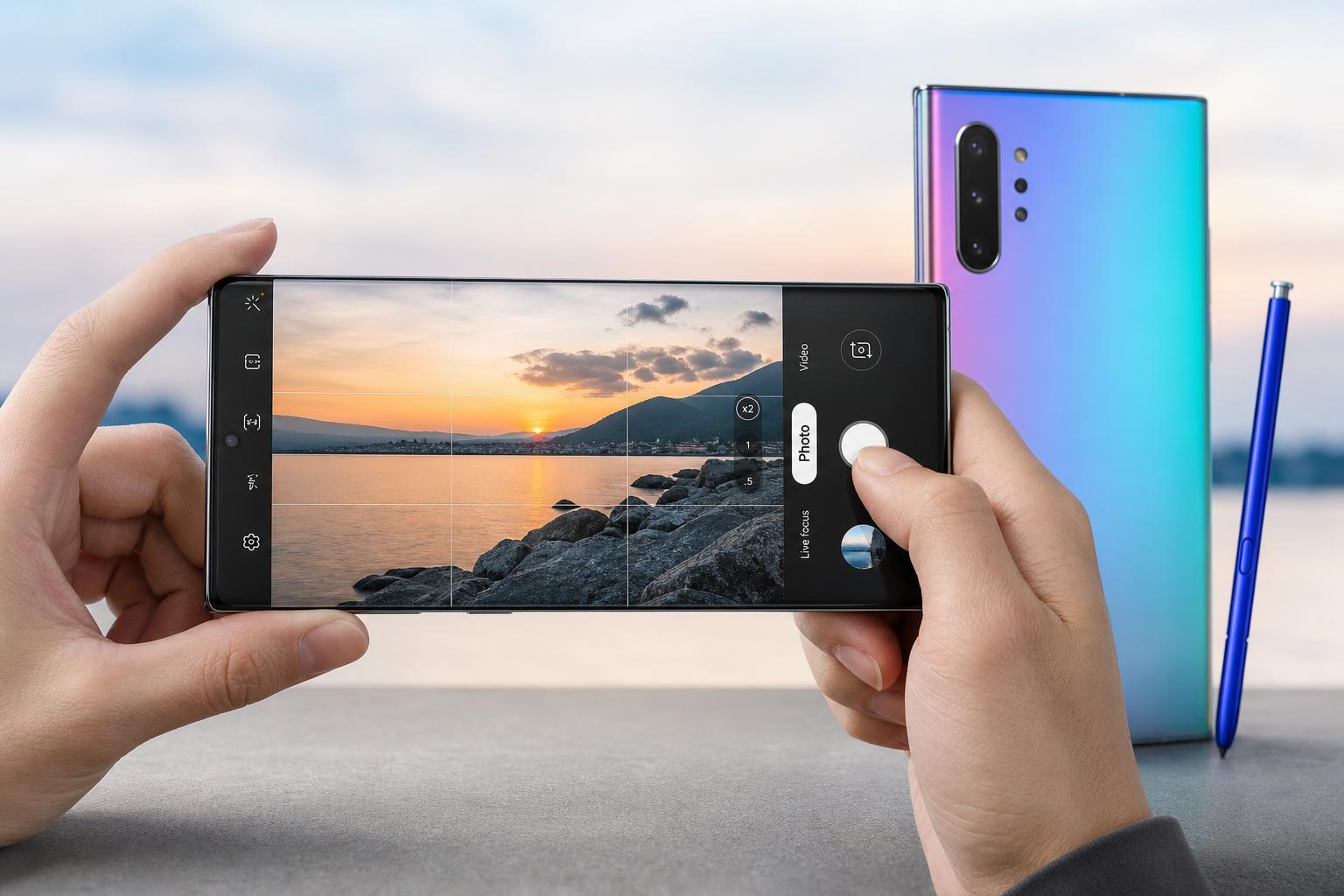
1. Use the Right Lens for the Scene
The Note 10+ gives you multiple rear cameras, and the best photo usually starts with choosing the right one. The standard wide camera is the safest choice for most situations, but the ultrawide and telephoto lenses can help when you need a different perspective.
- Use the wide camera for everyday shots, portraits, and general accuracy.
- Switch to ultrawide for landscapes, buildings, group photos, and tight spaces.
- Use the telephoto lens when you want to bring a subject closer without moving in physically.
2. Tap to Focus and Adjust Exposure Manually
Auto mode does a decent job, but tapping on your subject gives you more control over what the camera prioritizes. Once you tap, you can often drag the exposure slider up or down to brighten or darken the image.
- Open the Camera app and frame your subject.
- Tap the area you want in focus.
- Look for the exposure slider near the focus point.
- Drag it up to brighten the image or down to preserve highlights.
3. Turn on Grid Lines for Better Composition
Grid lines help you align subjects more cleanly and improve composition without guessing. They are especially useful for horizon lines, architecture, and centered portraits.
- Open the Camera app.
- Tap the settings gear.
- Find the composition or grid option.
- Enable the grid lines.
- Keep horizons level in landscape shots.
- Use the rule of thirds to place subjects more naturally.
- Make architecture and product shots look cleaner and more balanced.
4. Use Live Focus for Portraits with Better Background Blur
The Note 10+ can create portrait-style shots with background blur that draws attention to the subject. This works well for people, pets, and close-up objects when you want a more professional look.
- Keep some distance between the subject and the background for stronger blur.
- Make sure the subject is well lit.
- Watch the edges around hair, glasses, and hands to confirm the blur looks natural.
5. Learn When to Use Pro Mode
Pro mode is useful when the camera app's automatic settings are not giving you the result you want. It gives you control over ISO, shutter speed, white balance, focus, and exposure compensation.
- Open Camera and switch to Pro mode.
- Start by adjusting one setting at a time.
- Raise ISO only when necessary, because higher ISO can add noise.
- Use a slower shutter speed only when the phone is steady or mounted.
- Adjust white balance if the image looks too warm or too cool.
6. Improve Low-Light Photos with a Steady Hand
Low light is where many phone cameras struggle most, and the Note 10+ is no exception. The best results come from stabilizing the phone and avoiding unnecessary movement while the camera gathers light.
- Brace your elbows against your body or a solid surface.
- Hold the phone with both hands.
- Use a wall, table, or tripod when possible.
- Take several shots instead of relying on the first one.
7. Use Night Mode for Dark Scenes
Night mode is designed for scenes where the camera needs more time to collect light and reduce harsh noise. It can help with city lights, dim indoor spaces, and outdoor scenes after sunset.
- Use it when the scene is clearly too dark for normal auto mode.
- Keep the phone still while the shot is processing.
- Avoid moving subjects when possible, since they may blur.
8. Use 4K Video with the Right Stabilization Choice
The Note 10+ is capable of strong video capture, but your settings matter. Higher resolution is useful for detail, while stabilization helps keep handheld footage smooth.
- Use 4K when you want sharper footage or plan to crop later.
- Choose a lower resolution if you want smaller file sizes and easier sharing.
- Turn on stabilization for walking shots and handheld clips.
- Avoid digital zoom during video unless you really need it.
9. Clean the Lens Before Important Shots
This sounds simple, but it is one of the biggest reasons phone photos look dull or hazy. Fingerprints, dust, and pocket lint can soften details and create flare around lights.
- Use a soft microfiber cloth to wipe the camera glass gently.
- Check for smudges before taking photos outdoors or at night.
- Clean the lens again if highlights look cloudy or streaked.
10. Use Scene Optimization Carefully
Scene optimization can help the camera recognize what it is photographing and adjust color, contrast, and brightness automatically. It can improve everyday images, but it does not always make the most natural-looking result.
- Keep it on if you want easy, polished photos with minimal effort.
- Turn it off if colors look too vivid or processed.
- Test both settings for food, sunsets, and product shots to see which looks better.
Extra Tricks Worth Trying
A few smaller habits can make your Note 10+ photos look more polished without much effort.
- Use burst shots for moving subjects like kids, pets, or sports.
- Shoot from a lower angle to make people and objects look more intentional.
- Leave space around the subject so you can crop later if needed.
- Try different lighting angles instead of always shooting straight on.
What to Practice First
If you want the fastest improvement, start with focus, exposure, and lens choice. Those three habits affect most photos far more than fancy settings do. After that, learn Pro mode and night shooting for more advanced control.





