
Indenting paragraphs in Microsoft Word is useful when you want cleaner formatting, stronger structure, or a specific document style. Whether you are formatting an essay, report, letter, or business document, Word gives you several ways to move text inward without manually adding spaces.
In this guide, you will learn three reliable ways to indent a paragraph in Microsoft Word and when to use each method.
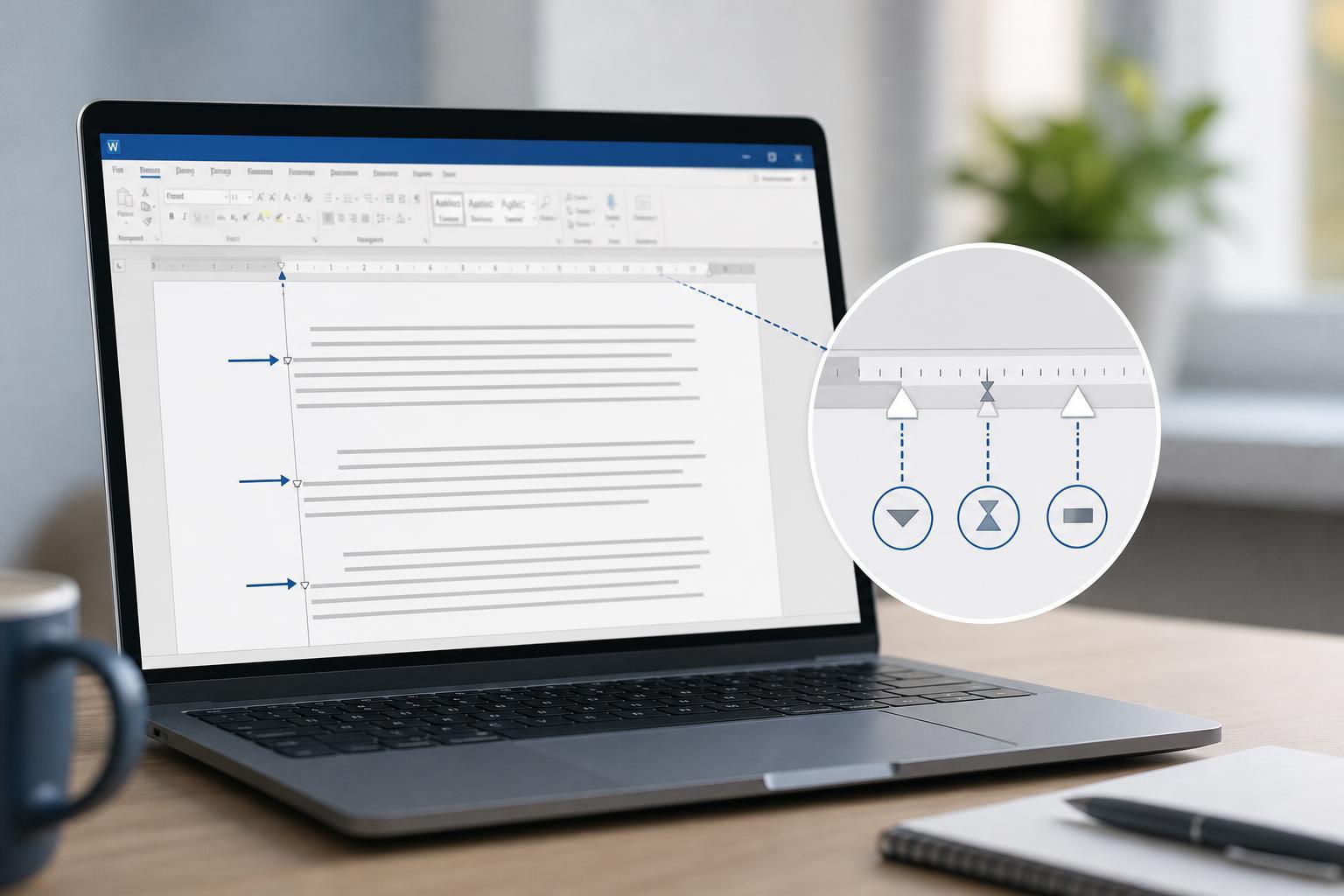
1. Use the Ruler for a Quick Visual Indent
The ruler is the fastest way to indent a paragraph if you want to see the change directly on the page. It is especially helpful for adjusting one paragraph or fine-tuning formatting by eye.
- Open your document in Microsoft Word.
- If the ruler is not visible, go to the View tab and check Ruler.
- Click anywhere inside the paragraph you want to indent.
- On the ruler, drag the first-line indent marker or the left indent marker to the position you want.
- Release the marker when the paragraph is indented correctly.
2. Use Paragraph Settings for Exact Indents
If you need precise formatting, use the Paragraph dialog box. This method is best when a document must follow a style guide, submission requirement, or professional layout standard.
- Select the paragraph you want to format.
- Right-click the selection and choose Paragraph, or open the Home tab and use the Paragraph dialog launcher.
- Under Indentation, look for Left, Right, and Special.
- Set Left for a full paragraph indent, or choose Special to create a First line or Hanging indent.
- Enter the measurement you want, then click OK.
3. Use the Tab Key for a First-Line Indent
Pressing the Tab key at the start of a paragraph is the quickest way to create a first-line indent in Word. This works well for simple documents, but it is not the best method for controlled formatting across a long document.
- Place the cursor at the beginning of the paragraph.
- Press Tab once.
- Word will move the first line to the right and keep the rest of the paragraph aligned normally.
Which Indent Method Should You Use?
The best method depends on what kind of indentation you need.
- Use the ruler if you want a fast, visual adjustment.
- Use Paragraph settings if you need exact measurements or consistent formatting.
- Use Tab if you only need a simple first-line indent in a short document.
Common Indent Types in Word
Word supports more than one kind of paragraph indent, and it helps to know the difference before formatting a document.
- First-line indent: only the first line of the paragraph starts farther to the right.
- Left indent: the entire paragraph moves in from the left margin.
- Right indent: the paragraph moves in from the right margin.
- Hanging indent: the first line stays at the margin while the rest of the paragraph is indented.
If the Indent Does Not Look Right
If your paragraph indent seems wrong, check whether the paragraph has existing formatting applied. Styles, copied text, and mixed formatting can sometimes override what you just set.
- Make sure you selected the correct paragraph.
- Check whether the paragraph already has a style with preset indentation.
- Look for both the ruler markers and the Paragraph settings if the indent seems inconsistent.
- If needed, clear formatting and apply the indent again.
A Simple Rule to Remember
Use the ruler for speed, the Paragraph dialog for precision, and the Tab key for quick first-line indents. Once you know these three methods, you can format most Word documents without guessing or relying on extra spaces.





