
Windows Calculator is good for quick sums, but it is not always the best tool for every job. If you need scientific functions, unit conversions, better history tracking, programmable features, or a more flexible interface, a different calculator app may save time and reduce mistakes.
This guide covers the best kinds of Windows Calculator alternatives, the built-in tips that make the default app more useful, and a few extension-style tools that can fill the gaps when you need more than the standard calculator offers.
When the Built-In Windows Calculator Is Enough
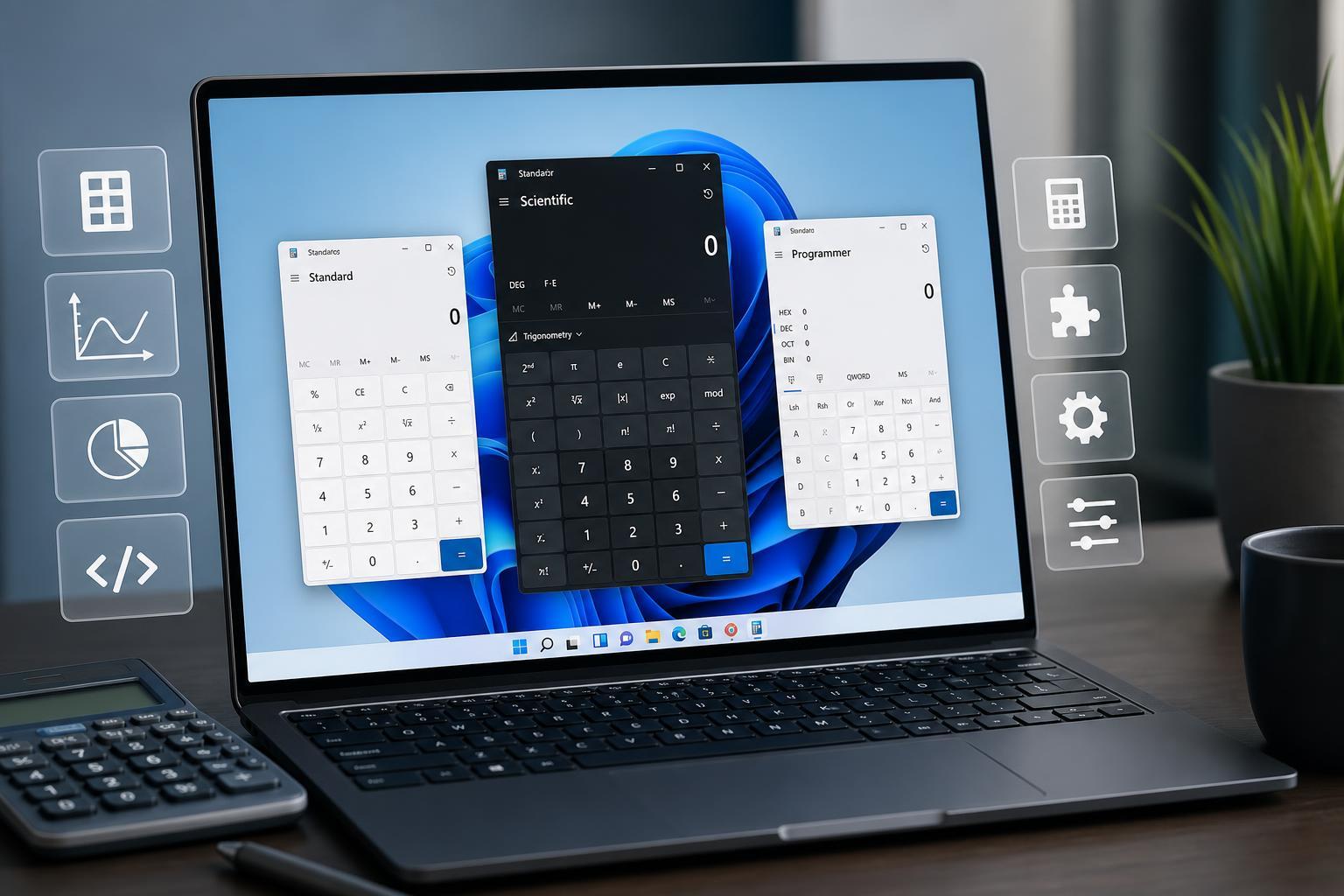
Before switching apps, it helps to know what Windows Calculator already does well. The standard app is usually enough for simple arithmetic, percentage calculations, scientific math, date calculations, and unit conversion. It also includes a history panel, programmer mode, and a compact always-on-top-style view that can be useful while working in other apps.
Best Windows Calculator Alternatives to Consider
The best alternative depends on what you actually want to do. Some apps are better for students, some for engineers, and some for people who want a clean, fast replacement with more convenience features than the default app.
- A scientific calculator app if you need trig, logs, powers, and advanced parentheses handling
- A programmer calculator if you work with binary, hex, bitwise operators, or memory addresses
- A graphing calculator if you want to plot equations visually
- A unit conversion tool if you switch often between metric and imperial values
- A lightweight floating calculator if you want something faster and less cluttered than the default app
Microsoft PowerToys Run Calculator
If you want the fastest possible way to do quick calculations without opening a full app, PowerToys Run is worth a look. It is not a traditional calculator replacement, but it can evaluate simple expressions directly from the launcher. That makes it useful for everyday work when you just want a result immediately.
Microsoft Math Solver
Microsoft Math Solver is a better fit when you are dealing with school-style problems rather than just raw number crunching. It can help with equations, fractions, algebra, and some step-by-step learning tasks. If your main goal is understanding how to solve a problem, not just getting the answer, it is more useful than a standard calculator.
Calculator Apps for Scientific and Engineering Work
If you frequently use functions like sine, cosine, tangent, logarithms, exponentials, or statistical calculations, a dedicated scientific calculator app can be easier to use than Windows Calculator. Many third-party apps also offer better display options, larger keypads, and more flexible notation handling.
- Scientific calculator interfaces that keep advanced functions visible instead of hidden behind mode changes
- Engineering-focused calculators that support constants, unit-aware input, and precision work
- Calculator apps with expression history so you can review previous results more easily
- Apps that let you copy formatted results directly into documents or spreadsheets
Programmer Calculator Alternatives
For developers, IT admins, and hardware enthusiasts, a programmer calculator is often more useful than a general-purpose one. These tools make it easier to work with binary, octal, decimal, and hexadecimal values, and they usually include bitwise operations, shifts, and masking.
Windows Calculator already has a Programmer mode, but some alternative apps make long values, bit grouping, and clipboard handling easier to manage. That can be helpful when dealing with registers, memory addresses, permissions, or low-level troubleshooting.
Graphing Calculators for Visual Problem Solving
If you need to see how an equation behaves rather than simply compute a value, a graphing calculator is the right tool. These apps help you visualize intersections, slopes, curves, and transformations, which can make math much easier to understand.
A graphing calculator is not necessary for quick daily calculations, but it becomes valuable when you are studying functions or checking how changes to a variable affect the result.
Useful Built-In Windows Calculator Tips
Even if you keep the default app, a few habits can make it much more efficient.
- Use the correct mode first. Switch between Standard, Scientific, Programmer, and Date Calculation before you start, instead of trying to force one mode to do everything.
- Open the history panel when checking a chain of calculations. This helps you catch an incorrect intermediate step before it causes a bigger error.
- Keep the calculator pinned or floating if you are entering numbers into another app. That reduces window switching and helps when comparing values side by side.
- Use the memory keys for repeated values. This is especially useful for tax, markup, measurements, or formulas that reuse the same constant.
- Check unit conversions carefully. Conversion tools are convenient, but the accuracy still depends on choosing the correct unit category and input value.
Handy Extensions and Add-Ons
Some users do not need a new calculator app at all. They just need a small tool that extends the default workflow. These extensions usually appear as launcher plugins, browser add-ons, floating widgets, or productivity tools that can calculate inline.
- Launcher plugins that let you type a math expression and get the result instantly
- Clipboard helpers that store copied values and make repeated paste operations easier
- Browser-based calculators for users who work mostly in web apps and want quick access without installing software
- Floating desktop widgets that keep a calculator visible while you work in another program
How to Choose the Right Alternative
The best option is the one that matches your most common task. A flashy app with dozens of features is not useful if you only need quick arithmetic. On the other hand, a simple calculator will feel limiting if you regularly handle formulas, graphs, or binary data.
- Choose a scientific calculator if you need advanced functions most days
- Choose a programmer calculator if you work with code, hardware, or low-level values
- Choose a graphing calculator if you are learning or teaching math visually
- Choose a launcher-based tool if speed matters more than a full interface
- Choose a unit conversion app if measurements are your biggest pain point
Common Mistakes to Avoid
Calculator problems are often caused by the wrong tool or the wrong mode rather than a broken app.
- Using scientific mode when you only need a simple answer, which can slow you down
- Forgetting that some calculators use degrees while others use radians
- Assuming every app formats decimals the same way
- Relying on a mobile-style app that hides advanced functions too aggressively
- Copying results without checking whether the app rounded the value
Choosing the Best Setup for Your Work
For most Windows users, the smartest setup is not replacing the calculator completely. It is combining the built-in app with one or two tools that match specific tasks. That way you keep the simplicity of Windows Calculator for routine use and add specialized tools only when they solve a real problem.
A Practical Starting Point
If you are not sure where to begin, start with this approach: use Windows Calculator for everyday arithmetic, add a launcher-based calculator for instant expression entry, and install a dedicated scientific, programmer, or graphing app only if you regularly need that kind of work. That gives you speed without clutter and flexibility without unnecessary complexity.





