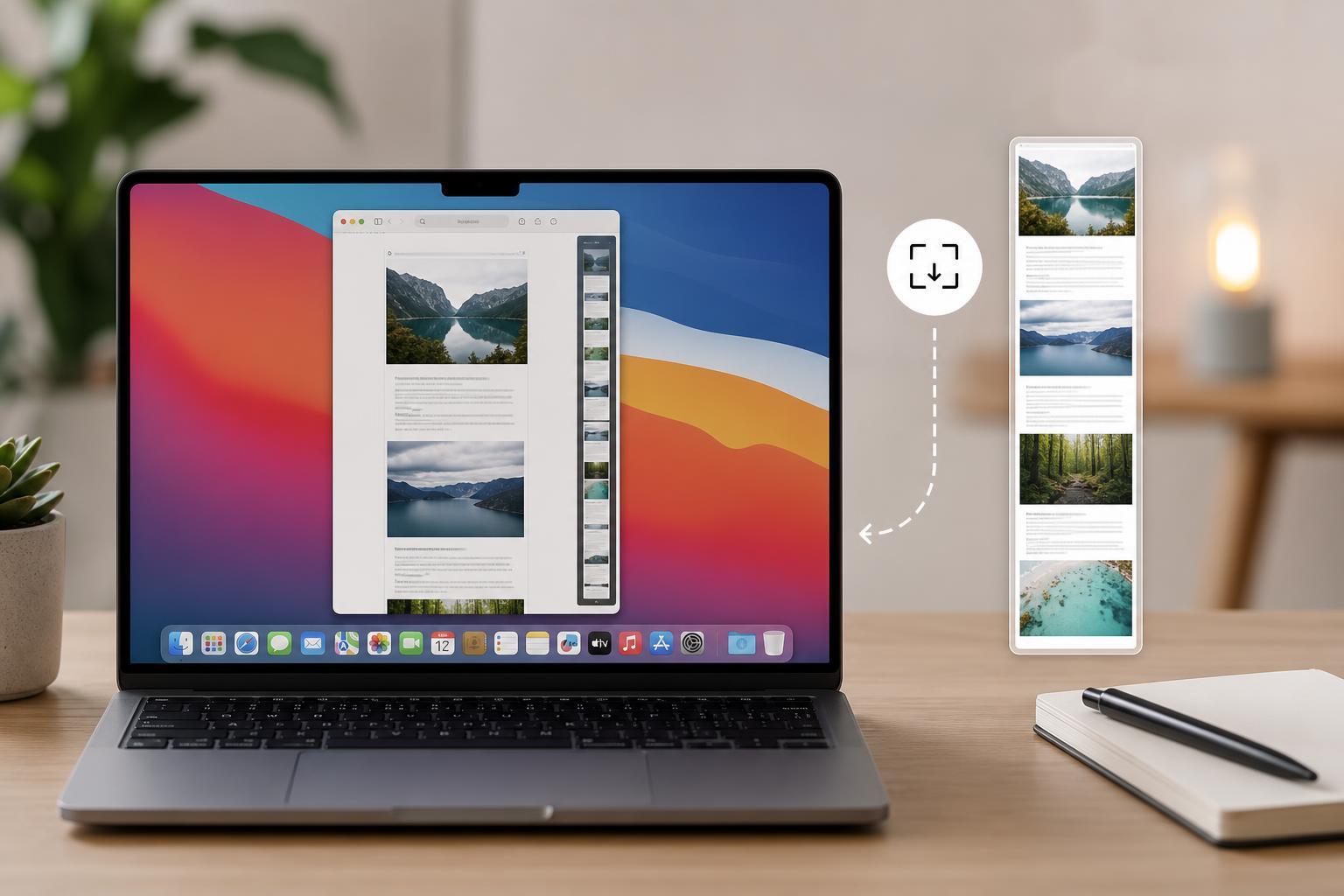
macOS does not include a universal built-in tool for capturing every kind of scrolling screenshot, but there are still several reliable ways to capture long webpages, chat threads, documents, and app windows. The best method depends on what you want to save and whether you need a simple image, a PDF, or a precise full-page capture.
This guide covers the most practical options on Mac, from browser-based full-page captures to dedicated screenshot apps, along with the limits of each method so you can choose the right one quickly.
The Easiest Built-In Option: Full-Page Browser Capture
If the content you want is in Safari, Chrome, or another modern browser, the simplest option is often the browser’s own full-page capture or save feature. This works especially well for webpages because the browser understands the full document, including content below the visible screen.
- Safari can save a webpage as a PDF, which is often the cleanest way to preserve a full article or reference page.
- Chrome and Edge can capture a full page through their developer tools or built-in screenshot options depending on the version.
- Browser-based captures usually preserve layout better than stitching multiple screenshots together manually.
Use Safari to Save a Page as a PDF
If your goal is to keep the entire page for later reading, saving it as a PDF is often better than making an image screenshot. PDFs are easier to search, print, and share, and they preserve text more cleanly.
- Open the webpage in Safari.
- Choose File from the menu bar.
- Select Export as PDF or use the Print dialog and save as PDF.
- Choose a file name and location, then save it.
Capture a Scrolling Page in Chrome or Edge
Chrome-based browsers can be a good choice if you want a true visual capture of a webpage rather than a PDF. In many cases, the browser’s developer tools or built-in page capture features can save the entire visible page in one file.
- Open the page in Chrome or Edge.
- Open the browser menu and look for a screenshot, capture, or developer tools option.
- If using developer tools, open the command menu and search for a full-page capture command.
- Save the resulting image to your Mac.
When a Third-Party App Is the Best Choice
For app windows, chat histories, long documents, and webpages that do not capture cleanly in a browser, a third-party scrolling screenshot app is usually the most reliable solution. These tools are designed to stitch multiple screen regions together automatically.
- Clean stitching of long vertical content
- Better support for non-browser windows
- More control over image format and output size
- Often includes annotation tools after capture
What to Look for in a Scrolling Screenshot App
Not all screenshot apps handle scrolling content equally well. Some are better at webpages, while others can capture inside applications like Notes, Mail, Slack, or Finder windows.
- Automatic scrolling capture without manual stitching
- Support for full windows, selected areas, and entire pages
- Ability to pause or fine-tune capture if the app scrolls too fast
- Export to PNG, JPG, or PDF depending on your needs
- Annotation tools for cropping, highlighting, or blurring sensitive information
Use macOS Screenshot Tools for Visible Content Only
The built-in macOS screenshot shortcuts are useful, but they only capture what is visible on the screen. They are not true scrolling screenshot tools. Even so, they are still helpful when you only need part of a long page or want to capture a section before using another method for the rest.
- Press Shift + Command + 3 to capture the full screen.
- Press Shift + Command + 4 to select part of the screen.
- Press Shift + Command + 5 to open the screenshot toolbar for more control over screen recording and capture options.
Best Method by Situation
Choosing the right method depends on the source of the content and how you plan to use the result.
- Webpage you want to archive or print: save as PDF in Safari or use the browser’s full-page capture.
- Webpage you want as an image: use a browser full-page capture or a dedicated capture extension/app.
- Chat thread or app window: use a third-party scrolling screenshot tool.
- Short section of a long page: use the built-in macOS screenshot shortcuts.
- Need to show movement or dynamic content: use screen recording instead of a screenshot.
Common Problems and Limits
Scrolling screenshots can be tricky because many pages are not built for static capture. Sticky menus, pop-up dialogs, animations, and endlessly loading feeds can cause repeated sections or missing content in the final image.
- Sticky headers may appear multiple times in the stitched result.
- Lazy-loaded sections may not appear unless you scroll to trigger them first.
- Some apps redraw content during scrolling, which can create blur or alignment issues.
- Password dialogs, video players, and protected content may block capture entirely.
Choosing the Right Approach
If you only need a readable copy of a webpage, a PDF is often the simplest answer. If you need a true image, use a browser full-page capture first. If the content is inside an app or browser capture does not work properly, switch to a dedicated scrolling screenshot app.
A Practical Workflow That Works Well
- Decide whether you need a PDF, an image, or a record of movement.
- Try the browser’s built-in full-page capture if the content is a webpage.
- Use macOS screenshot shortcuts only for the visible area you actually need.
- Switch to a dedicated scrolling screenshot app for long app windows or stubborn pages.
- Review the capture for repeated headers, missing sections, or blurred text before saving or sharing it.