
Google Pixel Motion Photos capture a short burst of video and audio around a still photo, giving you a live moment instead of a single frame. Sharing them is easy, but the motion effect does not always survive when you send them through every app or service.
This guide explains how to share Motion Photos from a Pixel, how to keep the motion effect when possible, and what to do if the recipient only sees a still image.
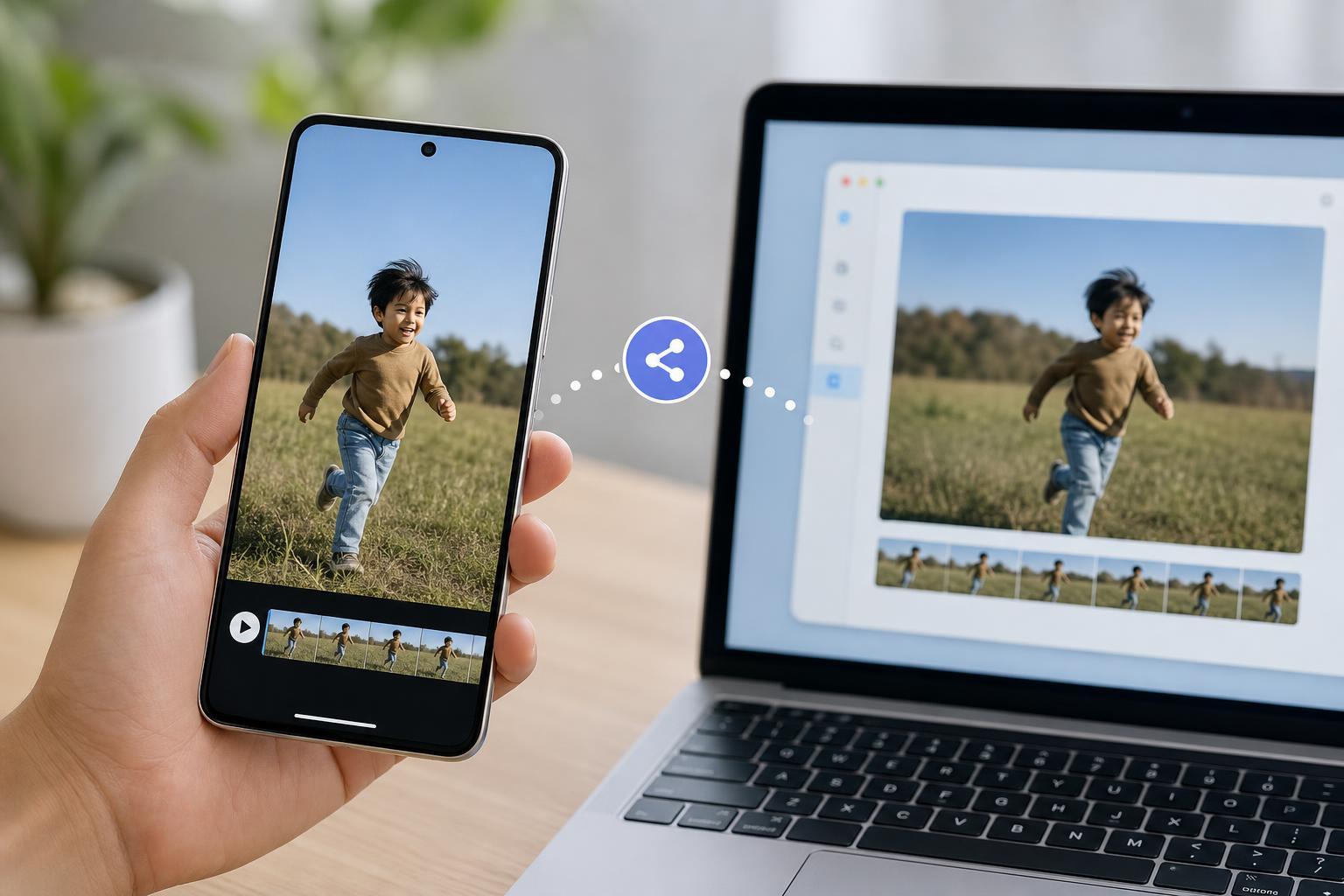
What a Motion Photo Actually Is
On Google Pixel phones, a Motion Photo is basically a regular photo with a short video clip attached. When you view it in Google Photos, you can usually press and hold or tap the motion control to see the few seconds before and after the shutter moment.
How to Share a Motion Photo on Your Pixel
- Open Google Photos and select the Motion Photo you want to share.
- Tap the Share button.
- Choose the app or contact you want to send it to.
- If the app asks whether to send the original file or a converted version, choose the option that keeps the original file when available.
- Send the item and check how the receiving app previews it.
If you share directly from Google Photos, the app often preserves the Motion Photo better than sharing from a gallery app that exports only a flattened still image.
Best Ways to Keep the Motion Effect
- Use Google Photos sharing links when you want the recipient to view the item in a browser or in Google Photos.
- Share through messaging apps that support short video-like attachments or original media files.
- Avoid apps that automatically compress images heavily or strip extra metadata.
- If possible, send the file as the original photo rather than as an edited or exported copy.
Which Sharing Methods Work Best
If the Motion Photo Arrives as a Still Image
If the other person only sees a still photo, the app or service probably converted the Motion Photo during upload or sending. This is common when the destination does not support Motion Photos directly.
- Try sharing the same image through Google Photos instead of a different gallery app.
- Send it as the original file if your app offers that choice.
- Use a cloud link or shared album instead of a compressed image attachment.
- Check whether the recipient is opening the file in an app that supports motion playback.
Sharing to iPhone and Other Non-Pixel Devices
When you send a Motion Photo to an iPhone or a device that does not recognize Google’s Motion Photo format, the receiver may only see a still image unless the file is shared in a compatible way. In many cases, the safest option is to use a Google Photos link or convert the moment to a video if you need the motion guaranteed.
When You Should Convert It to Video Instead
If you need the movement to be seen exactly as intended, converting the Motion Photo to a short video is often the most reliable option. A video file is much more widely supported than a Motion Photo and is less likely to lose its motion during sharing.
- Sharing on social media platforms that favor video uploads
- Sending to people who do not use Google Photos
- Posting in chats where motion support is inconsistent
- Archiving a moment in a format that plays everywhere
A Simple Rule to Remember
If you want the motion effect preserved, share through Google Photos or another method that keeps the original file intact. If you want the recipient to see the moment everywhere without compatibility issues, convert the Motion Photo to a regular video first.





