
If you want to use a Live Photo on Android, the main challenge is that Android phones do not all handle Apple’s Live Photo format the same way. Depending on the app, phone, or file type, you may be able to save it as a short video, convert it to a GIF, or simply export the motion clip that comes with it.
This guide shows the easiest ways to turn a Live Photo into a format Android can use more widely, along with a few important limitations to keep in mind.
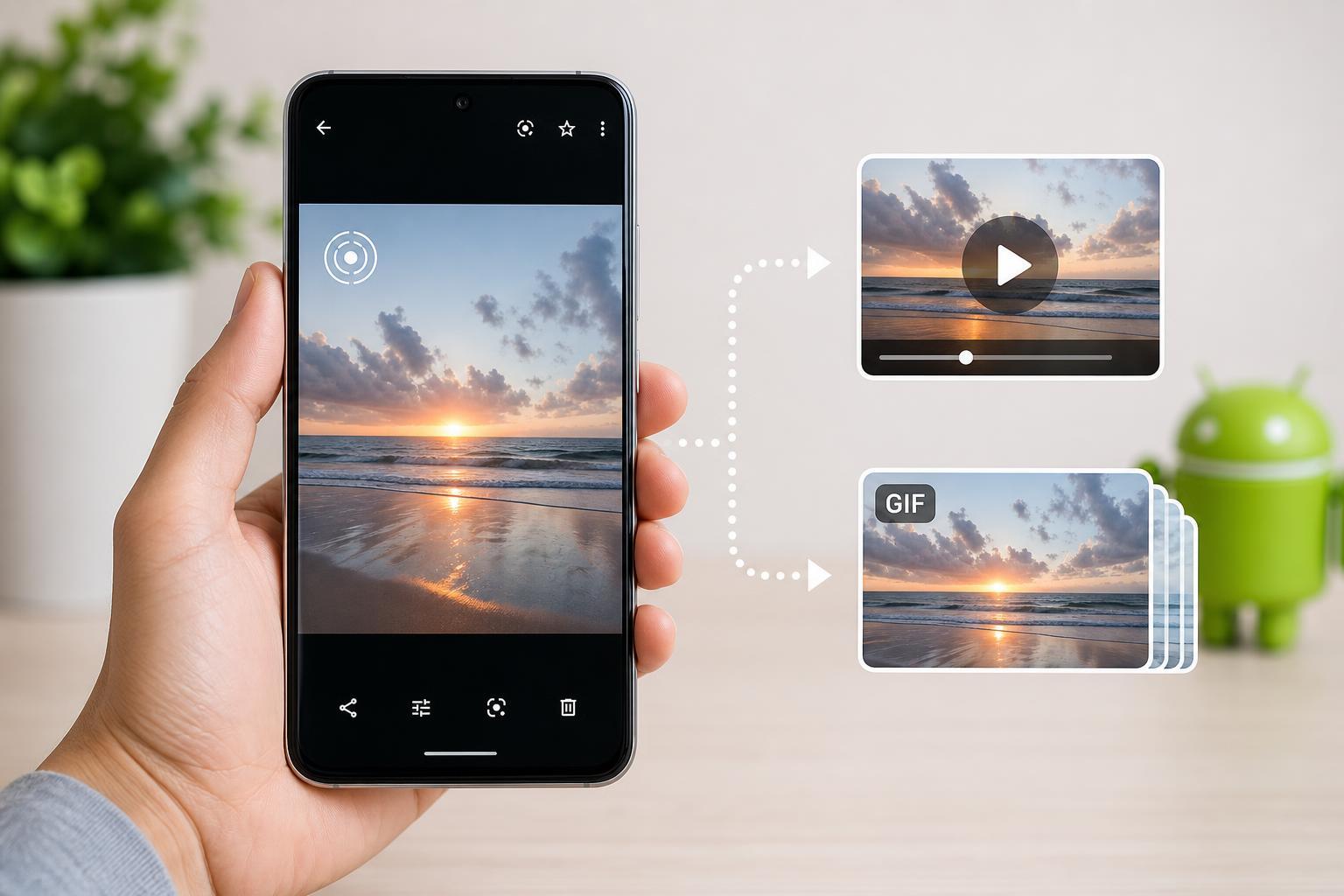
What a Live Photo Actually Is
A Live Photo is usually a still image with a few seconds of motion and sound attached. On Apple devices, it is stored as a photo plus a short video component. That is why many Android apps do not treat it like a normal image.
The Easiest Ways to Save It on Android
The exact method depends on how you received the Live Photo. If it is already in your Android gallery, or if it came through a messaging app or cloud storage, you may be able to export it directly. If not, you may need a conversion app.
- Open the Live Photo in your gallery or file manager.
- Look for a menu such as Share, Export, Save as, or More options.
- Check whether the app offers Save as video, Extract video, or Convert to GIF.
- Choose the format you want and save the new file to your phone storage.
- Open the result in your gallery or video player to confirm that it saved correctly.
If Your Gallery App Can Export It as Video
Some Android gallery apps can detect the motion part and convert it into an MP4 video. This is the best option if you want a smooth result and easy sharing on social apps.
- Open the Live Photo in your gallery app.
- Tap the three-dot menu or the share/export button.
- Look for an option like Convert to video or Save video.
- Choose where to save the file.
- Check the saved video in your gallery, Files app, or video player.
Using an App to Turn It into a GIF
If your Android gallery does not offer conversion tools, use a media converter app from the Play Store. Look for one that can import short video clips and export GIFs without adding a big watermark.
- Install a trusted video-to-GIF or Live Photo converter app.
- Import the Live Photo or the motion clip it contains.
- Trim the clip if the app allows it, since GIFs work best when they are short.
- Choose GIF as the output format.
- Save the file and test it in your gallery or messaging app.
What to Do If the Live Photo Arrived Through Messages
Messaging apps sometimes change the file before it reaches your phone. In some cases, they send only a still image. In other cases, they keep the motion but store it in their own format.
- If you received it in WhatsApp, Telegram, or a similar app, open the media options and look for save, export, or download.
- If the app lets you save the original file, do that before trying to convert it.
- If the message only contains a still image, the motion portion may not be recoverable.
- If possible, ask the sender to resend the original file instead of a compressed preview.
Using Google Photos or Another Cloud Gallery
If the Live Photo was uploaded to a cloud service, open it there first. Some services preserve motion better than local gallery apps and may offer a built-in way to save or export the clip.
- Open the photo in the cloud app.
- Check for motion playback.
- Use the menu to look for Save to device, Export, or Download.
- If available, download the original file rather than a compressed copy.
- Convert it afterward if you want a GIF.
How to Choose Between Video and GIF
If you are unsure which format to use, think about where the file will be shared and what matters most.
- Choose video if you want better quality, smaller file size, or sound.
- Choose GIF if you want automatic looping and very broad compatibility.
- Choose video if the clip is longer than a couple of seconds.
- Choose GIF if you only need a short reaction-style animation.
If Nothing Works
If your Android phone cannot save the Live Photo directly, the original file may need to be converted on another device first. You can use a computer, a web converter, or the sender’s iPhone to export it as video before transferring it to Android.
- Use the original iPhone or iPad to save the Live Photo as a video.
- Transfer the exported video to Android with USB, cloud storage, or a messaging app.
- Use an Android video-to-GIF app only after the file has been exported properly.
- Avoid random online converters if the photo is private or sensitive.
Quick Troubleshooting Tips
- If the result is just a still image, the motion data was probably removed before conversion.
- If the file will not open, check whether it was saved in a format your gallery app supports.
- If the GIF looks choppy, shorten the clip or convert it to video instead.
- If the saved file is missing, check the Downloads folder, DCIM folder, or the app’s own export folder.
Best Format for Most Android Users
For most people, saving a Live Photo as a video is the safest and most useful option on Android. It keeps better quality, works in more apps, and is less likely to lose the motion data during conversion. Use GIF only when you specifically want a looping animation and do not care about sound or file quality.





