
If Outlook keeps opening in your browser instead of the desktop app, the cause is usually a link setting, a browser preference, or an account configured to use Outlook on the web. In many cases, you can switch it back without reinstalling anything.
This guide walks through the most likely reasons Outlook opens in the browser and the practical fixes to get email, calendar links, and Office shortcuts opening in the desktop app again.
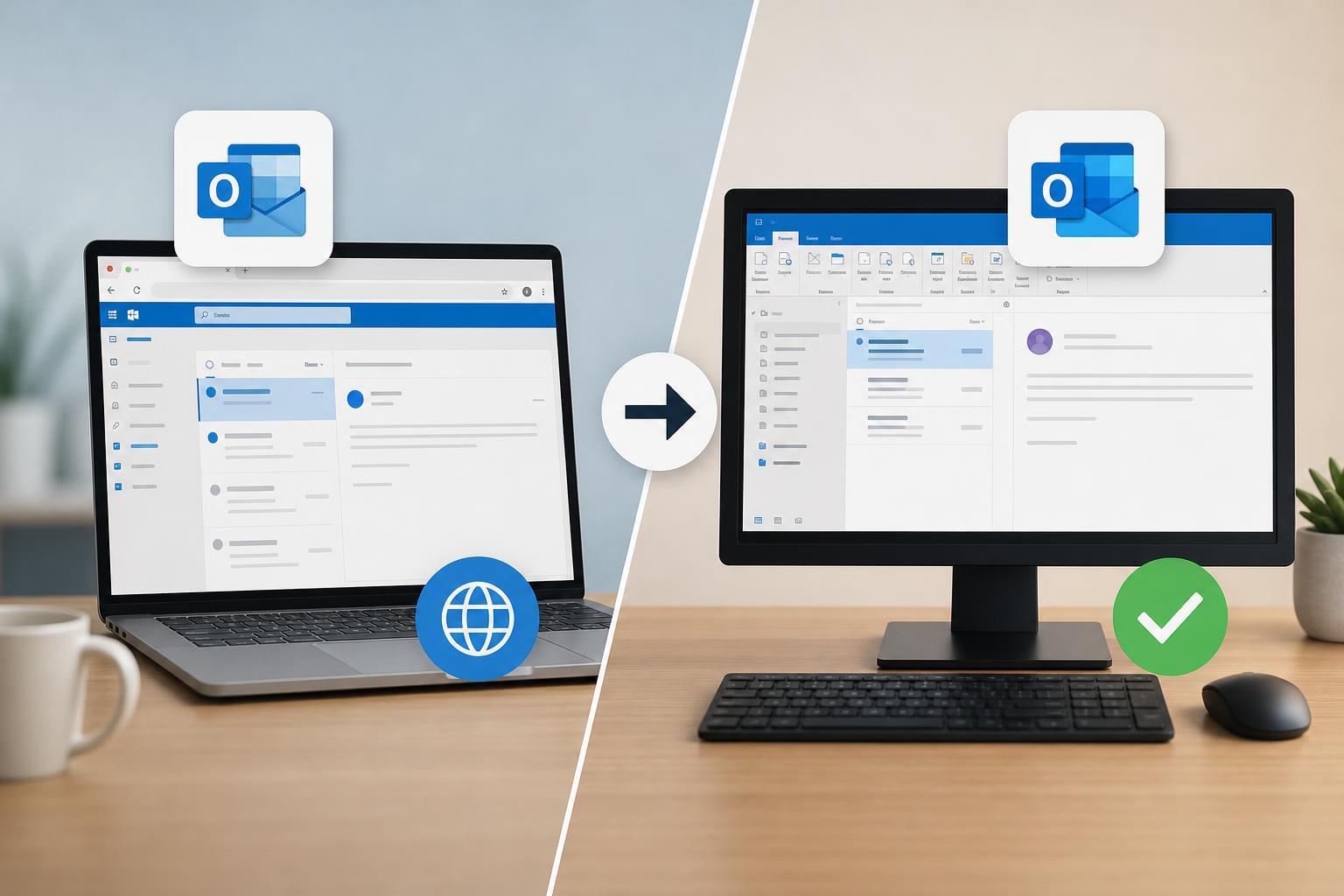
Check Whether You’re Using Outlook on the Web
First, make sure the behavior is actually a problem and not just a shortcut that was designed to open in the browser. If you click an email link from a website or an old bookmark, it may be set to open Outlook on the web rather than the desktop app.
Set Outlook as the Default Mail App in Windows
If Windows is sending mail links to the browser, the desktop app may not be set as the default mail handler.
- Open Windows Settings.
- Go to Apps, then Default apps.
- Search for Outlook in the list of apps.
- Set Outlook as the default for email-related actions if available.
- Check that mailto links are assigned to Outlook rather than your browser.
Change the Browser’s Link Handling Settings
Some browsers can be configured to open Microsoft 365 or Outlook links in the browser by default. If that is enabled, the browser may keep taking over even when Outlook is installed.
- Check the browser settings for site permissions, protocol handlers, or Microsoft 365 link handling.
- Look for options related to opening Outlook links in the browser or allowing Outlook to open external links.
- If you use Microsoft Edge, review its settings for links and apps that can be opened externally.
- If your browser offers a prompt asking whether to open Outlook in the app, choose the option to always allow it.
Turn Off Outlook on the Web’s Browser Preference
If Outlook web itself is opening every time you sign in, it may be because your account or Microsoft 365 page is using the web experience by default. In some cases, web Outlook offers a setting that affects how links and attachments behave while you’re signed in.
- In Outlook on the web, open Settings.
- Look for mail or integration options related to opening files, links, or the desktop app.
- If you see an option to open Outlook or Office files in the desktop app, enable it.
- Save the setting and test an email link again.
Check Your Microsoft Account Sign-In
Sometimes Outlook opens in the browser because the desktop app is not signed in correctly, or because the account is only set up in the web version. If Outlook desktop is installed but not connected to your mailbox, Windows may fall back to the browser.
- Open the Outlook desktop app directly from the Start menu.
- Confirm that your email account appears in Outlook and is syncing.
- If prompted, sign in with the same Microsoft account you use in the browser.
- If the account is missing, add it in Outlook’s account settings.
Repair the Outlook Desktop App
If Outlook is installed correctly but still does not launch when it should, the app itself may be damaged or misconfigured. A repair can restore file associations and integration with Windows.
- Open Settings in Windows.
- Go to Apps, then Installed apps or Apps & features.
- Find Microsoft 365 or Outlook.
- Choose Modify or Advanced options, then run a Quick Repair first.
- If the issue continues, try Online Repair if available.
Remove Conflicting Mail or Office Apps
If you have multiple email clients installed, they can compete for the same mailto links and Office file associations. This is especially common after installing a new browser, a new Office suite, or a third-party email app.
- Uninstall or disable mail apps you no longer use.
- Check whether another app is set as the default email handler.
- Review file associations for .ics, .eml, and mailto links if those open in the wrong app.
- After changing defaults, test an email link from a browser or document.
Check Group Policy or Work Account Restrictions
If this is a work or school computer, your organization may control whether Outlook links open in the browser or the desktop app. In that case, local changes may not stick.
- The browser keeps reopening Outlook even after you change defaults.
- Settings revert after you sign out or restart the app.
- The system is managed by your organization.
- You are using a work or school Microsoft 365 account.
If one of these applies, contact your IT administrator. A policy may be forcing browser-based Outlook for security or management reasons.
Test the Fix with a Mailto Link
After making changes, test with a simple mailto link rather than relying on Outlook itself. Open a browser or document that contains an email address link and click it.
- Click an email address link such as someone@example.com.
- Watch whether Windows asks what app to use or opens Outlook directly.
- If the browser still opens, recheck the default app and browser protocol settings.
- If Outlook opens correctly, the fix worked.
If Outlook Still Opens in the Browser
If none of the above fixes work, the remaining cause is usually one of these:
- The browser is still set to handle Outlook or mailto links.
- The Outlook desktop app is not fully installed or not repaired.
- A work policy is overriding your settings.
- You are opening Outlook web links, not standard email links.
At that point, reinstalling Microsoft 365 or re-adding your account in Outlook may help. If the issue affects only one browser, try a different browser to confirm whether the problem is browser-specific.
What Fix Should You Try First?
Start with the easiest checks: set Outlook as the default mail app, review your browser’s link handling, and make sure the desktop app is properly signed in. Those steps solve most cases where Outlook opens in the browser instead of the app.
If the problem happens on a managed work computer, policy restrictions may be the real cause, so your IT team may need to change the setting for you.





