
Mouse Without Borders is a handy tool for controlling multiple Windows PCs with one mouse and keyboard, but it can stop working for a few different reasons. The problem may be caused by network issues, firewall blocks, mismatched settings, or a broken connection between the computers.
This guide walks through the most effective fixes in a sensible order, starting with the most common causes and moving to deeper troubleshooting if needed.
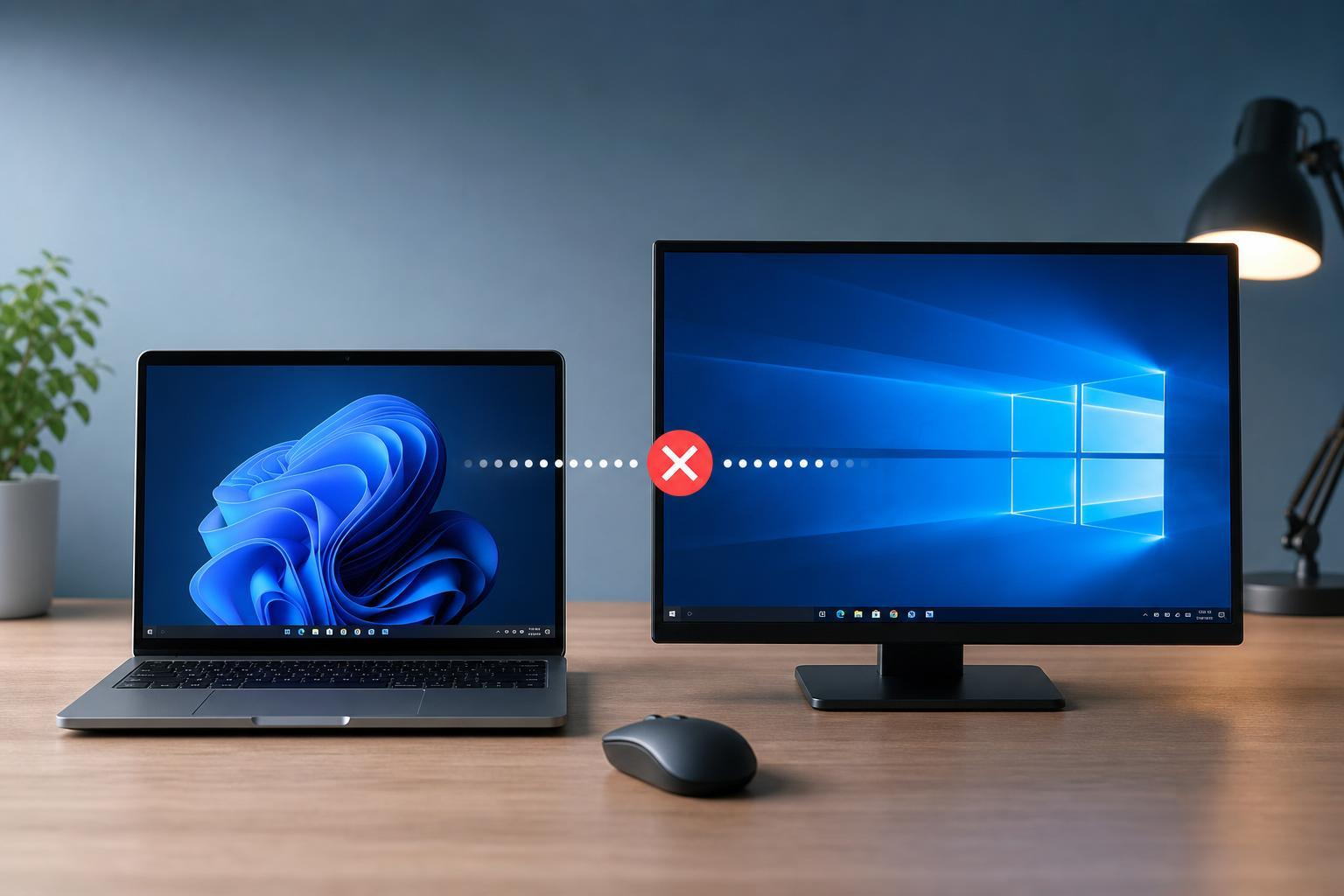
1. Make Sure Both PCs Are on the Same Network
Mouse Without Borders works best when both computers are connected to the same local network. If one PC is on Wi-Fi and the other is on a different network, or one is using a guest network, the software may fail to find the other machine.
- Confirm both PCs are connected to the same router or access point.
- Avoid guest Wi-Fi networks, which often block device-to-device communication.
- If possible, test with both PCs connected to the same network band, such as both on the main 5 GHz network or both on the same wired LAN.
2. Check the Mouse Without Borders Status on Both Computers
If the app is installed on both PCs but only one side is connected, the problem may be a pairing issue rather than a software crash. Open Mouse Without Borders on each machine and check whether the connection status shows that the partner computer is linked.
- Open Mouse Without Borders on both PCs.
- Verify that the security code and computer name are entered correctly.
- Check whether each computer shows the other in the connected list.
- If the pairing looks incomplete, remove the current setup and pair the computers again.
3. Allow Mouse Without Borders Through the Firewall
Windows Defender Firewall or a third-party security suite can block the traffic Mouse Without Borders needs to communicate between PCs. This is one of the most common reasons the program suddenly stops working after it was previously fine.
- Open Windows Security or your antivirus/firewall app.
- Look for a section that allows apps through the firewall.
- Make sure Mouse Without Borders is allowed on private networks.
- If you use a third-party security suite, create a rule that allows the app on your local network.
4. Run Mouse Without Borders as Administrator
If one PC is running the app with elevated permissions and the other is not, or if the app cannot access the input hooks it needs, Mouse Without Borders may fail to switch control properly. Running it as administrator can help in those cases.
- Close Mouse Without Borders on both PCs.
- Right-click the Mouse Without Borders shortcut.
- Select Run as administrator.
- If that fixes the problem, consider setting it to always run with elevated permissions on both machines.
5. Reinstall or Update Mouse Without Borders
An outdated or corrupted installation can cause pairing errors, connection failures, or unstable behavior. Reinstalling gives you a clean copy of the program, and updating can fix compatibility problems with newer versions of Windows.
- Uninstall Mouse Without Borders from both PCs.
- Download the latest version from a trusted Microsoft source.
- Install it again on both computers.
- Set up the pair from scratch and test the connection.
6. Check the Computer Names and Time Settings
Mouse Without Borders can become confused if the computer names are unusual, duplicated, or recently changed. Clock differences can also interfere with setup and sign-in related functions on some systems.
- Make sure each PC has a unique computer name.
- Avoid special characters if you recently renamed a machine and started having issues.
- Check that both PCs have correct date, time, and time zone settings.
- If the clocks are far apart, sync them with Windows time settings.
7. Disable Other Tools That Interfere With Mouse and Keyboard Sharing
Some remote desktop tools, gaming overlays, macro utilities, and input-enhancement apps can conflict with Mouse Without Borders. If another program is also trying to control the mouse, keyboard, or clipboard, the two tools may fight over input.
- Remote desktop software
- Keyboard remapping tools
- Macro or automation apps
- Gaming overlays with input hooks
- Clipboard managers that aggressively monitor copied data
- Close any nonessential input or remote-control tools.
- Try Mouse Without Borders again.
- If it starts working, reopen the other app one by one to find the conflict.
- Keep the conflicting tool disabled or configure it to avoid overlap.
8. Reset the Setup and Pair the PCs Again
If none of the earlier fixes work, the saved pairing data may be broken. Resetting the connection and entering the setup details again often clears stubborn problems.
- Open Mouse Without Borders on both PCs.
- Remove the current pairing or reset the existing configuration.
- Write down the security code and computer name from the primary PC.
- Enter the new details on the second PC and complete setup again.
- Test movement, keyboard sharing, and clipboard sharing.
If Mouse Without Borders Still Won't Work
If you have tried all eight fixes and the program still fails, the issue may be specific to your network hardware, security software, or a Windows configuration problem on one of the PCs. At that point, test the app on a very simple setup if possible: both PCs on the same home network, no third-party firewall, and no conflicting input tools.
- Test with both PCs on the same wired or main Wi-Fi network.
- Temporarily disable third-party firewall or antivirus features only long enough to test.
- Try the app on a different user account to rule out profile-specific issues.
- Check whether one PC is joining a work, school, or restricted network that limits local connections.
What Usually Fixes It Fastest
In most cases, the fastest wins are allowing the app through the firewall, confirming both PCs are on the same network, and resetting the pairing. If the problem started after a Windows or security update, the firewall or permissions are usually the first places to check.





