
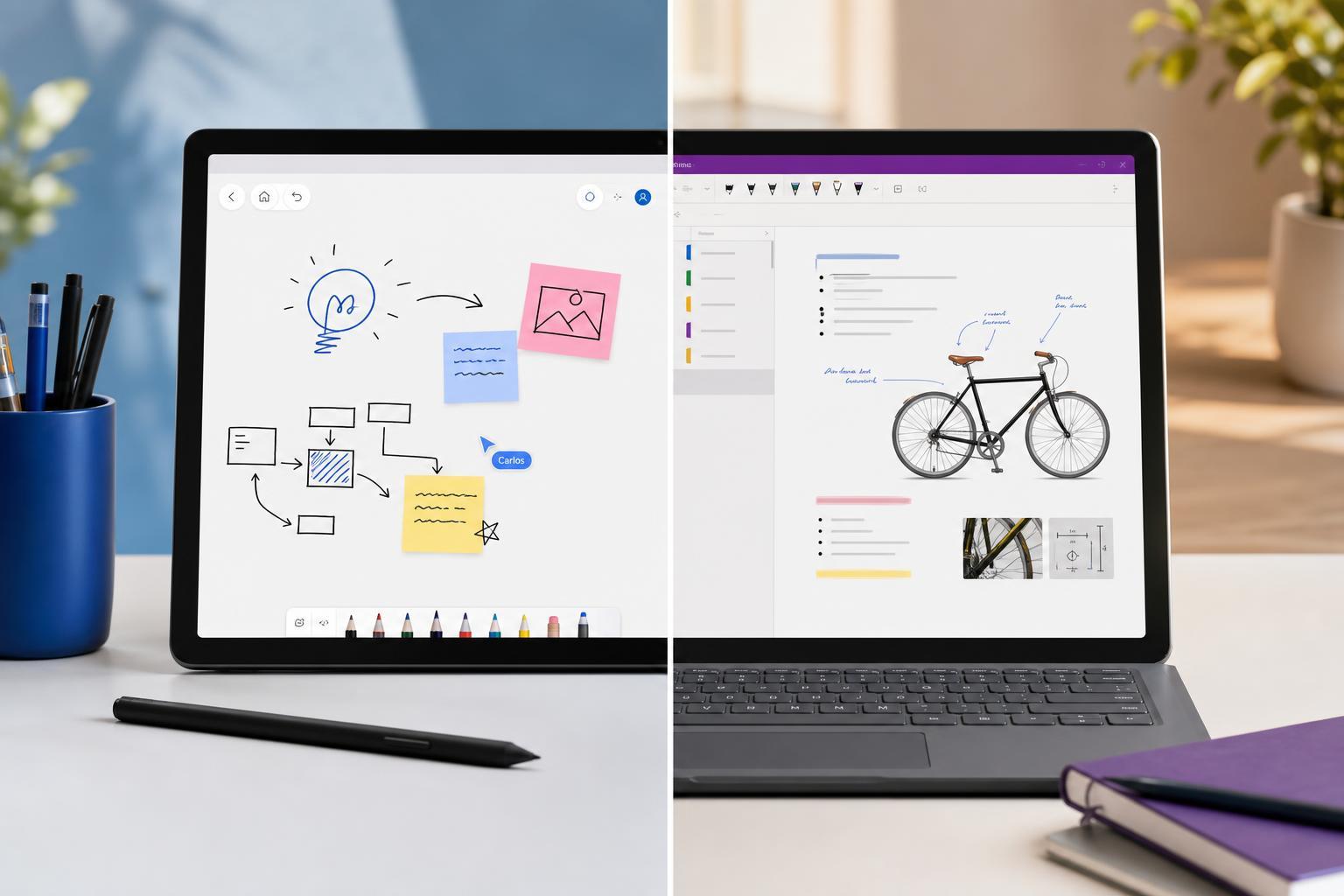
Microsoft Whiteboard and OneNote are both useful note-taking tools, but they are built for different kinds of work. Whiteboard is designed for freeform brainstorming and collaboration, while OneNote is better suited to structured notes, long-term organization, and saving information you want to find again later.
If you are trying to decide which one to use, the best choice depends on how you take notes. Some people need a digital canvas for ideas and meetings. Others need a notebook system that can store class notes, research, meeting records, and personal information in a more organized way.
The Short Version
- Use Microsoft Whiteboard for brainstorming, quick collaboration, rough sketches, and visual thinking.
- Use OneNote for organized notes, classwork, research, meeting minutes, checklists, and long-term reference material.
- Use both together if you want to brainstorm in Whiteboard and then move the useful results into OneNote for storage and structure.
What Microsoft Whiteboard Is Best At
Microsoft Whiteboard is a digital canvas. It is designed to feel open-ended, so you can move ideas around freely instead of building notes in a strict page-and-section format. That makes it especially useful when you are thinking out loud, working in a meeting, or mapping out ideas with other people.
- Freeform layout with no pressure to keep information in a fixed order
- Easy to sketch diagrams, mind maps, and rough concepts
- Good for group sessions where multiple people need to contribute at once
- Useful when you care more about exploring ideas than archiving them neatly
Whiteboard works well when the goal is to generate ideas quickly. You can place sticky notes, draw, write, and rearrange content on the board as the discussion changes. That flexibility is its biggest strength, but it is also why it is not ideal as a long-term filing system.
What OneNote Is Best At
OneNote is closer to a digital notebook system. It is built for keeping information in pages, sections, and notebooks so you can organize it over time. Unlike Whiteboard, it is meant to help you store notes in a way that makes sense later.
- Structured notebooks make it easier to group related notes
- Better for typing long-form notes and mixing text with images, links, and files
- Useful for keeping information you want to search and revisit later
- Works well for planning projects, tracking tasks, and collecting reference material
OneNote is particularly helpful if you want more than a blank page. You can create separate notebooks for work, school, or personal use, then break them down into sections and pages. That structure makes it easier to keep notes from becoming a mess over time.
Key Differences That Matter Most
- Layout: Whiteboard uses a limitless canvas; OneNote uses pages and notebook organization.
- Collaboration: Whiteboard is better for live group brainstorming; OneNote is better for shared reference material and recorded notes.
- Structure: Whiteboard is loose and visual; OneNote is structured and searchable.
- Best use case: Whiteboard helps ideas develop; OneNote helps information stay usable later.
- Long-term value: Whiteboard is often temporary; OneNote is built to hold persistent notes.
When to Choose Microsoft Whiteboard
Choose Whiteboard if your work depends on visual thinking or live collaboration. It is often the better option when a meeting starts with a blank page and ends with a rough plan, sketch, or concept map.
- Start a brainstorming session and collect ideas without worrying about order.
- Draw arrows, group related thoughts, or build a rough workflow.
- Let multiple people contribute at the same time during a meeting.
- Clean up the final ideas later in OneNote or another document if needed.
When to Choose OneNote
Choose OneNote when the information needs to stay useful after the session ends. It is much better for detailed note-taking, especially when you want to search for content later or keep information in a consistent structure.
- Create a notebook for the subject or project.
- Add sections for topics, dates, or categories.
- Write notes in order and attach supporting material as needed.
- Use tags, headings, and pages to make information easier to find later.
- Great for lectures, training sessions, and meetings with lots of detail
- Better for personal knowledge management than a freeform canvas
- Useful for saving links, attachments, and written summaries
- More suitable if you want one place for ongoing reference notes
Can You Use Both Together?
Yes, and for many people that is the best setup. Whiteboard and OneNote do not have to compete with each other. They can support different parts of the same workflow.
- Use Whiteboard to brainstorm ideas with a team.
- Capture the useful results in OneNote as structured notes.
- Use OneNote for the final record of meetings, plans, and decisions.
- Return to Whiteboard when you need to explore a new idea visually.
This approach works especially well in work meetings, classes, and project planning. Whiteboard handles the messy early stage of thinking, while OneNote stores the polished version.
Which One Is Better for Students?
For most students, OneNote is the better primary note-taking app because classes usually require structured notes that can be reviewed later. It is easier to organize lectures, add headings, keep subject notes separate, and search for past material before exams.
- OneNote is better for lecture notes and study organization
- Whiteboard is helpful for group projects, brainstorming, and visual revision
- Students who draw diagrams or mind maps may benefit from using both
- If you need a long-term study archive, OneNote is usually the stronger choice
Which One Is Better for Work?
For work, the answer depends on the task. Whiteboard is excellent for live meetings, planning sessions, and collaborative problem-solving. OneNote is better for documenting what was decided, keeping meeting records, and building a searchable reference folder.
- Use Whiteboard for workshops, strategy sessions, and planning meetings
- Use OneNote for meeting minutes, project notes, and process documentation
- Use Whiteboard when you need fast participation from several people
- Use OneNote when you need one person to keep a reliable record
Main Limitations of Each App
Neither app is perfect for every task. Knowing the limits can help you avoid using the wrong one for the job.
- Whiteboard can become messy if you try to use it like a permanent filing cabinet.
- Whiteboard is not ideal for long, detailed written notes or highly structured information.
- OneNote is not as natural as Whiteboard for quick visual brainstorming.
- OneNote can feel more rigid if you just want a blank space to move ideas around freely.
A Simple Way to Decide
Ask yourself one question: am I trying to think through an idea, or am I trying to keep a record of information? If the answer is “think through an idea,” Whiteboard is probably the better choice. If the answer is “keep a record,” OneNote is usually the better choice.
- Brainstorming, sketching, and group collaboration: Whiteboard
- Taking detailed notes and organizing them over time: OneNote
- Need both visual thinking and permanent records: use both together
- Unsure which one to start with: choose OneNote if the notes matter later, Whiteboard if the session is mostly exploratory
Which One Should You Use?
If you want a single answer, OneNote is the safer default for most note-taking needs because it handles organization and long-term storage better. But if your main need is visual collaboration, Whiteboard is the better tool. The right choice depends on whether your notes are meant to be explored or preserved.





