
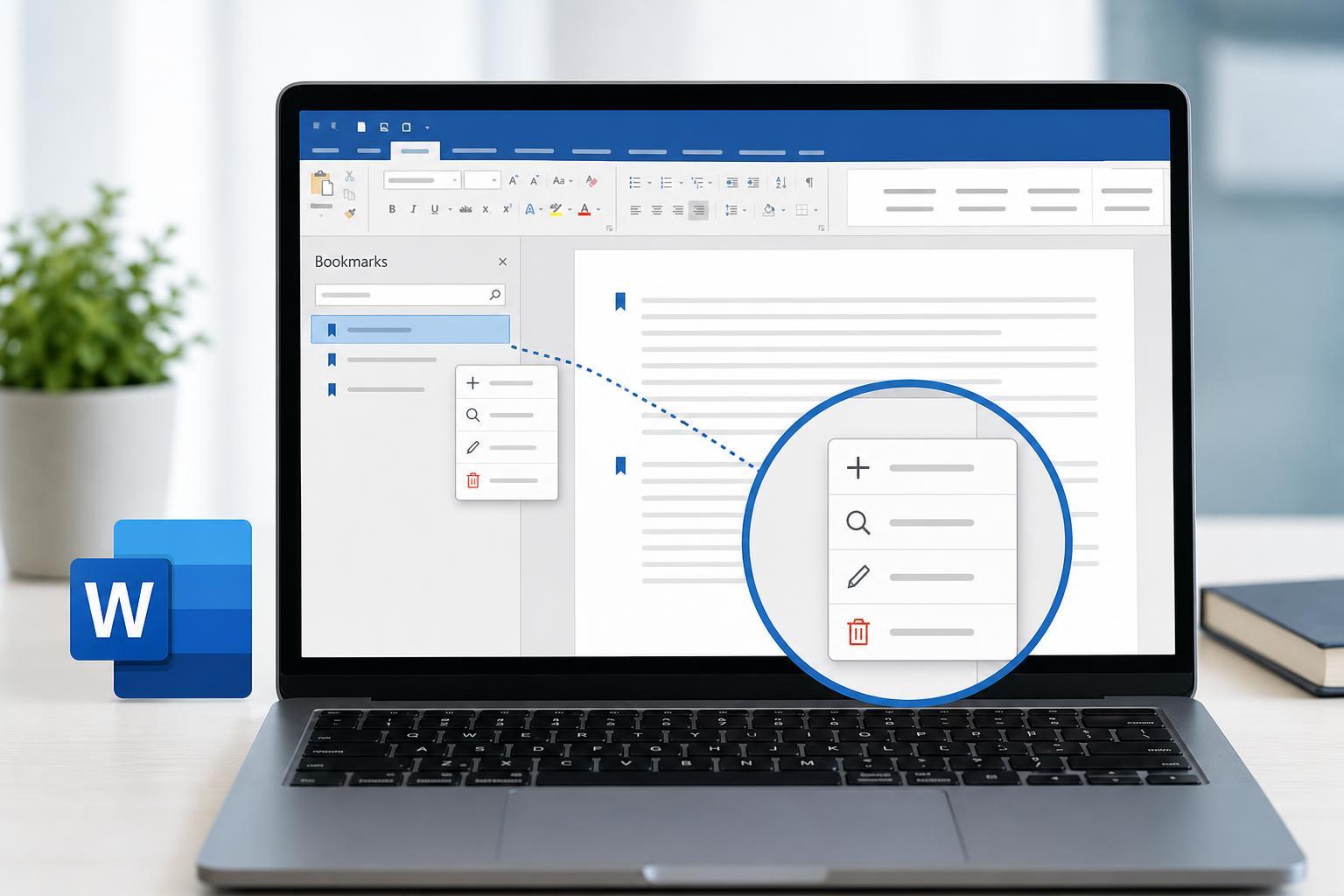
Bookmarks in Microsoft Word are useful when you need a fast way to jump to a specific spot in a document, link to a section, or reference content without scrolling. They are especially handy in long reports, manuals, contracts, and other documents with repeated cross-references.
This guide explains how to add bookmarks, view and use them, edit their names, and remove ones you no longer need.
What a Word Bookmark Actually Does
A bookmark is a named marker that points to a location or a selected piece of content in a Word document. It does not change the text itself. Instead, it gives you a reliable target you can return to later or use in hyperlinks and cross-references.
How to Create a Bookmark in Word
- Select the text, image, or location you want to mark. If you only want a point in the document, place the cursor there without selecting anything.
- Go to the Insert tab on the ribbon.
- In the Links group, click Bookmark.
- Type a name for the bookmark.
- Click Add.
How to Find and Jump to a Bookmark
- Open the Insert tab and select Bookmark again.
- In the list, click the bookmark you want.
- Click Go To to move directly to that location.
If you need to inspect bookmarks visually, Word can display bookmark brackets around the bookmarked area. This is helpful when you are trying to tell whether a bookmark covers a single point or a block of text.
How to Show Bookmark Marks in the Document
- Click File, then choose Options.
- Open the Advanced section.
- Scroll to the Show document content area.
- Turn on Show bookmarks.
- Click OK.
When this option is enabled, bookmarked text is shown with brackets, and bookmark-only insertion points appear as a thin I-beam marker. This makes it easier to manage bookmarks while editing.
How to Update a Bookmark
Word bookmarks do not automatically expand or move in the way many people expect. If you add or remove text around a bookmarked area, the bookmark may not continue to cover exactly what you intended.
- To replace a bookmark with updated content, delete the old bookmark and create a new one around the revised text.
- If the bookmark is used in a hyperlink or cross-reference, check the link after editing the document.
- If you only need to move a bookmark to a different place, create a new bookmark at the new location before deleting the old one.
How to Rename a Bookmark
Word does not let you directly rename a bookmark. The usual method is to create a new bookmark with the name you want and then delete the old one.
- Create a new bookmark at the same location or selection.
- Return to the Bookmark dialog and select the old bookmark.
- Click Delete.
- Use the new bookmark name everywhere you need it.
How to Delete a Bookmark
- Open Insert and select Bookmark.
- Choose the bookmark you want to remove from the list.
- Click Delete.
- Close the dialog when you are finished.
Deleting a bookmark removes only the marker, not the text or object it points to. That makes it safe to clean up unused bookmarks without affecting the document content.
Using Bookmarks with Links and Cross-References
Bookmarks are most useful when paired with hyperlinks or cross-references. You can link to a bookmark from elsewhere in the same document, which is helpful for tables of contents, appendices, and internal navigation.
- Use bookmarks when you want a custom jump target inside the document.
- Use hyperlinks to let readers click and jump to that target.
- Use cross-references when you want Word to display a linked section number, heading, or page reference instead of just jumping to the location.
Common Bookmark Problems and What They Mean
- A bookmark does not appear: the bookmark display option may be turned off.
- You cannot add a bookmark: the name may contain spaces, special characters, or start with a number.
- A link jumps to the wrong place: the bookmarked content may have changed after editing.
- A bookmark seems to disappear: it may still exist, but the text around it may no longer be what you expect.
Practical Ways to Stay Organized
- Give bookmarks clear names that describe the content or section.
- Use a naming pattern for large documents.
- Remove bookmarks you no longer use.
- Check bookmark-linked hyperlinks after major edits.
- Keep bookmark names short but meaningful.
When Bookmarks Are the Right Tool
Bookmarks are a good choice when you need internal navigation, document-specific links, or a fixed reference point inside text that does not have a heading of its own. If you only need simple structure for a long document, Word headings and the Navigation pane may be enough. If you need a precise target inside a paragraph or table, a bookmark is usually the better option.





