
If the AppData folder on your Windows PC is taking up an unexpectedly large amount of space, you are not alone. This folder stores user-specific app data, caches, settings, and temporary files, so it can grow over time even when you are not actively saving files there.
The key is knowing what is safe to remove and what you should leave alone. In many cases, trimming AppData can recover useful storage space and even fix app issues, but deleting the wrong folder can reset settings or break programs.
What the AppData Folder Actually Stores
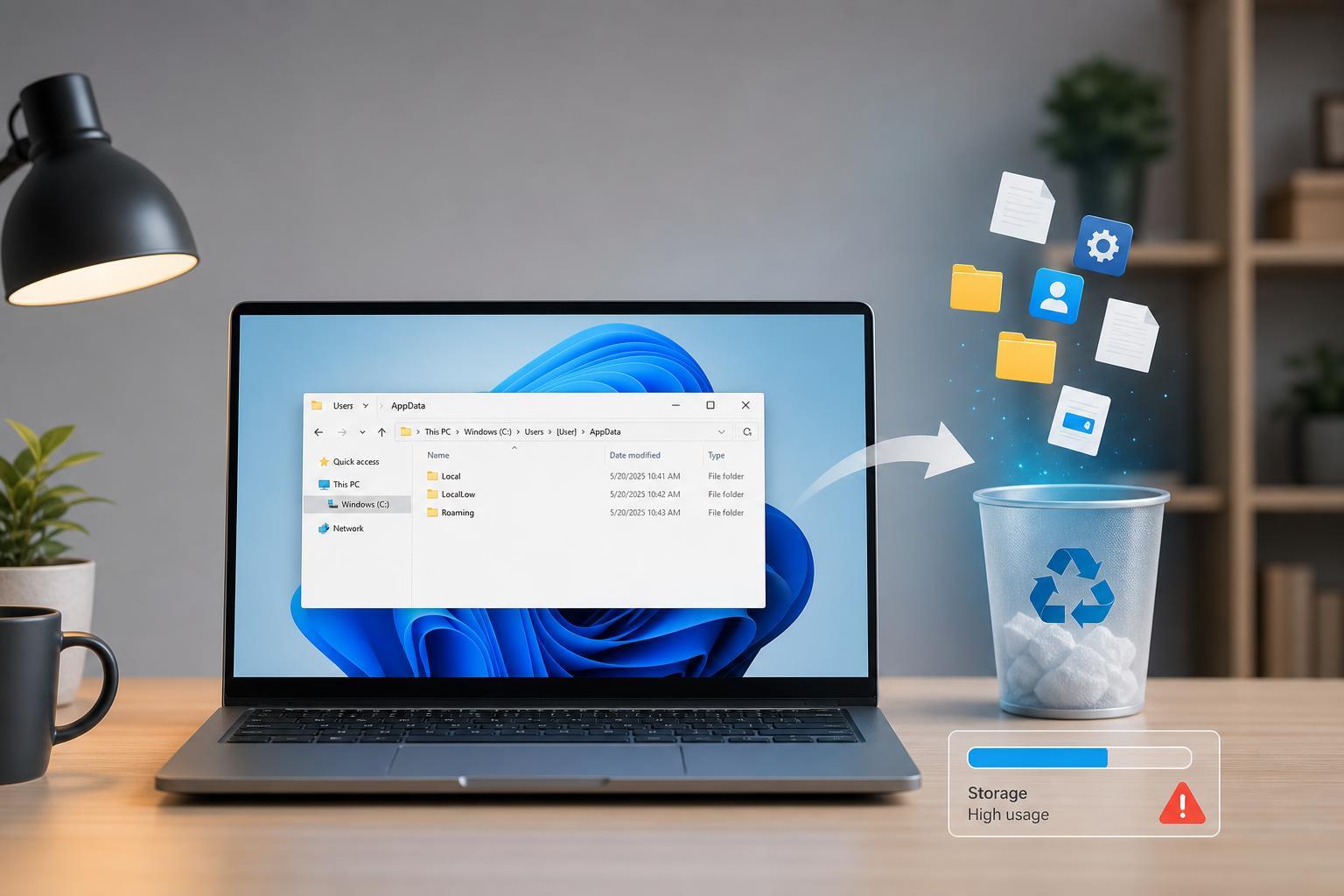
AppData is a hidden folder inside your user profile, usually at C:\Users\YourName\AppData. It is divided into three main folders: Local, LocalLow, and Roaming. Each one serves a different purpose, but all of them are used by installed apps to keep data specific to your Windows account.
- Local usually holds cache files, temporary data, and machine-specific information.
- Roaming is used for settings and data that can follow your account on some networks or synced environments.
- LocalLow is used by some lower-privileged apps and browser components.
When a Large AppData Folder Is Normal
A large AppData folder is often normal if you use browsers, messaging apps, creative tools, launchers, or games that store cache and local data there. Web browsers, Adobe apps, game launchers, development tools, and email clients can all accumulate a lot of files over time.
- You install and remove apps regularly.
- You use browser-based services heavily.
- You run games with large launcher caches or downloaded assets.
- You keep many apps signed in and syncing local data.
- You use tools that store project previews, thumbnails, or temporary working files.
Signs That AppData Has Grown Too Much
You should take a closer look if AppData is consuming tens of gigabytes, if disk space disappears faster than expected, or if one app seems to be responsible for most of the growth. A folder that keeps expanding after updates or crashes is often storing cache, logs, or leftover temporary files.
- Your C: drive is low on space even though your Documents and Downloads folders are not very large.
- Disk cleanup tools show very little free space but normal personal folders do not explain it.
- A browser or app becomes sluggish and its cache directory is unusually large.
- You notice repeated crash logs, update leftovers, or duplicate temporary files.
What You Can Usually Trim Safely
The safest place to clean first is usually app cache and temporary files, not app settings or profile folders. Some programs include their own cleanup options, which are better than manually deleting folders because the app can remove only what is safe.
- Browser cache and site data, if you are willing to sign in again on some sites.
- Temporary files created by apps that clearly label them as cache or temp data.
- Old crash dumps and logs from apps you no longer need to troubleshoot.
- Leftover folders from uninstalled programs, if they are clearly orphaned and no longer used.
Folders You Should Be Careful With
Some AppData content looks disposable but is actually important. Before deleting anything manually, check whether the folder belongs to a current app you still use. If you remove a program’s profile data, it may lose account sessions, saved layouts, local databases, or offline content.
- Browser profile folders that hold bookmarks, extensions, or synced data.
- Game launcher folders that contain cached launch data or installed-game references.
- Email clients that store account profiles or offline mail databases.
- Creative apps that keep presets, plugins, and project metadata.
How to Check What Is Taking the Space
- Open File Explorer and go to your user profile folder.
- Enable hidden items if you cannot see AppData.
- Open AppData and check the size of Local, LocalLow, and Roaming separately.
- Sort folders by size or use a disk-usage tool to identify the biggest app folders.
- Look for obvious cache, temp, log, or crash-dump directories inside the largest folders.
The Safest Way to Trim AppData
The safest approach is to clean one app at a time, starting with cache and temporary data. If the app has a built-in cleanup option, use that first. If not, make a backup of anything important before deleting files manually.
- Close the app you want to clean so it is not using its files.
- Look for cache, temp, logs, or crash-report folders inside its AppData path.
- Delete only the files or folders you recognize as disposable.
- Empty the Recycle Bin if you are sure the files are safe to remove.
- Reopen the app and confirm it works normally.
When You Should Not Trim It Manually
Avoid manual cleanup if the folder belongs to software that is actively malfunctioning and you are unsure which files matter. In some cases, deleting AppData data can hide the cause of a problem instead of fixing it, and the app may simply recreate the same files again.
- You rely on the app for work and cannot afford to lose profiles or settings.
- The folder contains a database or sync file you do not understand.
- The app already offers a reset, repair, or clear-cache option.
- You are cleaning a business profile where custom data may matter.
Why AppData Keeps Growing Back
If you clean AppData and it fills up again, the cause is usually the app’s normal behavior rather than a Windows problem. Browsers recreate cache, game launchers rebuild assets, and logging tools continue writing records as long as they are running.
A Practical Rule of Thumb
Trim AppData when it is clearly large because of cache, logs, or leftovers, but leave core app data alone unless you know exactly what it does. If the folder is large and you cannot identify why, focus on the biggest app-specific subfolders rather than deleting files at random.
- Clean caches and temporary files first.
- Use the app’s own repair or cleanup tools when available.
- Leave settings, profiles, and databases alone unless you have a backup.
- Treat unknown folders as important until proven otherwise.
What to Do If You Need Space Fast
If you are under immediate storage pressure, target the largest clear cache folders first and avoid anything that looks like a profile or database. After that, check whether any uninstalled apps left behind large leftover folders in AppData that can be removed safely.





