A MacBook is easy to carry, but living with only a few ports can get old fast. Once you start plugging in a monitor, storage, Ethernet, and accessories at the same time, a dock stops feeling like a luxury and starts feeling like the missing piece of the setup.
That is especially true with a Thunderbolt 4 dock like the StarTech Thunderbolt 4 Dock. It can turn a Mac into a much more practical desktop-style workstation with a single cable, while also making it easier to keep your desk cleaner and your setup more flexible.
What a Dock Actually Solves for Mac Users
Many Mac owners get by for a while with just USB-C hubs or a couple of dongles. The problem is that small adapters are usually fine for one or two devices, but they become awkward when you want a monitor, external drive, keyboard, mouse, card reader, and network connection all ready at the same time.
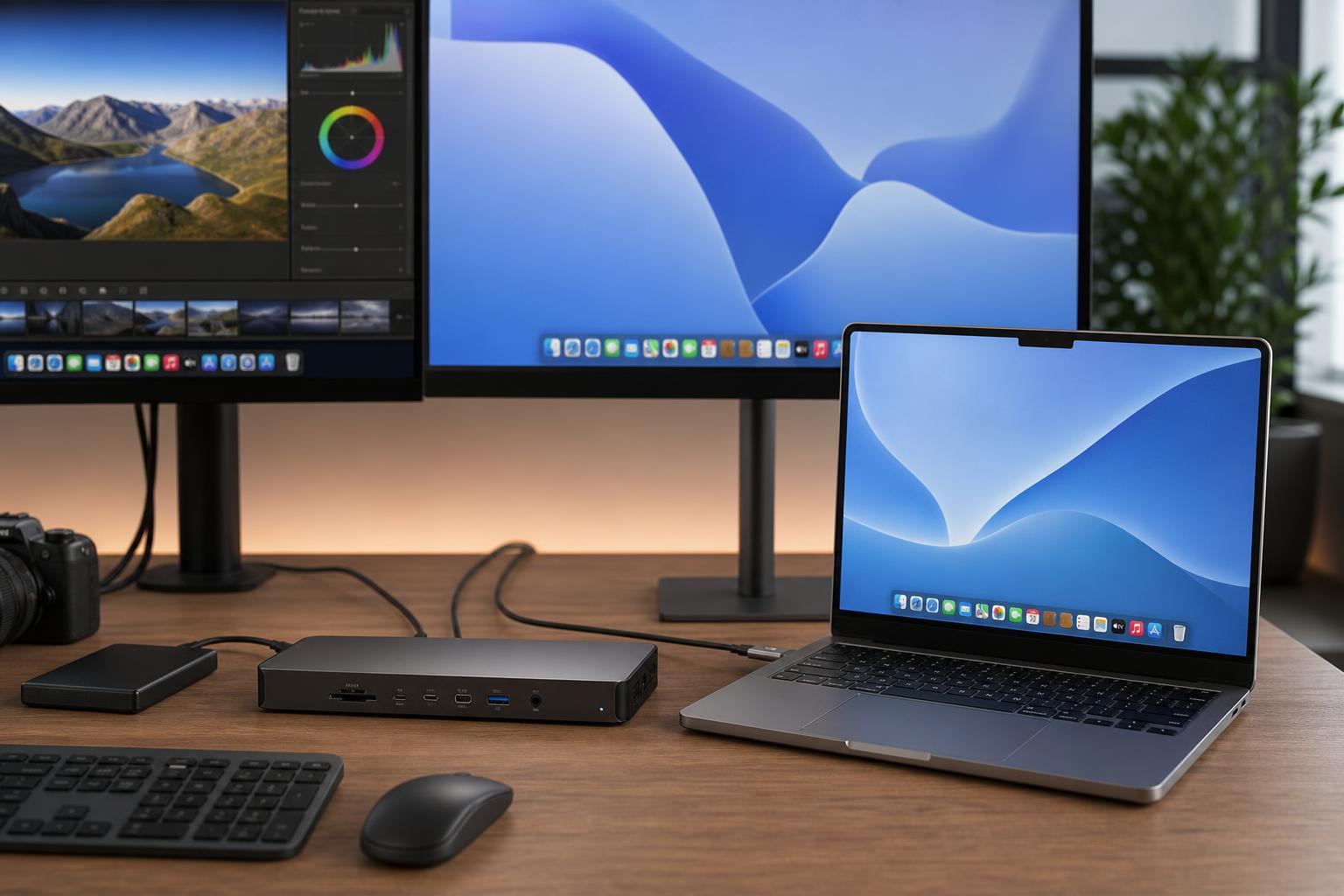
A dock solves that by acting like a central connection point. You plug the dock into your Mac once, and then leave your other devices attached to the dock. When you sit down, one cable connects the laptop to everything else.
Why Thunderbolt 4 Matters
Not every dock is equal. A Thunderbolt 4 dock is designed for higher-speed data and more capable display support than many basic USB-C hubs. That matters if you connect fast storage, dual displays, or multiple accessories that all need reliable bandwidth.
For Mac users, Thunderbolt 4 is especially appealing because it keeps the desk setup simple without forcing you to compromise as much on speed or expandability.
What Stands Out About the StarTech Thunderbolt 4 Dock
The StarTech Thunderbolt 4 Dock is the kind of device that makes sense only after you use it. Before that, it sounds like another accessory. After that, it feels like infrastructure.
- It lets you connect multiple desktop accessories through one cable to the Mac
- It is useful for permanent desk setups with monitors, Ethernet, audio, and USB devices
- It can reduce the need for separate adapters and dongles
- It helps keep a workspace more organized and easier to reconnect after unplugging a laptop
The biggest appeal is not just port expansion. It is convenience. A good dock lets you stop thinking about how each device connects and focus on the actual work, gaming, or creative task you want to do.
A Simple Dock Setup Workflow
If you are setting up a Thunderbolt 4 dock for the first time, the process is usually straightforward.
- Place the dock where your laptop will normally sit on the desk.
- Connect your monitor or monitors to the dock using the appropriate display cables.
- Plug in your keyboard, mouse, external drive, audio device, and Ethernet cable if needed.
- Connect the dock’s Thunderbolt cable to your Mac.
- Test each device one by one so you can confirm everything is working correctly.
What to Check Before Buying Any Dock for a Mac
A dock is only useful if it fits your real setup. Before buying one, it helps to check the things that matter most for how you work.
- Display support: confirm how many monitors you want to run and at what resolution
- Port types: make sure it has the USB, audio, Ethernet, or card reader ports you actually need
- Charging support: check whether it can power your Mac while connected
- Cable length and desk layout: a dock should sit comfortably where your laptop lives
- Compatibility: make sure your Mac model supports the features you want from Thunderbolt 4
Who Benefits Most from a Dock Like This
A Thunderbolt 4 dock is not just for power users. It is helpful for anyone who regularly combines a Mac with several peripherals.
- Remote workers who want a single plug-and-go desk setup
- Students who switch between classes, dorm rooms, and study spaces
- Creative users who rely on external storage or displays
- Home office users who want less cable clutter
- Anyone tired of unplugging and reconnecting multiple accessories every day
When a Dock May Be More Than You Need
A dock is not always the best choice. If you only ever connect one USB device and occasionally charge your laptop, a smaller hub may be enough.
It is also worth considering how permanent your setup is. If you work mostly on the go and rarely use your Mac at a desk, a full dock can be overkill compared with a compact adapter.
The Real Benefit: Less Friction
The best part of using a dock is not any single feature. It is the reduction in friction. You stop unplugging HDMI cables. You stop hunting for the right adapter. You stop wondering which port your drive was using last time.
That is why a dock can be easy to overlook at first and then hard to give up later. Once your Mac is attached to a proper dock, the computer feels more like a desktop workstation when you need it to, but it still stays portable when you do not.
What This Means for Mac Owners
A dock like the StarTech Thunderbolt 4 Dock is not just about adding ports. It changes how the Mac fits into your workspace. For many people, that is the difference between a laptop that is occasionally convenient and one that works cleanly as the center of a full desk setup.
If you rely on a Mac at a desk more than once in a while, a Thunderbolt 4 dock is worth serious consideration. It may be one of those accessories you do not think you need until you use it.