
Windows 11 can show owner-related details in a few different places, but the exact information depends on what you mean by “owner.” You might be looking for the registered device owner, the account name shown on the PC, or business ownership details tied to Microsoft services. This guide explains where to find each one and how to update it when possible.
First, Identify Which Owner Detail You Mean
Windows 11 does not have one single “owner” field that controls everything. The information you see may come from the local Windows account, your Microsoft account, OEM registration details, or organization management settings.
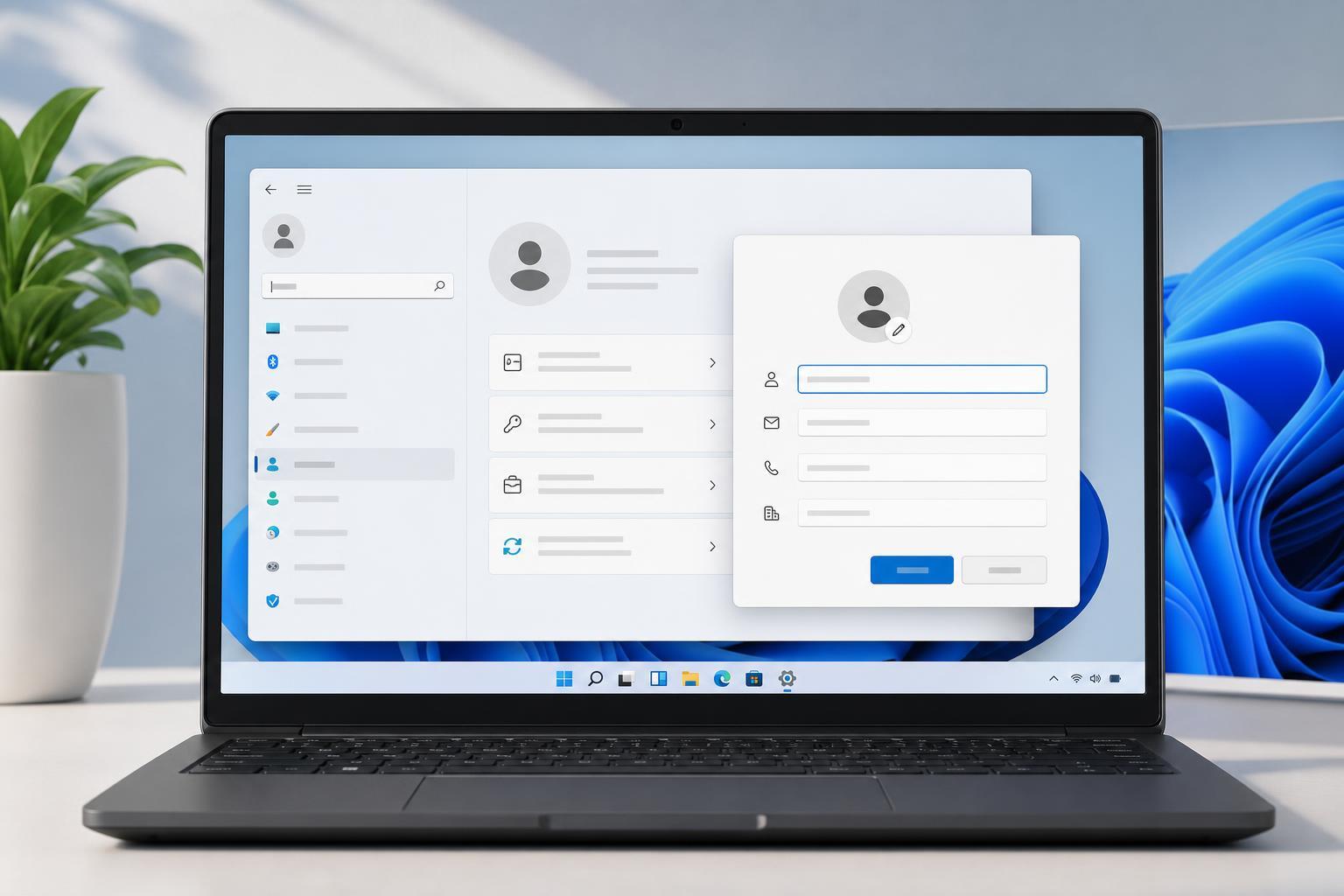
- The user name shown on the sign-in screen or Start menu
- The registered device owner in Microsoft account settings
- The device name shown in Windows and on your network
- The organization or company name on a work-managed PC
- Legacy owner details stored in system information or OEM records
Check the Current Owner or Account Name in Windows 11
The easiest place to start is the user account currently signed in to Windows.
- Open Settings with Windows + I.
- Go to Accounts.
- Select Your info.
- Look at the account name and account type shown there.
If you use a Microsoft account, Windows may display your Microsoft profile name. If you use a local account, it may show the local account name instead.
Check the Registered Device Owner in Microsoft Account Settings
If you want to see what name Microsoft associates with the device, check your Microsoft account online.
- Open a web browser and sign in to your Microsoft account.
- Go to the Devices section of your account.
- Select the PC you want to check.
- Review the device details and any owner-related information shown there.
This is especially useful if you bought a used PC, replaced your account, or are preparing a device for someone else.
Change the Name of a Local Account in Windows 11
If you use a local account, the simplest change is usually renaming that account. This changes how the name appears on the PC, but it may not change the internal user profile folder name.
- Open Control Panel.
- Select User Accounts, then User Accounts again.
- Choose Change your account name.
- Enter the new name and confirm the change.
Change Your Microsoft Account Name
If your Windows sign-in uses a Microsoft account, changing the display name there can update how your name appears in Windows and Microsoft services.
- Go to the Microsoft account profile page in a browser.
- Sign in with the account used on the PC.
- Open your profile or your info settings.
- Edit the display name and save the change.
Afterward, sign out of Windows and sign back in if the new name does not appear right away. Some changes may take a little time to sync.
Change the Device Name Instead of the Owner Name
If your goal is simply to make the PC easier to identify, changing the device name may be the better option than changing owner details.
- Open Settings.
- Go to System.
- Select About.
- Click Rename this PC.
- Enter the new device name and restart if prompted.
This does not change who owns the account, but it does change the name used on the network, in device lists, and in many Windows menus.
What About Work or School Devices?
On organization-managed PCs, owner information may be controlled by IT policies, Microsoft Entra ID, Intune, or other management tools. In that case, you may not be able to change the displayed owner from Windows Settings.
- The device may be tied to a work or school account
- Name changes may be restricted by policy
- Ownership may need to be changed in the organization’s admin portal
- Some information is only editable by IT administrators
If You Are Preparing a PC for Another Person
If the goal is to hand the computer to someone else, changing the displayed name may not be enough. You may need to remove personal accounts and reset the PC so the new owner starts fresh.
- Back up any files you want to keep.
- Sign out of your Microsoft account and remove it from the PC if needed.
- Remove personal work, school, and email accounts.
- Use Reset this PC if you want a clean handover.
Problems You Might Run Into
Sometimes the name you change does not update everywhere immediately. That is normal, especially with Microsoft account sync.
- The old name still appears on the lock screen
- The profile folder name stays the same
- A Microsoft account change has not synced yet
- The device is managed by an organization and changes are blocked
- You changed the device name, but not the user account name
Which Change Should You Make?
If you want the person name shown on Windows, edit the account name or Microsoft profile name. If you want the PC to be easier to identify, rename the device. If the PC belongs to a company or school, contact IT because the displayed owner may be controlled elsewhere.
- Change the account name for the signed-in user display
- Change the Microsoft profile name for online account identity
- Change the device name for PC identification
- Use admin tools for organization-owned devices
In most home setups, the account name and the device name are the two settings that matter most.





