
Version history in Microsoft Excel lets you go back to earlier copies of a workbook if you need to recover deleted data, undo a bad edit, or check how a file looked before a change. It is especially useful when your workbook is saved in OneDrive or SharePoint, where Excel can keep multiple saved versions automatically.
This guide explains how version history works in Excel, where to find it, and how to restore an earlier version without overwriting your current file by accident.
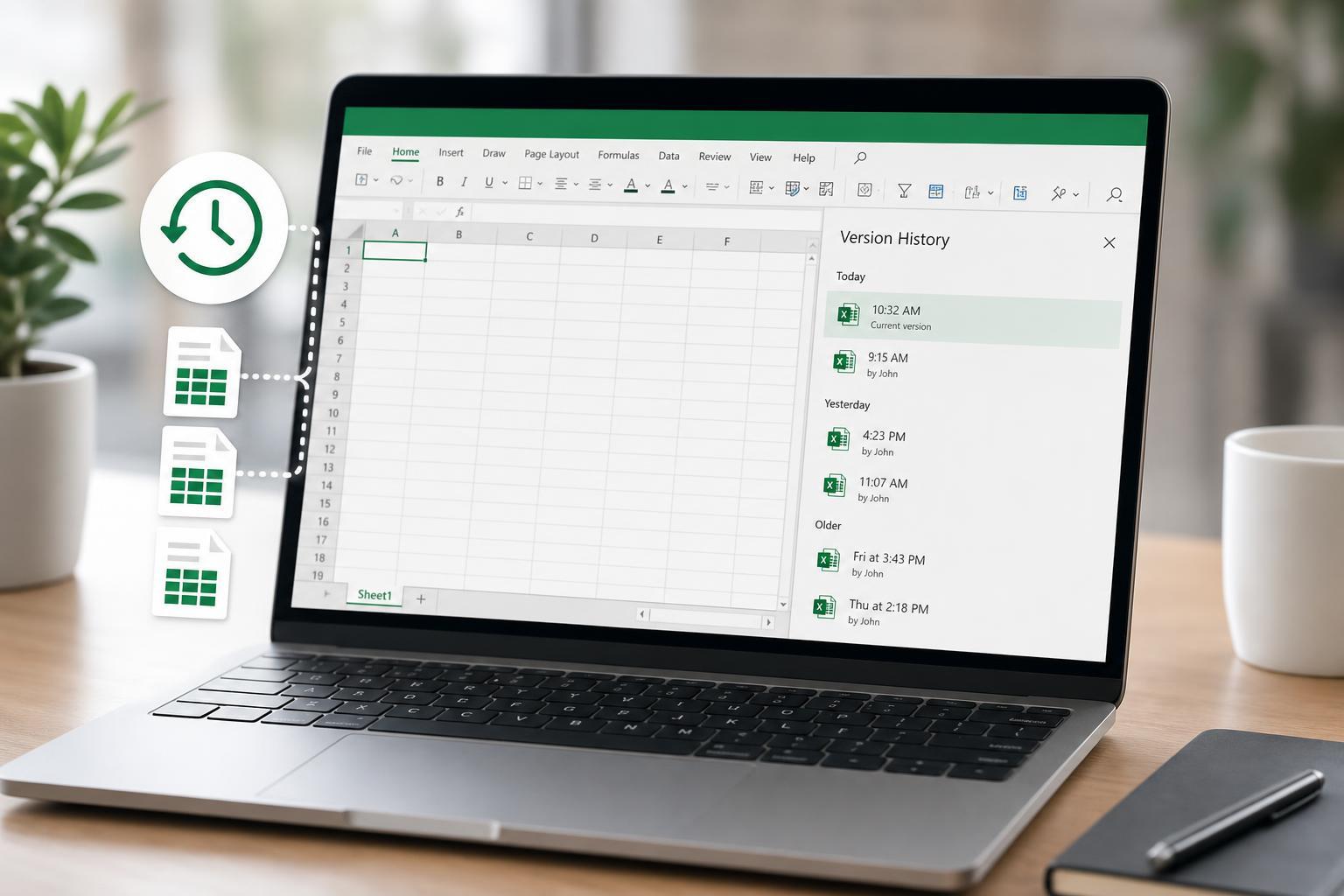
What Version History in Excel Actually Does
Version history shows saved snapshots of a workbook over time. In Microsoft 365, those versions are usually created automatically when the file is stored in OneDrive or SharePoint and edited in Excel. That means you can often recover a previous state even if the current file has already been saved multiple times.
Before You Start
- Make sure the workbook is saved in OneDrive, OneDrive for Business, or SharePoint.
- Sign in to the same Microsoft account or work account that owns or can access the file.
- Open the file in Excel desktop or Excel for the web.
- If you are working with a shared workbook, confirm that you have permission to view version history.
How to Open Version History in Excel
- Open the workbook in Excel.
- Select File in the top-left corner.
- Choose Info if you are in the desktop app.
- Look for Version History and select it.
- If you are using Excel for the web, select the file name at the top or use the Version History option from the File menu, depending on your view.
Excel will show a list of saved versions, usually with timestamps and the name of the person who made the change. You can click any version to preview it before deciding whether to restore it.
How to Restore an Earlier Version
- Open Version History for the workbook.
- Click the version you want to review.
- Check the workbook contents to make sure it is the right copy.
- Select Restore if you want that version to become the current file.
- Save or confirm the change if Excel asks you to.
If you only want to inspect an older version, do not restore it right away. Open the version, review the data, and compare it with the current workbook first.
How to Compare an Older Version with the Current File
Version history is most useful when you need to identify what changed. Open the older version and compare it with the current workbook side by side if possible. This helps you spot deleted rows, changed formulas, altered charts, or formatting changes.
- Check worksheet tabs to see whether any sheets were added or removed.
- Look at formulas in key cells to confirm whether logic changed.
- Review tables, filters, and pivot tables for missing data.
- Compare chart sources if a chart suddenly looks wrong.
- Check comments and notes if collaboration is involved.
Where Version History Comes From
Excel version history is tied to cloud storage rather than to a local workbook file on your hard drive. When you save a workbook in OneDrive or SharePoint, Microsoft can keep prior saved states for that file. In many cases, each collaborator's changes can become part of the history as well.
If You Do Not See Version History
- The file may be stored only locally instead of in OneDrive or SharePoint.
- You may not be signed in to the account that owns the file.
- The workbook may be in an older format or opened from a location that does not support cloud versioning.
- Your organization may have disabled or limited version history for that location.
- You may be using a copy of the file that was downloaded from the cloud and no longer linked to it.
If the file is stored locally, check whether it was ever uploaded to OneDrive or SharePoint. If not, version history may not be available at all. In that case, AutoRecover or manual backups may be your only options.
Useful Related Recovery Options
- Undo: Best for recent changes you have not closed the file after making.
- AutoRecover: Helps if Excel closes unexpectedly before you save.
- OneDrive recycle bin or SharePoint recycle bin: Useful if the file itself was deleted.
- File History or backups: Helpful for locally stored workbooks if your PC is set up to back them up.
Tips for Getting the Most Out of Version History
- Use OneDrive or SharePoint for important workbooks so versions are saved automatically.
- Give versions meaningful names in your own workflow if you also save milestones manually.
- Check version history before making major formula, layout, or data structure changes.
- For shared files, tell collaborators not to overwrite key sheets without a review.
- When testing changes, make a copy of the workbook first if the file is critical.
When Version History Is Not Enough
Version history is excellent for rolling back saved work, but it cannot solve every spreadsheet problem. If data was never saved to the cloud, if the file was replaced outside Microsoft 365, or if the wrong version was restored and then saved over, you may need to use backups or ask your organization’s Microsoft 365 administrator for help.
Choosing the Safest Way to Recover Your File
If you are unsure whether to restore a version, open it first and inspect it carefully. Restoring is best when you are confident the older version is the one you want. Copying only the needed cells or worksheets is safer when you just need one part of the file back.





