
Zoom on Apple TV 4K can be useful if you want a larger screen for video meetings, webinars, or shared presentations. The setup is a little different from using Zoom on a phone, tablet, or computer, because Apple TV is mainly designed for viewing rather than running full desktop-style apps.
This guide explains what is possible on Apple TV 4K, how to get Zoom working, and the main limitations you should know before you start.
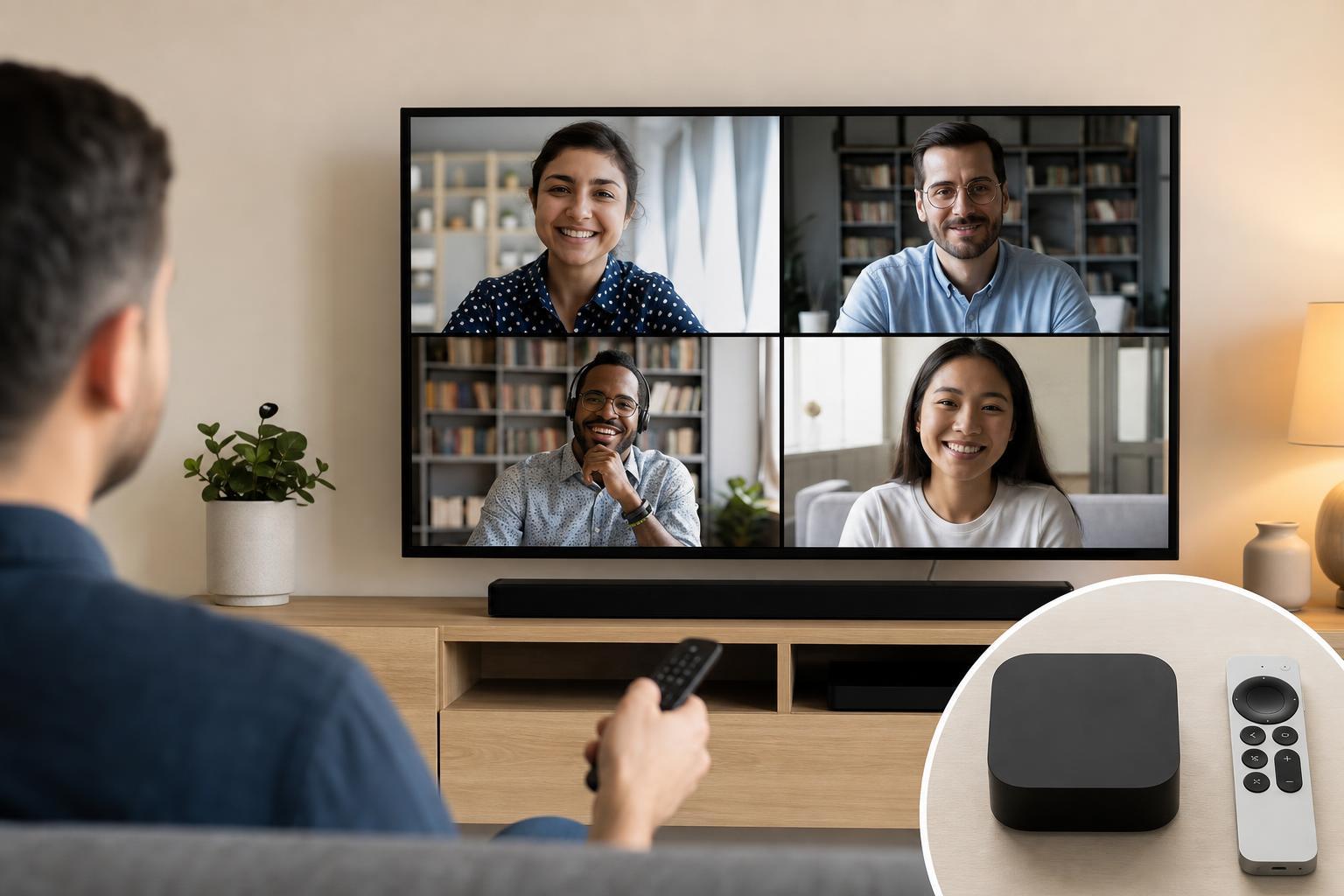
Can You Install Zoom Directly on Apple TV 4K?
In most cases, you cannot install the full Zoom app from the Apple TV App Store the way you would on an iPhone, iPad, or Mac. Apple TV is not generally used as a standalone Zoom device with the same app experience you get on other platforms.
What you can do depends on the Zoom features available through your Apple TV model, your Apple ecosystem, and whether you are using Zoom through a supported companion method such as screen sharing, AirPlay, or another connected device.
What You Need Before You Start
- An Apple TV 4K connected to a TV or monitor
- A stable internet connection
- An iPhone, iPad, or Mac for pairing, joining, or sharing where needed
- A Zoom account if you plan to host meetings
- A camera and microphone source, since Apple TV itself usually does not provide a built-in meeting camera setup
Common Ways to Use Zoom with Apple TV 4K
- Use AirPlay from an iPhone, iPad, or Mac to mirror a Zoom meeting onto the TV
- Join the meeting on your phone or computer and use Apple TV as the display
- Use a supported conferencing setup if your room already has a camera and mic connected through another device
- Cast shared content to the TV while keeping audio and controls on a separate device
How to Show a Zoom Meeting on Apple TV 4K
- Open the Zoom meeting on your iPhone, iPad, or Mac.
- Make sure your Apple TV 4K and your other device are on the same Wi-Fi network.
- On your Apple device, open Control Center and select Screen Mirroring or AirPlay.
- Choose your Apple TV from the list of available devices.
- Start or continue the Zoom meeting so it appears on the television.
This method is especially useful for group viewing. Everyone in the room can see the meeting clearly, while the actual meeting controls stay on your phone or computer.
How to Improve Audio and Video Quality
- Use a strong Wi-Fi connection for both the Apple TV and the device running Zoom.
- Keep the microphone source close to the speaker if you are using a separate camera or headset.
- Avoid mirroring over a congested network when possible.
- Check the TV’s picture mode if the image looks too dim or too sharp for faces.
- If audio is echoing, lower the TV volume or use a separate speaker setup designed for conferencing.
How to Join a Meeting on Apple TV 4K
If your goal is simply to attend a Zoom meeting on the TV, the easiest method is usually to join the meeting on your phone, iPad, or Mac and then mirror that device to Apple TV. You keep the usual Zoom controls on the original device while viewing the meeting on the larger screen.
If you receive an invitation link, open it on the device that will run Zoom, not on Apple TV itself. After the meeting starts, send the video to the TV using AirPlay or screen mirroring.
When Apple TV 4K Is a Good Fit
When You Should Use Another Device Instead
- You need to host meetings with full controls
- You want to use a webcam directly for the call
- You need reliable microphone and speaker management
- You plan to share your screen frequently and switch between apps
- You want the simplest possible Zoom setup with the fewest compatibility issues
For those situations, a Mac, PC, iPad, or even a dedicated Zoom room setup is usually a better choice than relying on Apple TV alone.
Troubleshooting Zoom on Apple TV 4K
- Make sure both devices are on the same Wi-Fi network
- Confirm AirPlay is enabled on Apple TV
- Check that the meeting is running on the source device before mirroring
- Update tvOS, iOS, iPadOS, or macOS if screen mirroring is not working properly
- Try a different HDMI input or TV if the picture is not displaying correctly
- Restart the Zoom app on the source device if the meeting freezes or disconnects
The Easiest Way to Think About It
Using Zoom with Apple TV 4K is mainly about displaying the meeting on a larger screen. In most setups, the Apple TV is not the device actually running Zoom. Instead, your iPhone, iPad, or Mac handles the meeting and sends the video to the TV.
That approach works well for group viewing, but if you need a full-featured Zoom experience, a computer or tablet is usually the better primary device.





