
ShareMe is Xiaomi’s file-sharing app for Android phones. It lets you transfer photos, videos, documents, music, and even some app data between devices using a direct wireless connection, so you do not need Bluetooth, a cable, or an internet connection.
This guide explains how ShareMe works, how to set it up, and the best ways to send and receive files between Android phones.
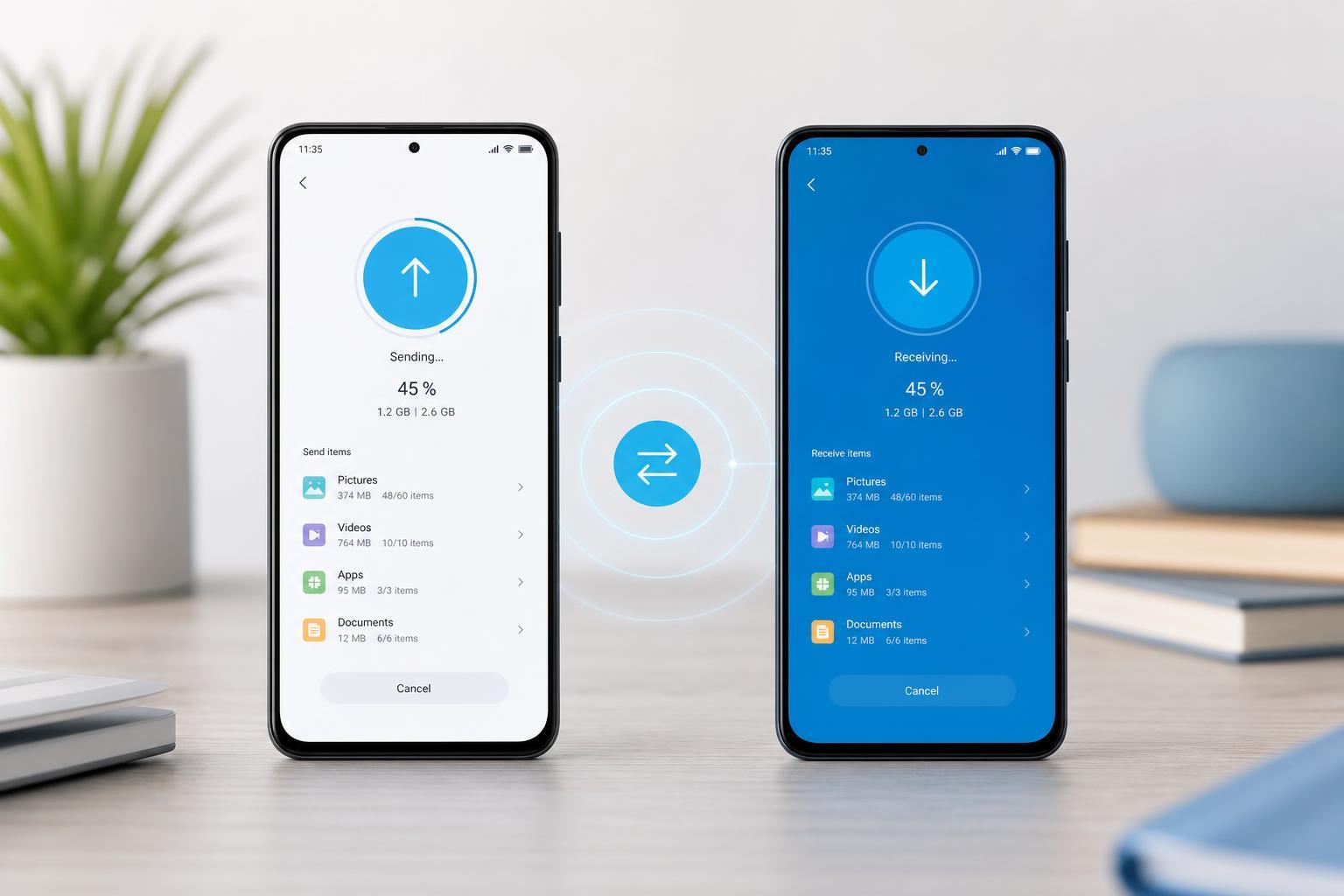
What ShareMe Does
ShareMe creates a local connection between two devices so files can move quickly over Wi-Fi Direct-style sharing. That makes it useful for moving large folders or lots of photos much faster than Bluetooth.
- Photos and videos
- Documents and downloads
- Music and archives
- Some app packages and app-related data
- Folders containing multiple files
Before You Start
To use ShareMe successfully, both devices should have enough battery, and the files should have enough free storage space on the receiving phone.
- Install ShareMe on both Android devices if it is not already available.
- Turn on Wi-Fi and Bluetooth if the app asks for them during setup.
- Keep both phones unlocked and close together.
- Make sure the receiving phone has enough free storage for the files you want to send.
How to Send Files with ShareMe
- Open ShareMe on the sending phone.
- Grant any requested permissions, such as access to files, photos, or nearby devices.
- Tap the Send option.
- Choose the type of content you want to transfer, such as photos, videos, apps, or files.
- Select the items you want to send.
- Tap Send to create the transfer connection.
- On the receiving phone, open ShareMe and tap Receive.
- If prompted, scan the QR code, connect to the hotspot, or approve the pairing request.
- Wait for the transfer to finish before moving the phones apart or closing the app.
How to Receive Files
- Open ShareMe on the receiving phone.
- Tap Receive.
- Allow the app to turn on the required connection features if prompted.
- Wait for the sending phone to discover the device or show a QR code.
- Accept the transfer request.
- Let the files finish copying, then open them from the app or your file manager.
Received files are usually saved in a ShareMe folder or in the default folder for that file type, depending on your phone model and Android version.
Transferring Photos, Videos, and Documents
For everyday sharing, the easiest method is to open the relevant section inside ShareMe and select multiple items at once. This is especially helpful when moving a camera roll, screenshots, or downloaded PDFs.
- Use the Photos or Videos category for media files.
- Use Documents or Files for PDFs, ZIP files, and similar items.
- Select multiple items before tapping Send to reduce repeated transfers.
- If you are sending a whole folder, check that the folder contents are what you expect before starting.
Can ShareMe Transfer Apps and App Data?
ShareMe can transfer some app packages, but app data transfer is more limited. In many cases, apps can be copied as installation files, but you may still need to sign in again or reconfigure the app after installation on the new phone.
If you are moving to a new phone, ShareMe is useful for getting the app installer files across, but it is not a complete replacement for a full device backup tool.
Troubleshooting ShareMe Transfers
- If the two phones cannot find each other, make sure ShareMe is open on both devices and that the correct Send and Receive modes are selected.
- If the transfer is very slow, move the phones closer together and avoid network-heavy tasks on either device.
- If the app asks for permissions repeatedly, check that file access, nearby device access, and storage permissions are enabled in Android settings.
- If a transfer fails partway through, check storage space on the receiving phone and try again with fewer files at a time.
- If files do not appear after transfer, look in the Downloads, ShareMe, or File Manager folders.
When ShareMe Is the Best Choice
ShareMe is most useful when both phones are nearby and you want a fast local transfer. It is less ideal if you need to move everything from an old phone, including accounts, messages, and system settings, because a full backup or device migration tool is usually better for that job.
A Simple Way to Move Files Between Android Phones
If you only need to move files, ShareMe is one of the easiest options on Android. Open the app, choose Send or Receive, select your items, and let the devices connect directly. For photos, videos, downloads, and folders, it is often faster and more convenient than Bluetooth or cloud syncing.





