
Google Docs does not use a feature literally called Track Changes in the same way Microsoft Word does. Instead, it uses Suggesting mode, comments, and version history to show edits and let other people review them before they become part of the document.
If you need to edit a shared document without overwriting the original text, Suggesting mode is the tool to use. It works well for collaborative writing, schoolwork, business documents, and any situation where changes need to be reviewed first.
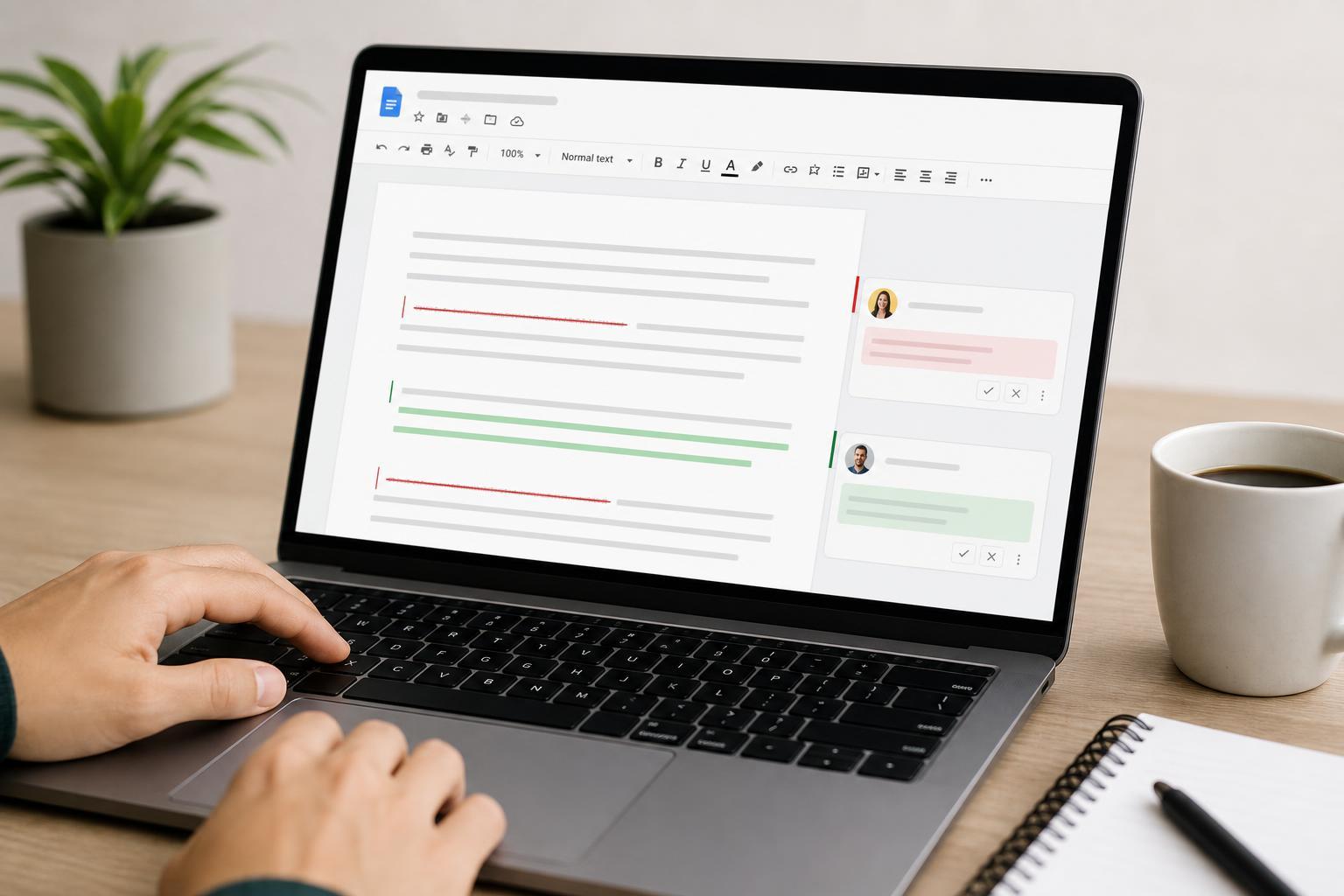
What Google Docs Uses Instead of Track Changes
In Google Docs, Suggesting mode is the closest equivalent to track changes. When this mode is enabled, any text you add, delete, or replace appears as a suggestion instead of a permanent edit. Other people can then accept, reject, or comment on those changes.
How to Turn on Suggesting Mode
- Open your document in Google Docs.
- Look at the top-right area of the document window.
- Click the pencil icon or the drop-down next to it.
- Select Suggesting instead of Editing.
- Start typing or making changes in the document. Your edits will appear as suggestions.
How Suggestions Appear in the Document
When Suggesting mode is active, inserted text usually appears in a colored style, and deleted text may appear as a crossed-out suggestion. A small comment box can appear alongside the change, letting reviewers see who made the edit and what was changed.
- Added text appears as a suggestion rather than normal text.
- Deleted text is shown as a removal suggestion instead of being erased immediately.
- Each suggestion is linked to the person who made it.
- Reviewers can add comments to explain why a change should stay or go.
How to Accept or Reject Changes
If you are the document owner or have permission to review edits, you can decide which suggestions to keep. This is the step that turns tracked-style edits into final text.
- Open the document in Google Docs.
- Find a suggestion in the document or in the right-side suggestion box.
- Click the check mark to accept the change.
- Click the X to reject the change.
- Repeat this for each suggestion you want to review.
How to Leave Comments on Suggested Edits
Comments are useful when a suggestion needs explanation, discussion, or a decision from someone else. They do not change the document directly, but they help reviewers understand why an edit was made.
- Highlight the text you want to comment on.
- Click the comment icon or use the keyboard shortcut for adding a comment.
- Type your message.
- Click Comment to post it.
- Mention another person if you want them to review the note.
How to View Version History
Version history is different from Suggesting mode, but it is useful when you want to see how a document changed over time. It shows previous saved versions and who made edits, which can help you recover earlier content if needed.
- Open the document.
- Go to File.
- Select Version history, then View version history.
- Browse the saved versions on the right side of the screen.
- Click a version to preview it, and restore it if necessary.
Sharing a Document So Others Can Suggest Edits
For other people to make tracked-style changes, they need the right permission level. If they only have viewing access, they cannot suggest edits. If they have editing access, they can usually switch to Suggesting mode themselves.
- Open the Share settings for the document.
- Add the person’s email address or copy a share link.
- Choose the appropriate permission level.
- Use Editor access if you want them to make suggestions directly.
- Send the invitation or link.
Useful Keyboard Shortcuts and Workflow Tips
Google Docs supports a fast review workflow if you use comments, suggesting, and version history together. That combination is usually enough for most editing tasks without needing another app.
- Use Suggesting mode for draft edits that need approval.
- Use comments to explain why a change is needed.
- Use version history if you need to compare earlier drafts.
- Use accept/reject controls to finalize the document.
- Use sharing permissions to control who can edit and review.
Common Problems and What to Check
If Suggesting mode does not seem to work, the issue is usually related to permissions, the current editing mode, or the device you are using.
- You may only have Viewer access, not Editor access.
- The document may be opened in Viewing mode.
- The owner may have disabled some editing options.
- You may be editing from a limited mobile interface.
- Browser issues may prevent the mode selector from displaying correctly.
When to Use Suggesting Mode Instead of Editing Normally
Use Suggesting mode whenever changes need review. It is the best choice for shared drafts, school assignments, editorial feedback, policy documents, and team documents that should not be altered without approval.
- When multiple people need to review the same text
- When you want a clean record of proposed edits
- When you are sending feedback to a colleague or client
- When you need to compare revisions before making them final
- When a document should not be changed permanently until approved
A Simple Review Workflow That Works Well
A practical Google Docs workflow is to draft in Editing mode, switch to Suggesting mode for review, resolve comments and suggestions, then check version history before sharing the final copy. This keeps the document organized and makes it easier to track who changed what.
- Draft the document normally.
- Switch to Suggesting mode for review edits.
- Add comments where a change needs explanation.
- Accept or reject each suggestion.
- Use version history if you need to verify the final result before sharing.





