
Apple Freeform is a flexible digital canvas for brainstorming, planning, sketching, and sharing ideas. On iPhone and iPad, it gives you a blank board where you can combine text, drawings, photos, links, files, and more in one place.
This guide walks through the basics of using Freeform, from creating your first board to organizing content and working with other people.
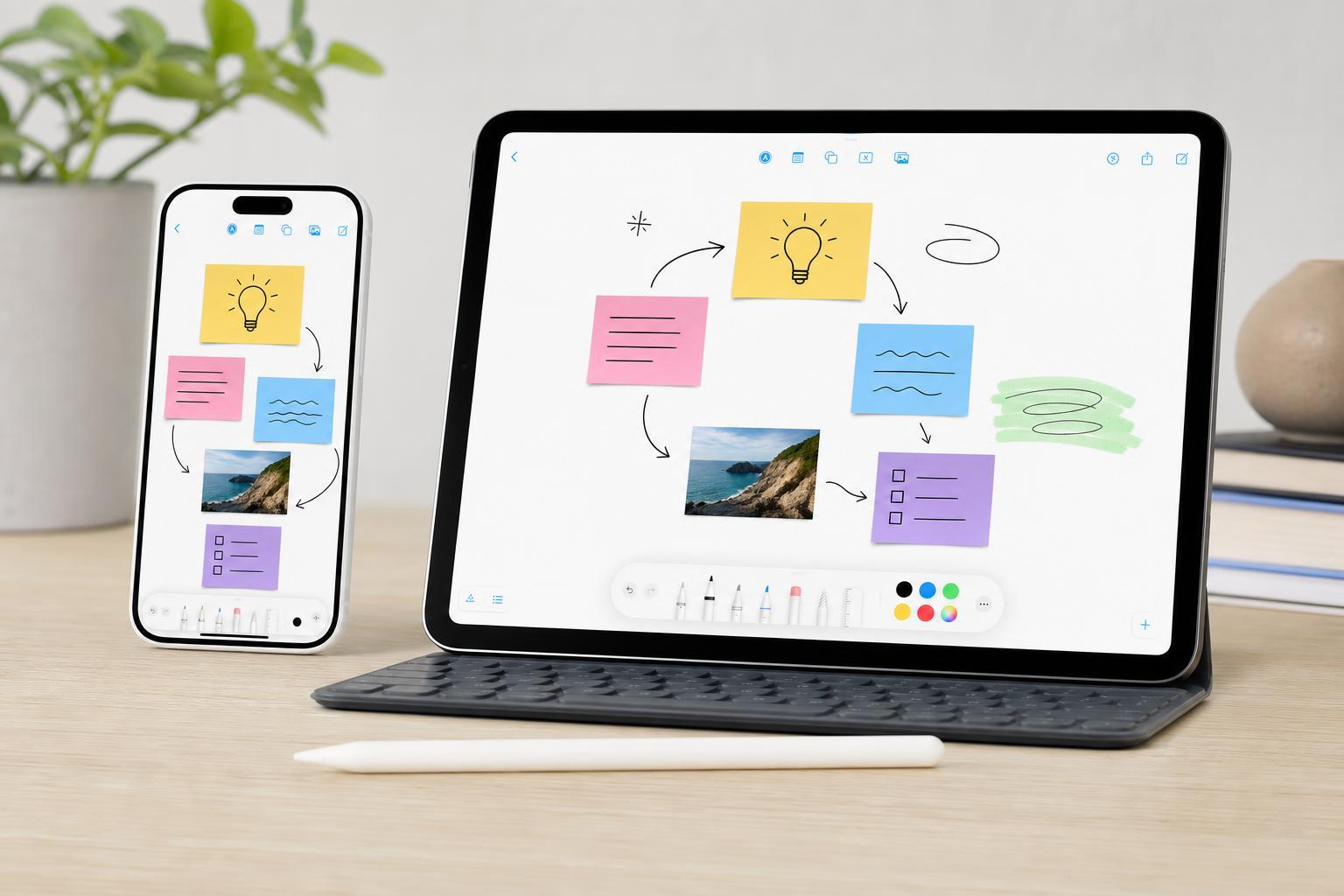
What Freeform Is Best For
Freeform works well when you want something more visual and less structured than a traditional note-taking app. Instead of typing everything into a single page, you can place content wherever it makes sense on the board.
- Brainstorming ideas and mind maps
- Planning projects, events, or trips
- Collecting screenshots, photos, and web links
- Sketching layouts or rough concepts
- Sharing a collaborative workspace with classmates, teammates, or family
What You Need Before You Start
Freeform is available on supported Apple devices running a recent version of iOS or iPadOS. You also need to be signed in with your Apple ID so your boards can sync through iCloud if syncing is enabled.
- An iPhone or iPad with Freeform installed
- An Apple ID signed in to the device
- iCloud enabled if you want boards to sync across devices
- Optional: Apple Pencil for easier sketching and handwriting on iPad
Open Freeform and Create Your First Board
- Open the Freeform app on your iPhone or iPad.
- Tap the create board button, usually shown as a new board or plus icon.
- Choose a blank board to start from scratch.
- Give the board a name so you can find it later.
- Begin adding content anywhere on the canvas.
Unlike a regular document, Freeform does not force you into a top-to-bottom layout. You can place items around the board and move them later if your ideas change.
Add Text, Notes, and Shapes
Text in Freeform is useful for labels, reminders, headings, and quick thoughts. You can place text boxes anywhere on the board and resize them as needed.
- Tap the insert or add button in the board toolbar.
- Choose a text box, sticky note, or shape.
- Type your text and drag the item to the right spot.
- Resize the box or note by dragging its edges or corners.
- Use the formatting options to change font, color, alignment, or fill when available.
Draw and Write by Hand
Freeform supports drawing tools, which is especially useful on iPad with Apple Pencil. You can sketch rough diagrams, annotate screenshots, or handwrite quick ideas.
- Open the drawing tool from the toolbar.
- Choose a pen, pencil, marker, or eraser.
- Adjust color and thickness if needed.
- Draw directly on the board or on top of an inserted image.
- Use undo if you need to correct a mistake.
Insert Photos, Files, and Links
Freeform becomes much more useful when you mix visual and reference material on the same board. You can add screenshots, photos, PDFs, documents, website links, and other items to support your ideas.
- Photos and screenshots for visual reference
- PDFs and documents for project materials
- Website links for research
- Videos for media references or demonstrations
- Files from the Files app for sharing or review
- Tap the add button on the board.
- Choose the type of item you want to insert.
- Select the file, photo, or link from the appropriate app or menu.
- Move the item into position on the board.
- Resize it if you want more or less space around it.
Move, Resize, and Organize Items on the Board
Freeform is meant to stay flexible, so you can rearrange items whenever your ideas change. This makes it easy to build a visual layout without worrying about page structure.
- Touch and hold an item to select it.
- Drag it to a new position on the board.
- Use the handles to resize photos, notes, shapes, or text boxes.
- Rotate supported items if you need a different layout.
- Group related content by placing it close together or using shapes and labels.
Collaborate with Other People
One of Freeform’s most useful features is live collaboration. You can invite other people to work on the same board, which is helpful for planning, teaching, and shared brainstorming.
- Open the board you want to share.
- Tap the share button.
- Choose how to send the invitation, such as Messages, Mail, or a link option.
- Set the sharing permissions if prompted.
- Send the invite and let the other person open the board.
- Collaborators can add and move items on shared boards
- Changes can appear quickly when everyone is signed in correctly
- Permission settings matter if you only want others to view, not edit
Find and Reopen Saved Boards
Your boards appear in the Freeform app’s board list. If you use iCloud syncing, the same boards should also appear on your other Apple devices signed in with the same account.
- Search for a board by name if you have many saved boards
- Open recent boards from the main gallery view
- Use folders or grouping features if available in your version to keep related boards together
- Rename important boards so they are easier to recognize later
Useful Freeform Habits for Better Boards
A few simple habits can make your boards easier to use over time. Freeform is most effective when it stays visually clear and easy to scan.
- Give each board one main purpose
- Use short labels instead of long paragraphs when possible
- Keep related items near each other
- Use color or shapes to separate sections
- Rename boards as soon as they become important
When Freeform May Not Be the Best Choice
Freeform is great for flexible visual planning, but it is not always the best tool for every task. If you need a highly structured outline, a long-form document, or a spreadsheet-style layout, another app may be easier to manage.
- Best for visual ideas and mixed media boards
- Less ideal for formal documents with strict formatting
- Not the strongest choice for tables or detailed text-heavy writing
- Better for brainstorming than for final polished reports
What to Try First if You’re New to Freeform
If you are just getting started, create a simple board for one project or idea. Add a few text boxes, a photo, and a sticky note, then move them around until the layout feels natural. That small practice board is often the fastest way to understand how Freeform works.





