
Gmail’s star system is a simple way to mark emails you want to come back to later. You can use a single yellow star, or switch to additional star icons if you want more than one kind of reminder.
This guide shows how to add stars, choose which star types are available, and use starred messages to keep your inbox easier to manage.
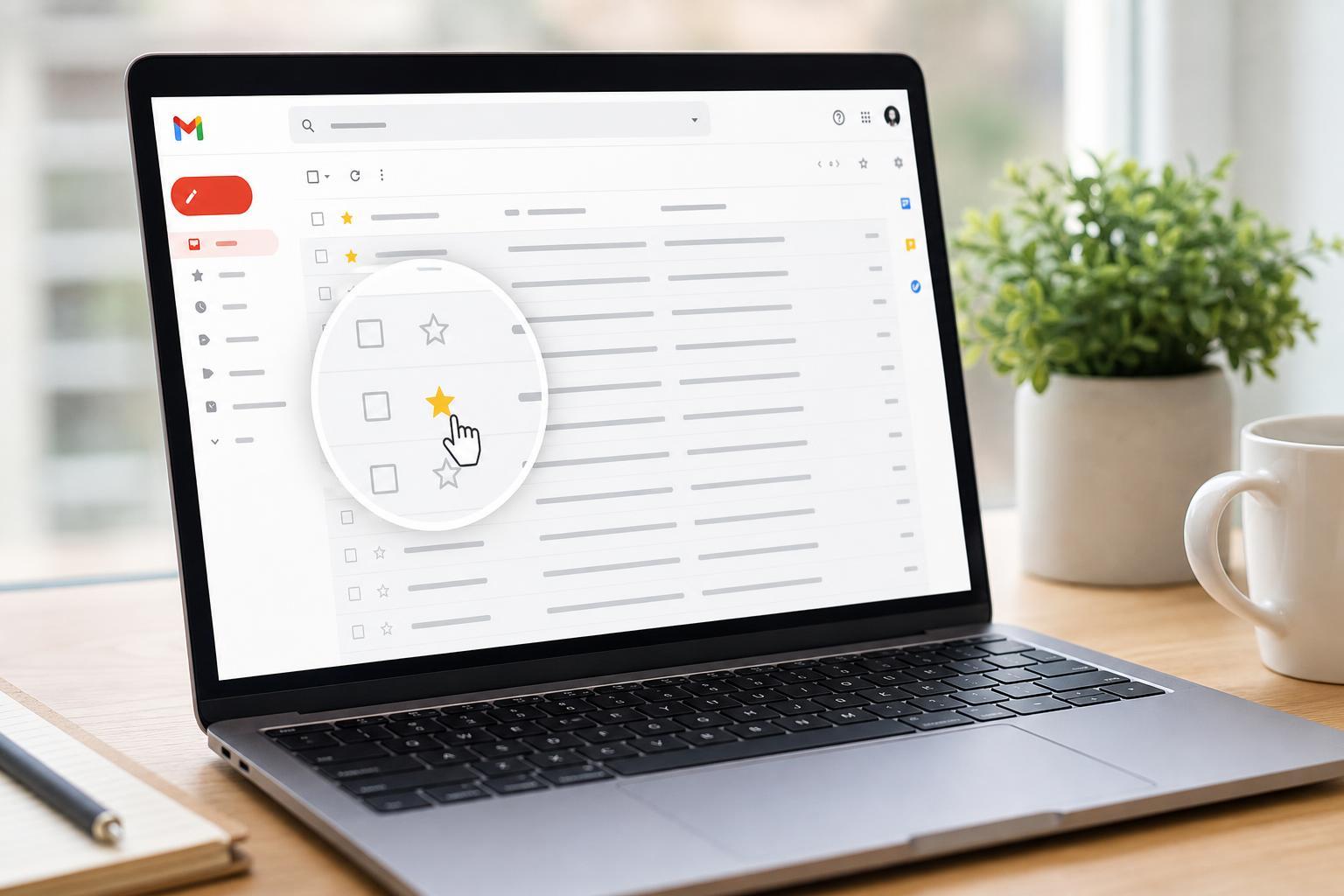
How Gmail Stars Work
A star does not archive, delete, or move a message. It simply adds a visible marker so the email is easier to spot in your inbox, starred view, or search results.
How to Star an Email in Gmail
- Open Gmail in a web browser or the Gmail app.
- Find the email you want to save for later.
- Click or tap the star icon next to the message.
- The star changes color or style to show that it has been marked.
If you use Gmail on the web, the star usually appears beside the sender or subject line. In the mobile app, it appears in the message list and inside the open message view.
Find All Starred Emails
- Open Gmail.
- In the left sidebar, look for Starred and click it.
- Gmail will show only the messages you have marked with stars.
If you do not see Starred in the sidebar, click More to expand the list of mailbox views.
Use More Than One Star Type
Gmail can support several star styles, not just the default yellow star. This is useful if you want to separate emails into different priorities or reminders.
- Open Gmail on a desktop browser.
- Click the gear icon and choose See all settings.
- On the General tab, scroll to Stars.
- Drag the star icons you want to use into the In use section.
- Save changes at the bottom of the page.
After that, clicking the star next to a message will cycle through the star types you enabled. You can use different symbols to represent different tasks or levels of urgency.
Search for Starred Mail
You can also find starred emails by searching. This is helpful when you remember the message was flagged but not where it is in your inbox.
- Use the Starred view in the sidebar for a quick list of all starred messages.
- Search for has:starred in Gmail to show starred emails.
- Combine it with other terms, such as has:starred from:boss@example.com, to narrow results.
Good Ways to Use Stars
- Follow-up emails you need to answer later
- Receipts, invoices, and order confirmations
- Travel bookings and reservation details
- Messages that need a second look before you act
- Important threads that are not urgent enough for a label
A star works best when you use it consistently. If you star too many messages, the system stops being useful. Try reserving stars for emails that truly need attention later.
When Stars Are Not Enough
Stars are quick and simple, but they are not a full organization system. If you need long-term sorting, use labels, filters, categories, or priority inbox settings instead.
A Simple Star Workflow That Works
- Star messages that need action later.
- Review your Starred view once or twice a day.
- Unstar the message after you reply, file it, or finish the task.
- Use labels for anything you need to keep organized over the long term.





