
Windows 11 can connect to more than one Wi‑Fi band when your router supports it, but it does not always pick the one that gives you the best balance of speed and range. The Preferred Band setting lets you guide your wireless adapter toward 2.4 GHz, 5 GHz, or 6 GHz so your connection is better suited to your needs.
This is useful if you want to reduce interference, improve speed on a nearby router, or favor longer range in a large home or office. The exact options you see depend on your Wi‑Fi adapter and driver support.
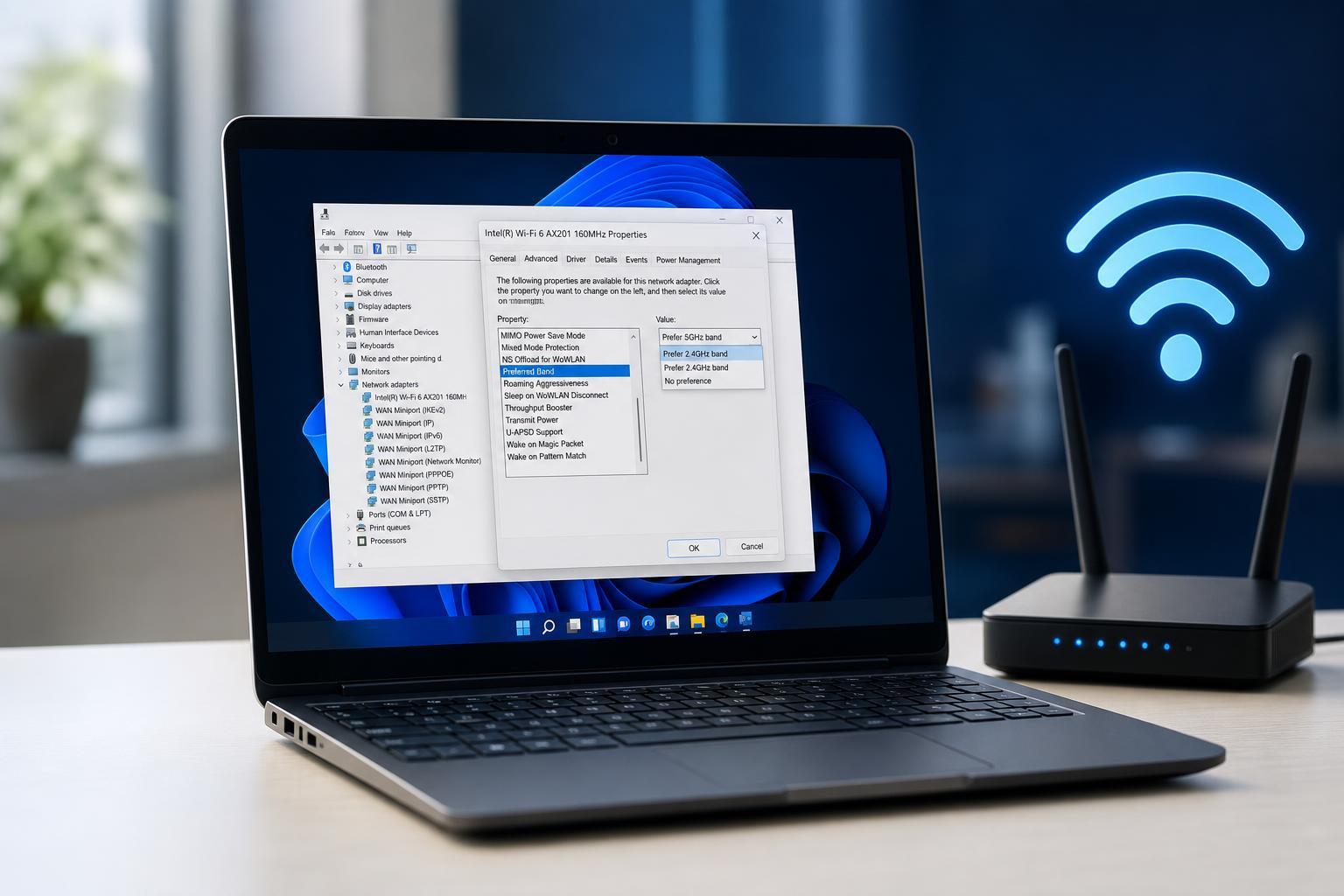
What the Preferred Band Setting Does
The Preferred Band option tells Windows which Wi‑Fi frequency range to favor when multiple bands are available on the same network. It does not force every connection to stay on that band forever, but it helps your adapter choose a band that matches your preference.
- 2.4 GHz: Best range and wall penetration, but often slower and more crowded.
- 5 GHz: Good balance of speed and range for most modern homes.
- 6 GHz: Best for newer Wi‑Fi 6E/7 networks when you are close to the router and want the least congestion.
Before You Change the Setting
Check what your router actually supports. If your network only broadcasts one band, the Preferred Band setting will not help. It also helps to know whether your adapter supports Wi‑Fi 5, Wi‑Fi 6, Wi‑Fi 6E, or Wi‑Fi 7, because that affects which bands are available.
How to Change Preferred Band in Windows 11
- Right-click the Start button and open Device Manager.
- Expand Network adapters.
- Right-click your Wi‑Fi adapter and select Properties.
- Open the Advanced tab.
- Look for an option named Preferred Band, Band Preference, or a similar wireless setting.
- Choose the band you want to favor, such as 2.4 GHz, 5 GHz, or 6 GHz.
- Click OK or Apply, then reconnect to Wi‑Fi if needed.
Which Band Should You Choose?
The best choice depends on where you use the device and what you care about most.
- Choose 2.4 GHz if you are far from the router, use the connection through several walls, or need maximum compatibility.
- Choose 5 GHz if you are in the same room or nearby and want a strong everyday balance of speed and stability.
- Choose 6 GHz if you have a supported adapter and router, stay close to the access point, and want the cleanest high-speed connection possible.
If You Do Not See the Preferred Band Option
Not every Wi‑Fi adapter exposes this control in Windows 11. If the option is missing, try these checks:
- Install the latest Wi‑Fi driver from your laptop or adapter manufacturer, not just Windows Update.
- Check your adapter model to confirm it supports band preference settings.
- Update your router firmware if the network seems to behave unpredictably.
- Verify that the router is actually broadcasting on the band you want to use.
How to Tell Whether the Change Helped
After changing the preferred band, check whether the connection feels more stable and whether download or streaming performance improves in the places where you actually use the device. A faster band is not always the best choice if your signal is weak.
- Fewer disconnects or brief drops
- Better speed near the router
- More stable video calls or game connections
- A stronger or more consistent signal indicator in your usual location
When Preferred Band Is Not the Right Fix
If Wi‑Fi problems continue after changing the band, the issue may be caused by something else, such as router placement, interference from nearby networks, an outdated driver, or a hardware limitation. In that case, band preference is only one part of the solution.
For many people, the best setup is to leave Windows on a sensible default unless there is a clear reason to favor one band. If your connection already works well, changing the setting may not make a meaningful difference.





