
WhatsApp Status has a built-in 30-second limit for video clips, which can be frustrating when you want to share a longer moment. The good news is that you can still post a longer video by letting WhatsApp split it into multiple status segments or by trimming and preparing the clip first.
In this guide, you’ll learn the easiest ways to upload WhatsApp Status videos longer than 30 seconds, plus a few practical tips to make sure the result looks smooth and plays correctly.
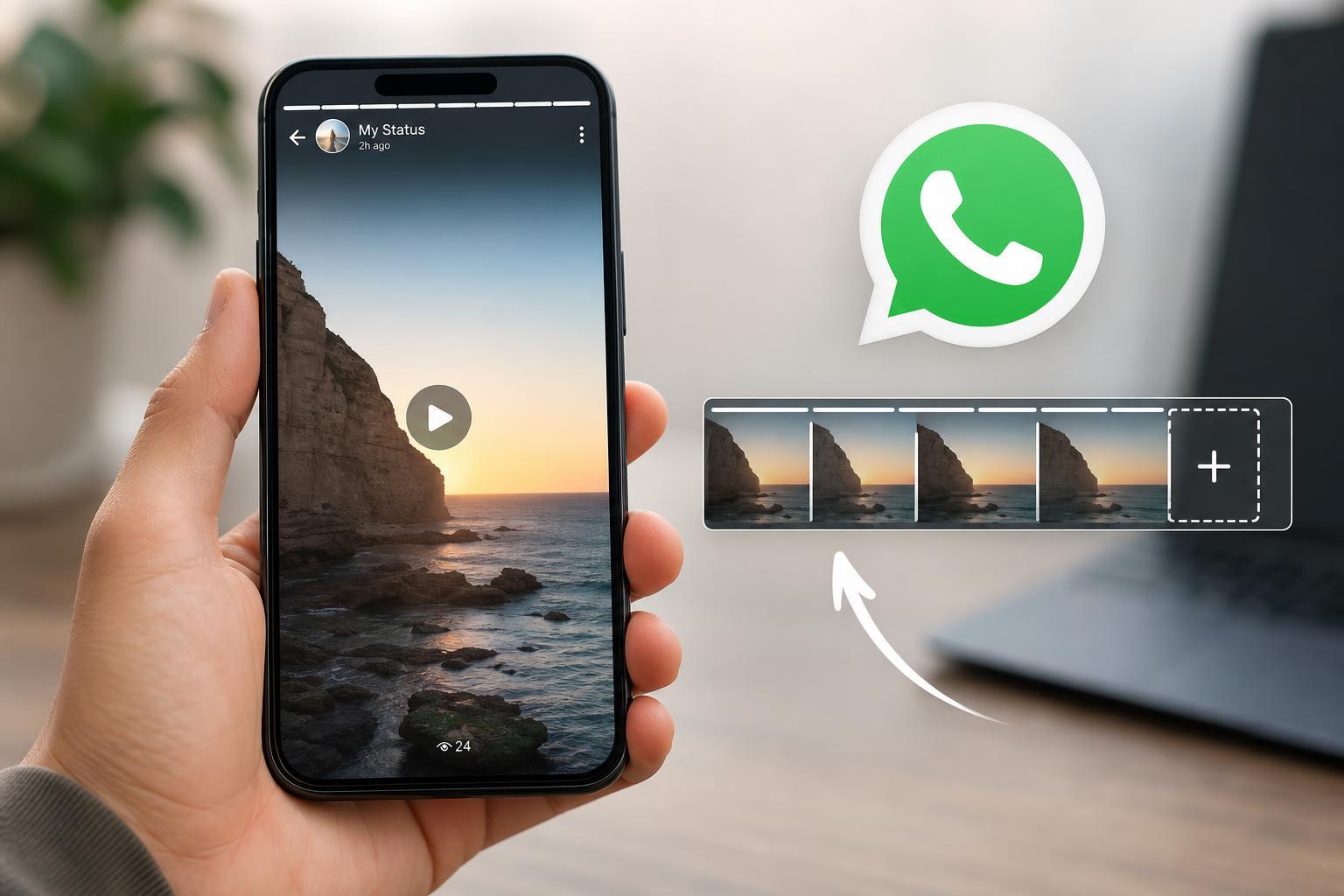
What WhatsApp Status Allows
WhatsApp Status is designed for short posts, so a single video segment is limited to 30 seconds. If your video is longer, WhatsApp may split it into multiple parts during upload, depending on the app version and your device.
Method 1: Let WhatsApp Split the Video Automatically
The simplest option is to select a video longer than 30 seconds and see whether WhatsApp offers the full clip in separate status segments. On many phones, WhatsApp will let you upload the video as a sequence of short clips rather than forcing you to manually cut it yourself.
- Open WhatsApp and go to the Updates or Status tab.
- Tap My Status or the camera icon to add a new status.
- Choose the longer video from your gallery.
- If WhatsApp shows a trimming bar, move it to select the first 30-second section.
- Post that segment, then continue with the next part if the app allows it.
- Repeat until the full video is uploaded as separate status updates.
Method 2: Trim the Video Into 30-Second Clips First
If WhatsApp does not split the video the way you want, trim it yourself before posting. This gives you more control over where each segment starts and ends, which is useful for songs, speeches, gameplay clips, or tutorials.
- Open your phone’s gallery or video editor.
- Select the long video and open the trim or edit tool.
- Cut the video into 30-second sections.
- Save each clip separately.
- Upload each clip to WhatsApp Status in order.
Method 3: Use a Video Splitter App
If you post long Status videos often, a splitter app can save time. These apps automatically divide a video into equal parts, usually 30 seconds each, so you can upload them one by one without manually trimming every segment.
- Fast automatic splitting into 30-second clips
- Less manual editing than trimming each section yourself
- Useful for longer videos that need to stay in order
- Helpful when your phone’s built-in editor is limited
Method 4: Upload the Same Video in Sections for a Continuous Feel
If your goal is to make the video feel continuous, try to split it at natural break points. Good cut points include pauses in speech, scene changes, or moments where the action briefly slows down.
- Watch the full video once before editing.
- Mark natural break points where the transition will not feel awkward.
- Split the video into 30-second parts at those points.
- Upload the parts in the correct order.
- Check the status preview to make sure the sequence makes sense.
How to Make Long Status Videos Look Better
A longer status broken into segments can still look polished if you prepare it properly.
- Keep each clip within the same aspect ratio so the video does not jump around.
- Avoid heavy compression if possible, since WhatsApp will already reduce quality a bit.
- Use shorter opening and closing frames so each segment starts cleanly.
- Keep text overlays large enough to read on a phone screen.
- Check the order before posting so the story flows naturally.
Common Problems and Fixes
Sometimes the upload process does not work as expected. These are the most common issues people run into when trying to post longer WhatsApp Status videos.
- The video does not appear in the picker: make sure it is saved locally on your phone, not only in cloud storage.
- WhatsApp only shows part of the video: trim it manually or use a splitter app before uploading.
- Video quality looks bad: export the clip at a reasonable resolution and avoid repeated re-saving.
- The order is wrong: delete the status and repost the clips in the correct sequence.
- The audio is out of sync: re-export the video from your editor before uploading again.
What to Choose If You Want the Easiest Method
If you only need to post a long video once, manual trimming is usually enough. If you post long clips often, a splitter app is more convenient. If WhatsApp automatically splits the clip on your phone, that is the quickest option because it requires almost no editing.
Final Check Before You Post
Before publishing a long status, preview the clips in order and make sure the transitions, sound, and text are still clear on a small screen. A few seconds of checking can prevent a messy upload and save you from deleting and reposting the whole set.





