
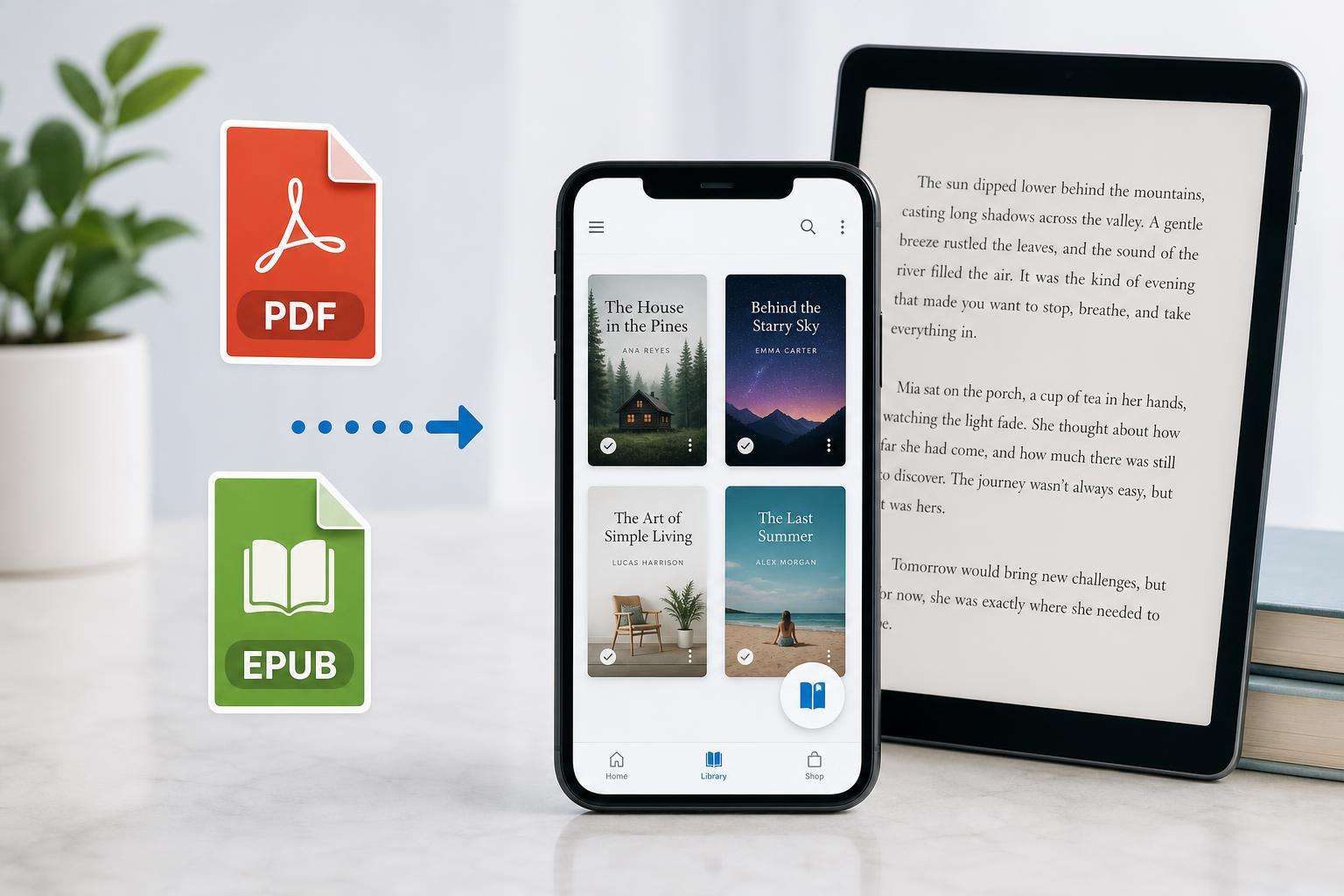
Google Play Books lets you upload your own PDF and EPUB files so you can read them on your phone, tablet, or web browser. This is useful if you already own eBooks from another store, have personal documents you want to read like books, or want one place to keep your reading library synced.
The process is straightforward, but the exact steps are a little different depending on whether you use a computer, Android device, or the web. EPUB files are usually the most flexible format, while PDFs keep their original layout exactly as designed.
Before You Upload Your eBook
Make sure the file is in a format Google Play Books supports. For personal uploads, the main formats are PDF and EPUB. If your file is protected by digital rights management (DRM), Play Books usually will not accept it.
- PDF files preserve the page layout, which is useful for manuals, textbooks, and documents with fixed formatting.
- EPUB files reflow more naturally on smaller screens, so they are often better for novels and text-heavy books.
- If the file is compressed in a ZIP or RAR archive, extract it first.
- If the file came from another ebook store, check whether it is DRM-protected before trying to upload it.
Upload eBooks from a Computer
The easiest way to upload a PDF or EPUB is through the Google Play Books website.
- Open a web browser and go to Google Play Books while signed in to your Google account.
- In the left menu, look for your library or the upload option.
- Drag and drop the PDF or EPUB file into the browser window, or use the file picker if prompted.
- Wait for the upload to finish. Large files can take a little while, especially on slower connections.
- Once uploaded, the book should appear in your library and sync to any device using the same Google account.
Upload eBooks from Android
You can also upload a file from your Android device, either from the Google Play Books app or from a file manager that can share the file into Play Books.
- Open your file manager and locate the PDF or EPUB file.
- Tap the file, then choose Google Play Books from the Share or Open with menu if it appears.
- If you are in the Play Books app, look for an upload or import option, depending on the version of the app.
- Confirm the upload and wait for the file to sync to your library.
- Open Google Play Books to verify that the book appears in your library.
Read Your Uploaded Books on Any Device
After the upload finishes, your books are tied to your Google account. That means you can read them on Android, iPhone, iPad, and the web as long as you sign in with the same account.
- On Android and iOS, open the Google Play Books app and go to your library.
- On a computer, open Play Books in your browser and select the uploaded title.
- Your reading progress may sync between devices if sync is enabled.
- Annotations, bookmarks, and highlights can also sync for many uploaded books.
If the Book Does Not Upload
If your file does not appear in Play Books after uploading, the cause is usually one of a few common problems.
- The file is not actually a PDF or EPUB, even if the filename suggests it is.
- The file is DRM-protected or otherwise restricted.
- The upload was interrupted by a browser issue or unstable connection.
- The file is too large or has a damaged structure.
- The EPUB contains formatting that Play Books cannot process well.
- Check the file extension and make sure the file really is PDF or EPUB.
- Try uploading from a different browser or from a computer if you were using a phone.
- If the file is inside a ZIP folder, extract it first.
- Remove and re-add the file if the upload stalled partway through.
- If the EPUB still fails, test the same file in another ebook reader to confirm it is not corrupted.
PDF vs EPUB: Which Should You Use?
Choosing between PDF and EPUB depends on how the book is designed and how you want to read it.
- Use PDF when you need the original page layout preserved exactly.
- Use EPUB when you want text to resize cleanly on phones and tablets.
- Use PDF for forms, reference books, and documents with columns or charts.
- Use EPUB for novels, essays, and other text-focused books.
Helpful Tips for a Better Reading Experience
A few small habits can make uploaded books easier to manage in Play Books.
- Keep file names simple so they are easy to identify in your library.
- Store a backup copy of the original file before uploading it.
- Use EPUB when possible if you plan to read mostly on a phone.
- Check that sync is enabled if you want bookmarks and progress to appear on other devices.
- If a PDF looks too small on mobile, try zoom or reflow options where available.
When to Use Another App Instead
Google Play Books is convenient for syncing and casual reading, but it is not always the best choice for every file.
- Choose another reader if the file depends on advanced PDF annotations or form filling.
- Use a dedicated PDF app if you need stronger document tools.
- Use another EPUB reader if the book has formatting problems in Play Books.
- Keep Play Books if your main goal is simple cross-device reading and syncing.





