
Windows 11 includes several AI-powered features, with Copilot being the most visible. If you do not want it on your PC, you can hide or remove Copilot depending on your Windows edition, and you can also reduce other AI-driven features through settings and privacy controls.
The exact options available depend on whether you use Windows 11 Home, Pro, or an organization-managed device. Some changes are simple and reversible, while others require administrative tools or Group Policy.
What You Can Actually Remove or Disable
Before changing settings, it helps to know the difference between hiding Copilot and disabling AI features more broadly. In some cases, Windows only lets you remove the Copilot button from the taskbar. In other cases, you can stop the app from appearing, limit cloud-backed features, or turn off features tied to Windows Search, Recall, or app suggestions.
- Hide or remove the Copilot button from the taskbar
- Disable Copilot through Windows settings or policy
- Turn off AI-related suggestions and personalization
- Limit cloud-backed features that rely on Microsoft account data
- Disable Recall or similar features if your PC supports them
Remove the Copilot Button from the Taskbar
If you just want Copilot out of sight, the simplest fix is to remove its taskbar button. This does not always uninstall the feature, but it prevents easy access from the desktop.
- Right-click an empty area of the taskbar.
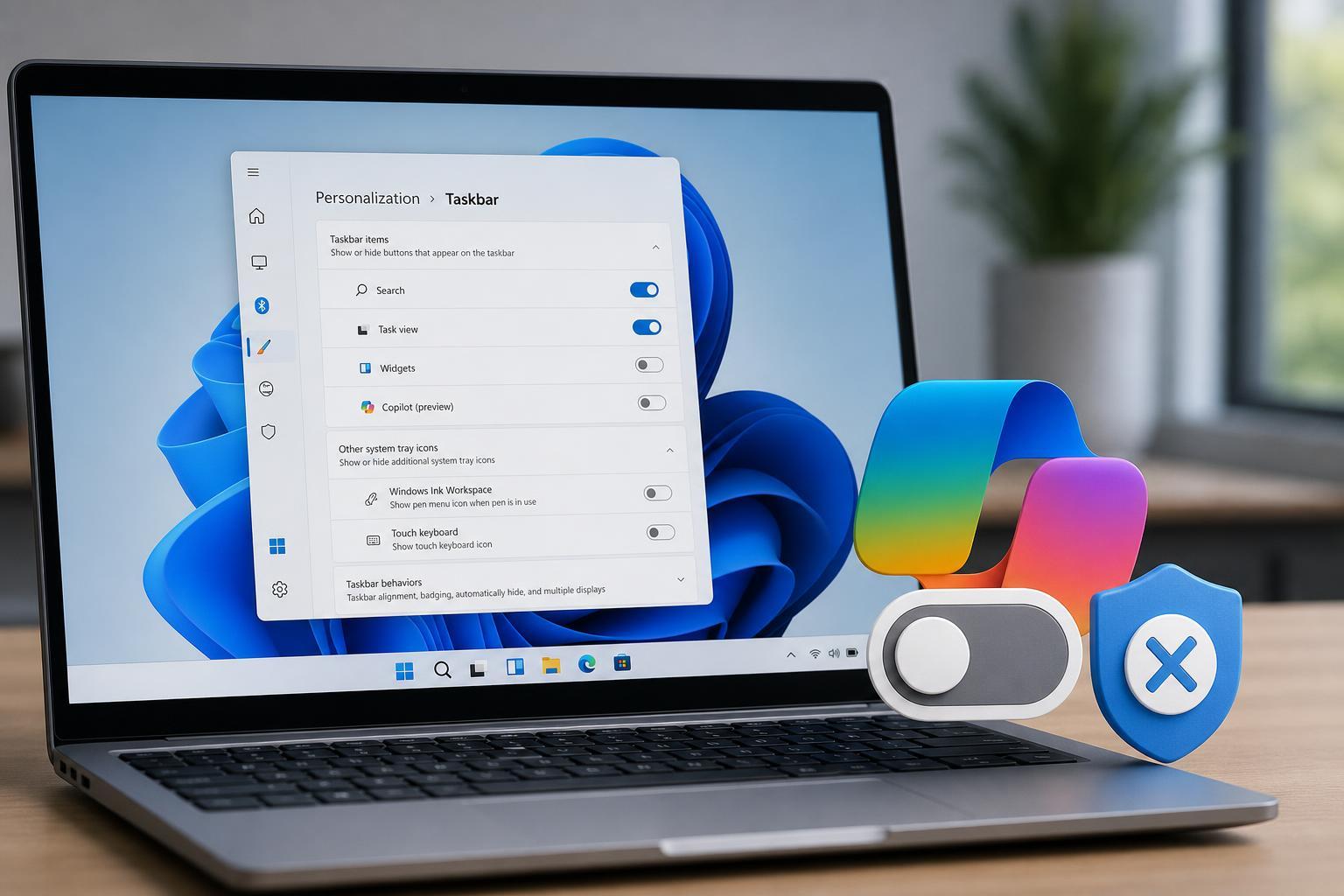
- Select Taskbar settings.
- Find the Copilot setting under taskbar items or a similar section.
- Turn Copilot off.
On some Windows 11 builds, the setting may be labeled slightly differently, but the idea is the same: disable the Copilot button so it no longer appears on the taskbar.
Disable Copilot with Settings
Some Windows 11 versions include a direct Copilot toggle in the Settings app. If your PC has it, this is the easiest way to disable the feature without using advanced tools.
- Open Settings.
- Go to Personalization.
- Select Taskbar.
- Turn off Copilot if the option is available.
Use Group Policy to Disable Copilot on Windows 11 Pro and Enterprise
If you use Windows 11 Pro, Enterprise, or Education, Group Policy is often the most reliable way to disable Copilot. This is especially useful on work PCs or shared systems where you want the setting to stay in place.
- Press Win + R, type gpedit.msc, and press Enter.
- Go to User Configuration > Administrative Templates > Windows Components > Windows Copilot.
- Open Turn off Windows Copilot.
- Set it to Enabled, then apply the change.
- Sign out and sign back in, or restart Explorer if needed.
Disable Copilot with the Registry on Windows 11 Home
Windows 11 Home does not include the Group Policy Editor, but you can often achieve the same result with the Registry. This is a good option if you are comfortable editing system settings manually.
- Press Win + R, type regedit, and press Enter.
- Navigate to HKEY_CURRENT_USER\Software\Policies\Microsoft\Windows.
- If a Copilot key does not exist, create it under Windows.
- Inside Copilot, create a DWORD (32-bit) Value named TurnOffWindowsCopilot.
- Set the value to 1.
- Sign out and sign back in, or restart Windows Explorer.
Turn Off Other AI-Related Windows 11 Features
Copilot is only one part of Windows 11’s AI features. If you want a more privacy-focused setup, review the following areas as well.
- Search suggestions and web results in Windows Search
- Personalized ads and app recommendations
- Voice typing and speech-related cloud features
- Activity history and diagnostic data sharing
- Recall or other snapshot-based features, if available on your device
Reduce Search and Recommendation Personalization
Windows Search can show web results, suggestions, and recommendations that are influenced by Microsoft services. If you want a more local, less personalized experience, adjust the related privacy and search settings.
- Open Settings.
- Go to Privacy & security.
- Review Search permissions and Windows permissions.
- Turn off settings related to search highlights, suggestions, or personalization where available.
- Check Start menu settings for recommendations and suggested content.
Disable Recall or Similar Snapshot Features if Available
Some newer Windows 11 devices include features that capture snapshots of your activity to make it easier to find things later. These features can be useful, but they also raise privacy concerns for many users.
- Open Settings.
- Go to Privacy & security.
- Look for Recall or related feature settings.
- Turn the feature off if it is enabled.
- Review whether snapshots, indexing, or storage of captured data should also be cleared.
Stop Copilot from Opening with Keyboard Shortcuts or Sidebar Actions
If Copilot still responds to shortcuts or appears in side panels after you hide it, double-check that the feature itself is disabled, not just the button. On managed devices, the policy setting is usually the most dependable way to stop it from reappearing.
If Copilot opens from a browser or Microsoft account integration, you may also need to sign out of the related Microsoft services or adjust sync and personalization settings in your account profile.
Clean Up Privacy Settings That Feed AI Features
Many Windows AI features rely on data such as app usage, search history, device activity, and account-based personalization. If you want fewer AI-style suggestions, reducing those inputs can help.
- Turn off optional diagnostic data if you do not need it
- Review personalization settings in your Microsoft account
- Disable tailored ads where possible
- Limit cloud sync for settings and app data
- Clear search history and activity history if you want a fresh start
When You Should Use Each Method
The best method depends on how completely you want to remove Copilot and related features.
- Use taskbar settings if you only want Copilot hidden
- Use Settings if your Windows build provides a direct toggle
- Use Group Policy on Windows 11 Pro, Enterprise, or Education for a stronger system-wide block
- Use the Registry on Windows 11 Home if you need a deeper change
- Review privacy settings if you also want to reduce recommendations and cloud-backed AI behavior
What to Expect After Disabling Copilot
After disabling Copilot, the taskbar button may disappear right away, but some changes only take effect after signing out, restarting Explorer, or rebooting Windows. If you later install a feature update, Windows may restore some interface elements, so it is worth checking your settings after major updates.
A Practical Way to Keep Windows 11 More Minimal
If your goal is not only removing Copilot but also making Windows 11 feel less crowded, focus on taskbar items, Start menu recommendations, search personalization, and account-based cloud features. That gives you the biggest reduction in visible AI behavior without touching unrelated system functions.
For most home users, the simplest approach is to hide the Copilot button, turn off recommendations, and review privacy settings. For power users and IT admins, Group Policy provides the cleanest long-term control.





