
If you are switching from Samsung Messages to Google Messages, the main goal is usually to keep your conversation history, SMS/MMS threads, and messaging habits intact while moving to the app Google is actively building around Android features like RCS. The process is usually straightforward, but the exact steps depend on whether you want to simply start using Google Messages or also preserve older messages already stored on your Samsung phone.
This guide explains how to make the switch, what transfers automatically, what may need extra attention, and how to avoid common problems such as missing media, duplicate messages, or the wrong app handling your texts.
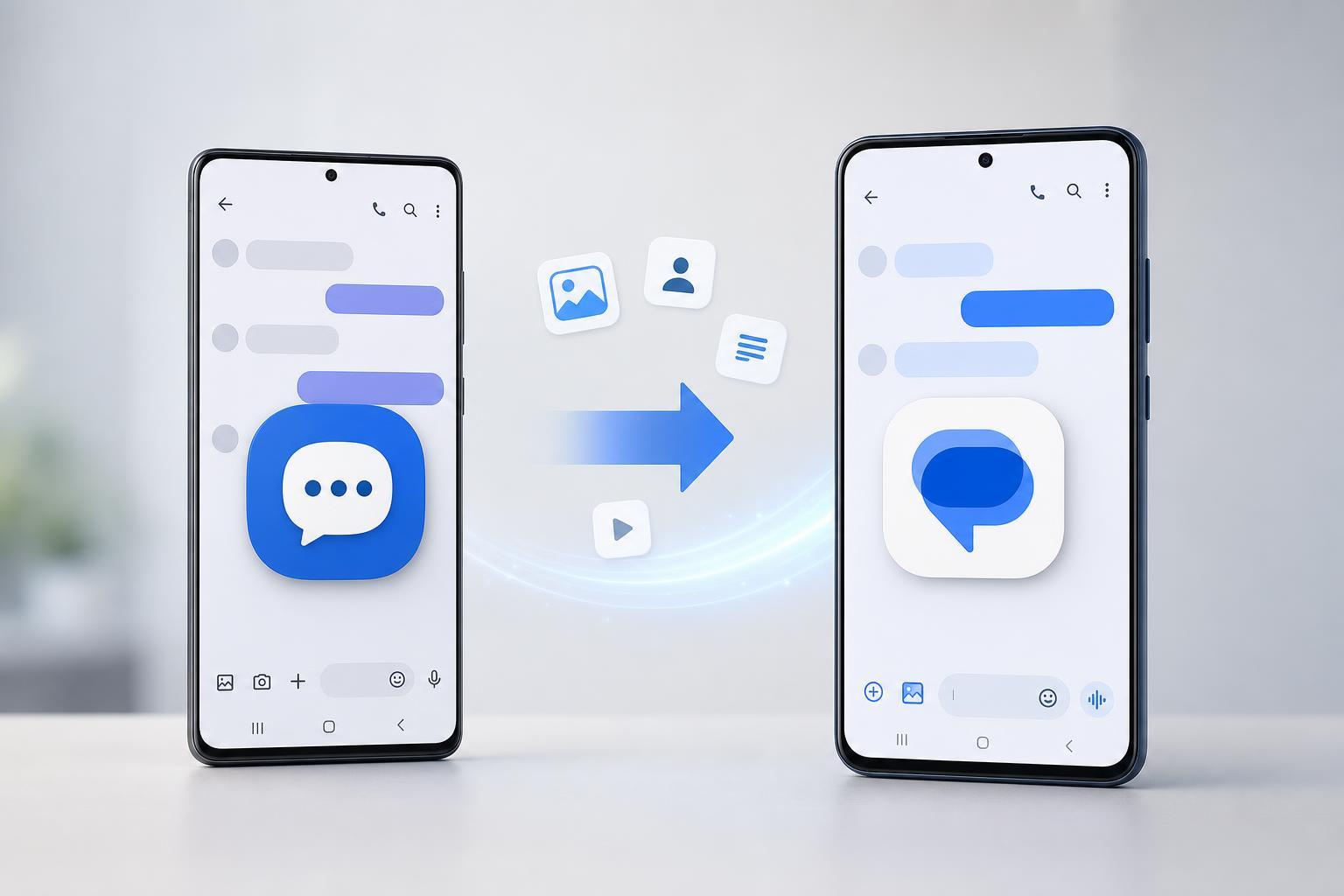
What Actually Transfers When You Switch
Before you begin, it helps to know what this kind of transfer can and cannot do. In most cases, your existing SMS and MMS messages are stored locally on the phone, so changing apps does not erase them. Once Google Messages is set as the default messaging app, it can read the same message database and continue from there.
- SMS text conversations usually carry over as long as they remain on the phone.
- MMS messages, including photos and group texts, may transfer too if they are already stored locally.
- Google Messages can become your new default app for sending and receiving future texts.
- RCS chat features may need to be set up again in Google Messages.
- Messages that were backed up only inside Samsung-specific apps or services may not appear automatically.
Before You Switch
A little preparation helps prevent problems during the move. Check that your messages are fully present in Samsung Messages first, especially if you recently changed phones or restored a backup.
- Open Samsung Messages and confirm that your recent conversations are visible.
- If you use two SIMs, make sure you know which number is your primary messaging line.
- Check whether any important messages are saved only in Samsung Secure Folder or another protected area.
- Make sure Google Messages is installed from the Google Play Store.
- If possible, confirm that your phone has enough free storage for message syncing and media attachments.
Set Google Messages as the Default App
The most important step is making Google Messages your default texting app. Once it is the default, it becomes the app Android uses for sending and receiving messages.
- Open the Google Messages app.
- If prompted, allow the app to become the default messaging app.
- If you are not prompted, open your phone’s Settings app.
- Go to Apps, then choose Default apps or Choose default apps.
- Select SMS app or Messaging app.
- Choose Google Messages.
Turn On Chat Features in Google Messages
If you want to use RCS features such as typing indicators, read receipts, higher-quality media, and Wi-Fi-based chat support where available, you should enable chat features in Google Messages after the switch.
- Open Google Messages.
- Tap your profile icon or the menu button.
- Choose Messages settings.
- Open RCS chats or Chat features.
- Turn on Chat features if the option is available.
- Follow any verification steps for your phone number.
If Your Old Messages Do Not Appear
In many cases, old conversations appear automatically after Google Messages becomes the default app. If they do not, the issue is usually one of these: the messages were not stored locally, a restore has not finished, or the phone is filtering views in a way that hides some conversations.
- Confirm that Samsung Messages still shows the conversations you expect.
- Check whether Google Messages is showing only the active SIM or only one inbox view.
- Look for hidden, archived, or spam-filtered messages.
- Make sure the app has permission to access contacts and SMS.
- Restarting the app after making it default may help it rescan message data.
If you recently restored a Samsung backup or moved to a new phone, give the messaging apps a little time to finish indexing. Large message histories and many MMS attachments can take longer than expected to populate.
How to Move Messages to a New Samsung Phone
If your goal is not just switching apps on the same phone, but moving your messages to a new Samsung device and then using Google Messages there, the cleanest approach is usually to restore the messages first and then change the default app on the new phone.
- Use Samsung Smart Switch, your carrier transfer tool, or your preferred backup method to move data to the new phone.
- Confirm that your messages appear in Samsung Messages on the new device.
- Install or open Google Messages on the new phone.
- Set Google Messages as the default SMS app.
- Wait for the app to finish loading your existing conversations and chat features.
Can You Export Samsung Messages Into Google Messages?
There is usually no separate export-import step needed when you are switching between these two Android messaging apps on the same phone. Both apps are meant to read the same text message data on the device once the correct permissions and default-app settings are in place.
That said, if you need a true archival copy of your messages for long-term storage, legal reasons, or a major phone migration, you may want to use a dedicated backup tool instead of relying only on app switching. Google Messages itself is not designed as a full manual import tool for old Samsung message histories from another system.
Common Problems and What to Check
- Google Messages does not send texts: confirm it is the default SMS app and that your SIM is active.
- RCS does not activate: check your internet connection, app version, and number verification.
- Old messages are missing: verify they were present in Samsung Messages and were not stored in a secure folder or backup only.
- Media messages look incomplete: wait for indexing to finish and confirm mobile data or Wi-Fi is available.
- Duplicate messages appear: remove or disable the old messaging app as the default to stop both apps from trying to manage the same inbox.
Best Way to Make the Switch Smoothly
For most people, the simplest path is: confirm the messages are present, install or open Google Messages, set it as the default SMS app, then enable chat features if you want RCS. That approach avoids unnecessary exporting and usually preserves the conversation history already on the phone.
What to Do After the Transfer
Once Google Messages is working properly, send a test message to a trusted contact, check a group chat, and verify that SMS, MMS, and any desired chat features behave as expected. If everything looks correct, you can keep using Google Messages as your main app and remove Samsung Messages from your home screen if you no longer need it.





