
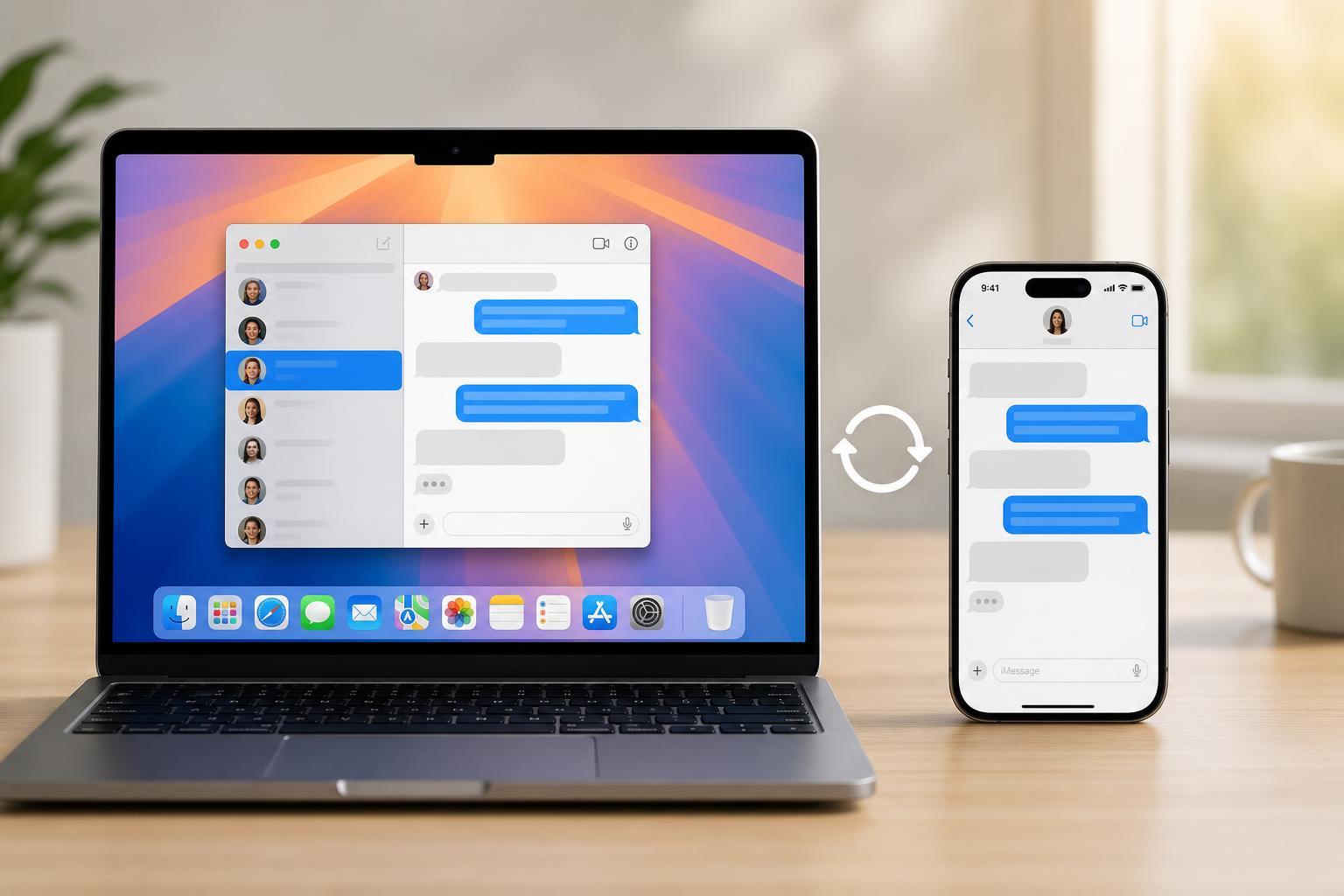
If you want your iPhone texts to appear on your Mac, you need to turn on Apple’s Messages syncing features and make sure both devices are signed into the same Apple ID. Once everything is set up correctly, you can send and receive iMessage conversations on your Mac and, in many cases, SMS texts too.
This guide walks you through the setup in the right order, shows where the important settings are, and explains what to check if messages do not appear on your Mac.
What You Need Before You Start
- An iPhone signed in to iMessage with your Apple ID
- A Mac signed in to the same Apple ID
- Wi-Fi or cellular data on the iPhone during setup
- macOS and iOS that support Messages in iCloud and Text Message Forwarding
1. Sign In to the Same Apple ID on Both Devices
Messages sync only works properly when your iPhone and Mac use the same Apple ID for iMessage. If the accounts do not match, your conversations may appear on one device but not the other.
- On your iPhone, open Settings and tap your name at the top.
- Confirm the Apple ID shown there is the one you want to use.
- On your Mac, open System Settings or System Preferences, then sign in with the same Apple ID if needed.
- Open the Messages app on the Mac and make sure you are signed in there as well.
2. Turn On Messages in iCloud
Messages in iCloud keeps your message history in sync across Apple devices. This is the main feature that helps old conversations, attachments, and deletions stay consistent between your iPhone and Mac.
- On your iPhone, go to Settings > [your name] > iCloud.
- Tap Show All if needed, then find Messages.
- Turn on Use on this iPhone or Sync this iPhone, depending on your iOS version.
- On your Mac, open Messages, then go to Messages > Settings or Preferences.
- Open the iMessage tab and enable Messages in iCloud if it is available.
3. Enable iMessage on the iPhone
If iMessage is turned off on the iPhone, your Mac will not receive iMessages from that account. This setting is usually enabled already, but it is worth checking if syncing is not working.
- Open Settings on your iPhone.
- Tap Messages.
- Make sure iMessage is turned on.
- If prompted, wait for activation to complete before testing Messages on your Mac.
4. Turn On Text Message Forwarding
To send and receive standard SMS and MMS messages on your Mac, your iPhone must forward them to the Mac. This is separate from iMessage syncing and must be enabled manually.
- On your iPhone, open Settings.
- Tap Messages.
- Select Text Message Forwarding.
- Turn on the switch next to your Mac.
- Enter the verification code if your Mac asks for one.
5. Check Message Settings on Your Mac
Your Mac should be set to receive messages from the same phone number and email addresses used on your iPhone. If the wrong addresses are selected, messages may appear to go missing.
- Open the Messages app on your Mac.
- Go to Messages > Settings or Preferences.
- Open the iMessage tab.
- Confirm you are signed in with the correct Apple ID.
- Check which phone numbers and email addresses are selected under You can be reached for messages at.
- Set the Start new conversations from option to the address or phone number you want to use.
6. Test the Sync
After setup, send a test message to see whether everything is working correctly.
- Send an iMessage from your iPhone to a contact you can access from both devices.
- Open Messages on your Mac and see if the conversation appears.
- Reply from the Mac and confirm the reply shows on the iPhone.
- If you want to test SMS forwarding, send a regular text message to a non-Apple number and check whether it appears on the Mac.
Common Problems and How to Fix Them
- Messages only appear on one device: check that both devices use the same Apple ID and that Messages in iCloud is turned on.
- iMessages sync but SMS does not: enable Text Message Forwarding on the iPhone.
- Messages are delayed: verify that both devices have a stable internet connection and that the Mac is not sleeping for long periods.
- The Mac does not show in forwarding settings: make sure Bluetooth and Wi-Fi are on and that the devices are close together.
- A contact is missing or duplicated: confirm the phone number and email address selected for iMessage on both devices.
When to Sign Out and Back In
If the correct settings are in place but messages still refuse to sync, signing out of iMessage on the Mac and signing back in can refresh the connection. Do this only after checking the basics, because it may temporarily stop messages from appearing on that device.
Best Way to Keep Messages in Sync
For the most reliable setup, use the same Apple ID on both devices, keep Messages in iCloud enabled, and turn on Text Message Forwarding if you want SMS texts on your Mac. That combination gives you the closest experience to having one shared message inbox across devices.





