
Telegram can save media in a few different ways, depending on your device and app settings. If your photos and videos are showing up in your gallery, camera roll, downloads folder, or file manager without you wanting them there, the fix is usually in Telegram’s media and storage settings.
This guide shows how to stop Telegram from auto-saving photos and videos on Android, iPhone, and desktop apps, and explains the difference between auto-download and saving media to your device.
First: understand what Telegram is doing
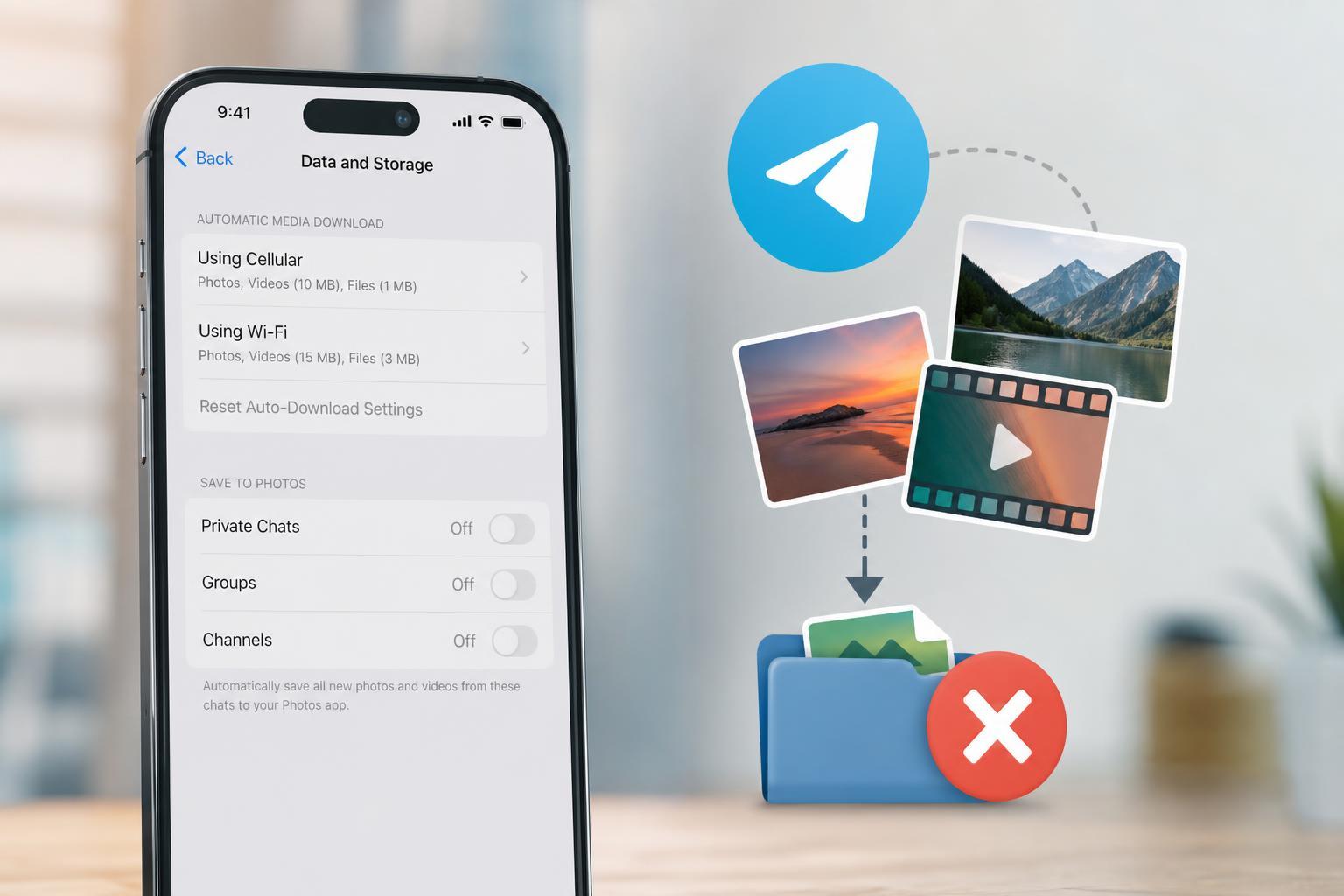
Telegram can handle media in two separate ways. It can automatically download files inside the app, and it can also save received photos and videos to your device’s gallery or storage. Turning off one setting does not always disable the other, so it helps to check both.
- Auto-download controls whether media is downloaded inside Telegram when you open chats or receive messages.
- Save to gallery or camera roll controls whether photos and videos are copied into your phone’s Photos app or gallery.
- On desktop, media may be downloaded to your chosen downloads folder even if it does not appear in a gallery app.
Stop Telegram from saving media on Android
- Open Telegram and tap the menu button, then go to Settings.
- Open Chat Settings or Data and Storage, depending on your Telegram version.
- Find the Save to Gallery option and turn it off.
- If you also want to reduce automatic downloads, open Data and Storage and check Auto-download Media settings.
- Turn off auto-download for photos, videos, and files on mobile data, Wi-Fi, and roaming as needed.
On many Android phones, Telegram’s gallery-saving option is what causes images and videos to appear in your device gallery even after you did not manually download them. Turning this off usually stops Telegram media from showing up in the Photos app or gallery view.
Stop Telegram from saving media on iPhone
- Open Telegram and tap Settings.
- Go to Data and Storage or Chat Settings, depending on the version you have installed.
- Turn off Save Incoming Photos or Save to Camera Roll if you see that option.
- Check Auto-Download Media and disable photos and videos for Wi-Fi, cellular data, or both.
- If you only want certain chats to behave differently, open the chat, tap the contact or group name, and review any media-saving options there.
On iPhone, Telegram may save incoming photos and videos to the Camera Roll if that option is enabled. If you want Telegram media to stay inside the app only, disabling that setting is the most important step.
Stop Telegram from auto-downloading media on desktop
- Open Telegram Desktop.
- Go to Settings.
- Open Advanced or Data and Storage.
- Review Automatic Media Download and turn off photos, videos, and files for private chats, groups, and channels if you do not want them downloaded automatically.
- If Telegram is saving files to a folder you do not want to use, check the download location in your desktop app settings and change it if needed.
Desktop apps often save files to your computer’s Downloads folder or another default location. If your goal is to keep Telegram from cluttering your storage, it is worth checking both auto-download rules and the download folder.
Clear already-saved media from your device
Turning off the setting prevents new media from being saved, but it will not remove files that were already copied to your device. You may need to clean up existing photos, videos, or downloads manually.
- On Android, check your gallery app and the Telegram folder in your file manager.
- On iPhone, look in the Photos app and delete unwanted Telegram media from Albums or Recents.
- On Windows or macOS, check the Telegram download folder or your system Downloads folder.
- Empty the app’s cache only if you understand that it may remove locally stored media from Telegram and force it to re-download later.
If media still saves after turning the setting off
If Telegram keeps saving photos or videos after you changed the main setting, the problem is usually one of these:
- The setting was changed on one device, but another logged-in device still has auto-saving enabled.
- A specific chat, channel, or group has its own media behavior.
- Your phone’s gallery app is showing cached copies or previously saved files.
- Telegram Desktop is downloading files to a folder outside the app that you have not checked yet.
- Check Telegram on every device you use, including phone, tablet, and desktop.
- Open a chat where the problem happens and look for any chat-specific media or notification settings.
- Confirm that the file is not being saved by your phone’s camera or gallery app itself.
- Search your storage for Telegram folders and recent downloads to find the source of the files.
Best settings to use if you want more privacy and less clutter
If your goal is to keep Telegram tidy and avoid filling your gallery or storage, the safest setup is to disable gallery saving and limit auto-download as much as possible.
- Turn off Save to Gallery or Save to Camera Roll.
- Disable auto-download for photos and videos on mobile data and Wi-Fi.
- Leave file auto-download off unless you regularly need documents or archives.
- Review chat-specific settings for groups and channels that send a lot of media.
When you may want auto-saving turned on
Some people prefer Telegram to save media automatically because it makes it easier to keep important photos in the phone gallery or find videos later without opening the app. If that is your preference, leave gallery saving enabled but still consider limiting auto-download so large files do not fill your storage unexpectedly.
What to check if you use Secret Chats
Secret Chats can behave differently from normal chats. If you are trying to keep sensitive media off your device, remember that Telegram settings alone may not be enough if you manually save screenshots or downloads yourself. Review the chat carefully and avoid saving files unless you truly need a local copy.





