If Safari keeps switching your search engine to Yahoo, the cause is usually a changed browser setting, a suspicious extension, or unwanted software modifying your browser preferences. In some cases, the issue comes back because more than one setting needs to be fixed.
This guide covers the most reliable ways to stop Safari from changing search engines back to Yahoo on Mac and iPhone, starting with the simplest checks and moving to more thorough cleanup steps.
1. Check Safari’s Search Engine Setting
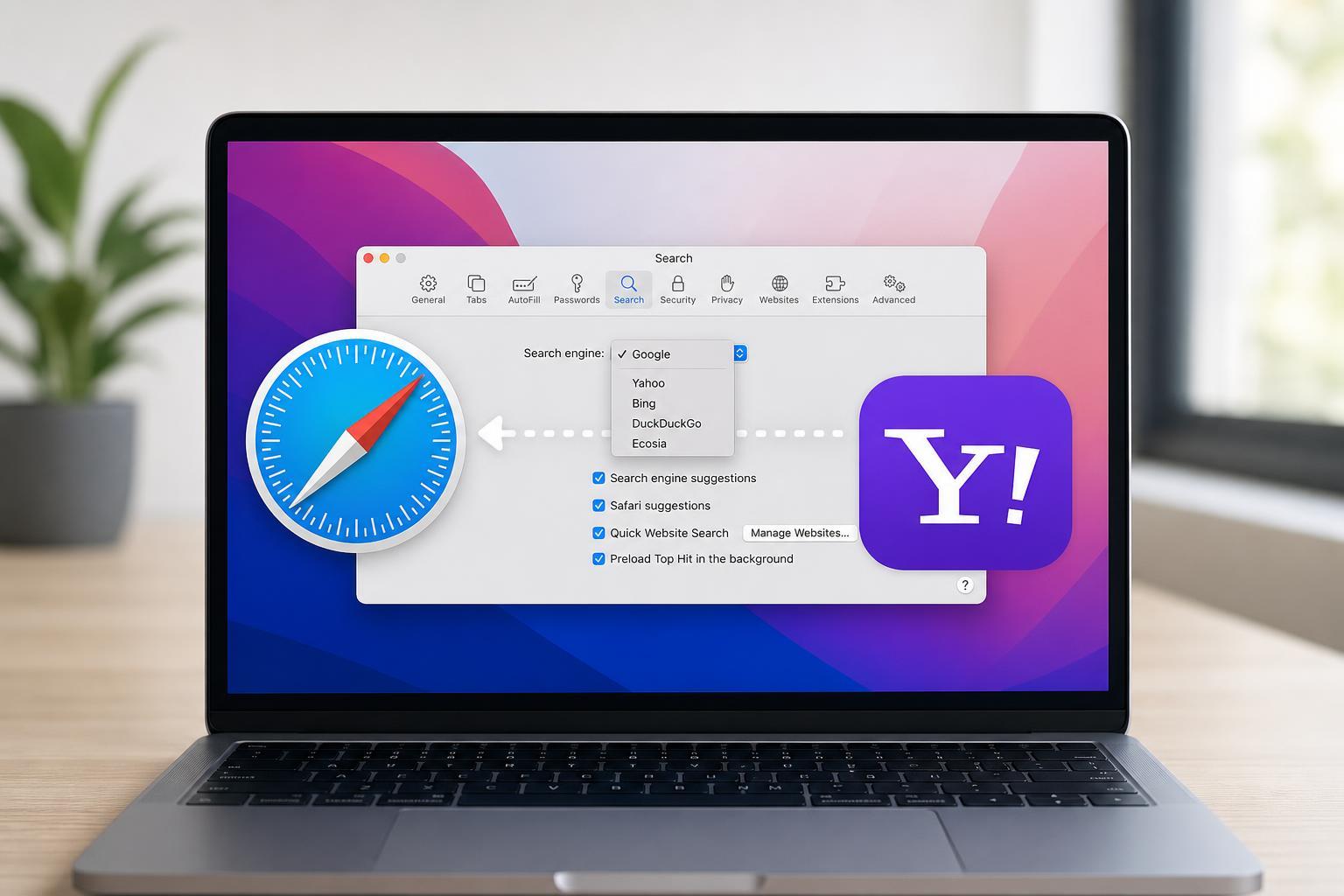
The first thing to verify is Safari’s built-in search engine setting. If it was changed manually or by a browser profile, Safari may keep using Yahoo until you set it back.
- Open Safari.
- On Mac, choose Safari > Settings or Preferences from the menu bar.
- Go to the Search tab.
- Look for Search engine and set it to Google, DuckDuckGo, Bing, or your preferred option.
- Close the window and test a search from the address bar.
2. Remove Suspicious Safari Extensions
Extensions can change how Safari behaves, including redirecting searches. If Yahoo keeps coming back, disable any extension you do not recognize or no longer need.
- Open Safari settings and go to the Extensions tab.
- Review the list carefully.
- Turn off any extension that looks unfamiliar, was recently installed, or is not from a trusted source.
- Test Safari after disabling one or more extensions.
- If the problem stops, remove the extension completely.
3. Check for Search-Related Profile or Managed Settings on Mac
On a Mac, some settings can be controlled by configuration profiles or device management. If Safari keeps resetting, a profile may be enforcing the Yahoo search setting.
- Open System Settings.
- Go to Privacy & Security or General, depending on your macOS version.
- Look for Profiles, Device Management, or VPN & Device Management.
- Review any profiles you do not recognize.
- Remove only profiles you are sure are unnecessary or suspicious.
4. Clear Safari Website Data and History
Corrupted browser data does not usually change the search engine setting by itself, but clearing Safari’s stored website data can help remove leftover redirect behavior and tracking scripts.
- In Safari, open Settings or Preferences.
- Go to the Privacy tab.
- Click Manage Website Data.
- Remove all stored data, or clear entries related to search or redirect sites if you prefer to be selective.
- Then clear Safari history if needed from the History menu.
5. Look for Unwanted Browser Hijacker Software on Mac
If Safari keeps changing to Yahoo after you have fixed the settings, a browser hijacker or adware app may be installed on the Mac. These programs often change browser settings, add extensions, and redirect searches.
- Apps you do not remember installing
- Utilities with vague names
- Recently added adware or “cleaner” tools
- Login items you do not recognize
- Security software that appears fake or unfamiliar
- Open Applications and remove any suspicious app you find.
- Check System Settings for Login Items and remove unknown entries.
- Review Safari extensions again after removing suspicious apps.
- If needed, run a trusted anti-malware tool to scan the Mac.
- After cleanup, set Safari’s search engine again and test it.
6. Reset Safari Homepage, New Tab, and Search Preferences
Some unwanted software changes more than just the search engine. It may also alter the homepage or new tab page, which can make it seem like the search engine is still being hijacked.
- Open Safari settings.
- Check the General tab for homepage changes.
- Review the Search tab and set your preferred search engine again.
- Open a new tab and make sure it behaves normally.
- If Safari still redirects, revisit extensions and profiles.
7. Update macOS and Safari
Outdated system software can contribute to browser bugs and security issues. Updating macOS also updates Safari on most versions of the Mac operating system.
- Open System Settings.
- Go to General > Software Update.
- Install any available macOS updates.
- Restart only if the update process asks you to do so.
- Open Safari and confirm the search engine setting is still correct.
8. Check iPhone and iPad Safari Settings
If the problem happens on an iPhone or iPad, the fix is usually in iOS or iPadOS settings rather than Safari’s desktop-style preferences.
- Open Settings.
- Scroll down and tap Safari.
- Tap Search Engine.
- Choose your preferred search provider.
- Go back and check for any installed profiles or device management settings if the problem keeps returning.
9. Remove Suspicious Profiles or Apps on iPhone and iPad
If Safari on iPhone or iPad keeps changing to Yahoo, a configuration profile, shortcut, or app may be influencing browser behavior.
- Open Settings > General > VPN & Device Management.
- Review any profile you do not recognize.
- Remove the profile if you are certain it is not needed.
- Delete any suspicious apps you recently installed.
- Check Safari again and set the search engine back to your preferred choice.
How to Tell Whether It Is a Setting or Malware
A one-time change in Safari’s search engine usually points to a simple setting issue. If Yahoo keeps returning after you set a different search engine, the problem is more likely caused by an extension, profile, or unwanted software.
- Changes back after every restart: likely a profile, extension, or installed app
- Only happens in Safari: likely a Safari setting or extension issue
- Happens in multiple browsers: more likely system-wide adware or a browser hijacker
- Device management warning appears: the setting may be controlled by a profile
When to Take a Stronger Cleanup Step
If none of the fixes above work, the next step is to perform a more thorough scan for unwanted software and remove anything tied to browser redirects. On a Mac, that usually means checking applications, login items, profiles, and extensions together rather than changing only one browser setting.
Keeping Safari from Switching Back
Once Safari is fixed, the best prevention is to avoid installing unknown browser add-ons, skip bundled installers, and be cautious with “free” cleanup tools or download managers. These are common sources of browser setting changes.
- Install extensions only from trusted sources
- Pay attention during app installation
- Remove apps you no longer use
- Keep macOS and iOS updated
- Review browser settings after installing new software