
If Facebook Messenger keeps opening every time you sign in to Windows, it is usually because the app is allowed to run at startup or it installed itself with a startup permission. You can stop it from launching automatically without uninstalling it, and in most cases the fix only takes a minute or two.
This guide shows the most likely places to turn off Messenger at startup on Windows 10 and Windows 11, plus a few extra checks if it still opens after you change the setting.
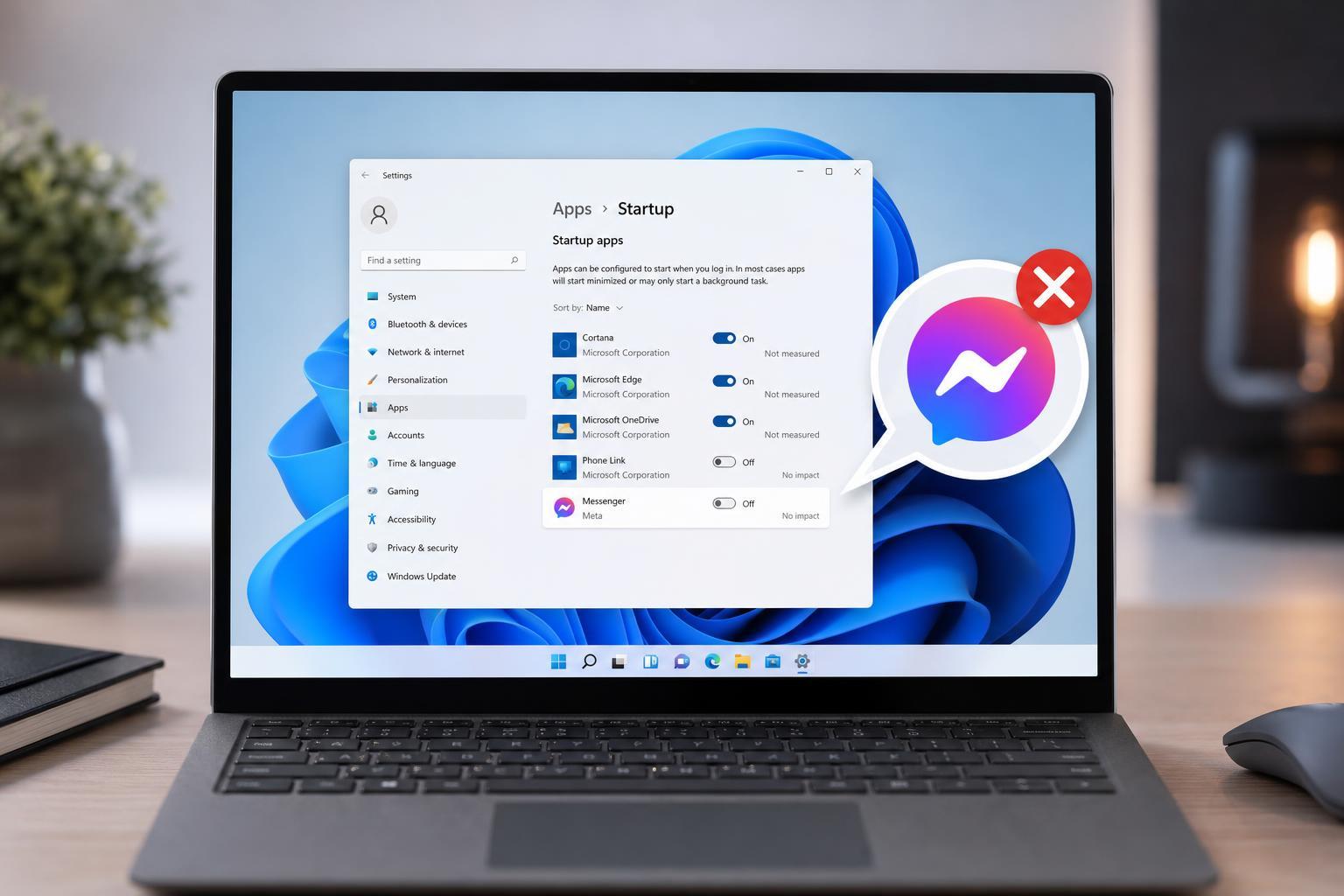
Check Windows Startup Apps First
The easiest way to stop Messenger from launching on login is to disable it in Windows startup settings. This is the most common cause, especially if you installed Messenger as a desktop app or from the Microsoft Store.
- Press Ctrl + Shift + Esc to open Task Manager.
- If Task Manager opens in compact view, select More details.
- Open the Startup apps or Startup tab.
- Look for Messenger or Facebook Messenger in the list.
- Right-click it and choose Disable, or select it and click Disable.
- Close Task Manager and sign out or restart later to confirm it no longer opens automatically.
Turn Off Messenger in the App Itself
Some versions of Messenger include their own startup option. If Windows startup settings do not help, check Messenger's settings as well.
- Open Facebook Messenger.
- Look for Settings, Preferences, or General settings.
- Find an option related to launching on startup, opening at login, or starting with Windows.
- Turn that option off.
- Close Messenger completely and sign back into Windows to test the change.
Remove Messenger From the Startup Folder
Some apps still launch because a shortcut was placed in the Windows Startup folder. This is less common, but it is worth checking if Messenger continues to open after you disable startup entries.
- Press Windows + R to open the Run box.
- Type shell:startup and press Enter.
- If you see a Messenger shortcut in the folder, delete it.
- You can also check the all-users startup folder by typing shell:common startup in the Run box.
- Delete any Messenger shortcut you find there as well.
Check Task Scheduler if Messenger Still Opens
Some apps use Task Scheduler to start themselves when Windows loads. If Messenger still appears at startup after you disable it in Task Manager, this is a good place to check next.
- Press Windows + S and search for Task Scheduler.
- Open Task Scheduler.
- In the left pane, expand Task Scheduler Library.
- Look for any task related to Messenger, Facebook, or Meta.
- If you find one, select it and review its triggers and actions.
- Disable the task if it is clearly responsible for launching Messenger.
Check Windows App Permissions and Background Activity
If Messenger is the Microsoft Store app, it may still run in the background even after you close it. That does not always mean it is opening at startup, but it can make it seem that way.
- Open Settings and go to Apps.
- Find Messenger in the installed apps list.
- Open its Advanced options if available.
- Look for background permissions or startup-related options.
- Set background activity to off if that option exists.
If It Keeps Coming Back
If Messenger re-enables itself after updates or keeps launching no matter what you change, there may be a sync issue with the app installation or a leftover startup entry. At that point, a clean uninstall and reinstall can be the quickest way to reset its startup behavior.
- Uninstall Messenger from Settings > Apps > Installed apps.
- Restart Windows.
- Install Messenger again only if you still want the app.
- Check startup settings immediately after reinstalling so it does not re-enable itself.
What to Try First
In most cases, you only need to disable Messenger in Task Manager's Startup list. If that does not work, check the app's own launch setting, then look for shortcuts in the Startup folder or scheduled tasks. Those steps cover the most common reasons Messenger opens on its own when Windows starts.
- Task Manager Startup tab: best first fix
- Messenger settings: useful if the app has its own launch option
- Startup folder: worth checking for leftover shortcuts
- Task Scheduler: useful if a task keeps relaunching the app
- Reinstalling Messenger: last resort if the setting keeps returning





