
Google Photos can automatically back up photos and videos from your phone or tablet, which is useful if you want cloud copies of everything you shoot. But if you want to save mobile data, stop duplicates, or keep certain media off the cloud, you may want to turn that feature off.
The exact steps depend on whether you use Android, iPhone, or Google Photos in a web browser, but the goal is the same: disable backup for the device or account that is uploading your photos.
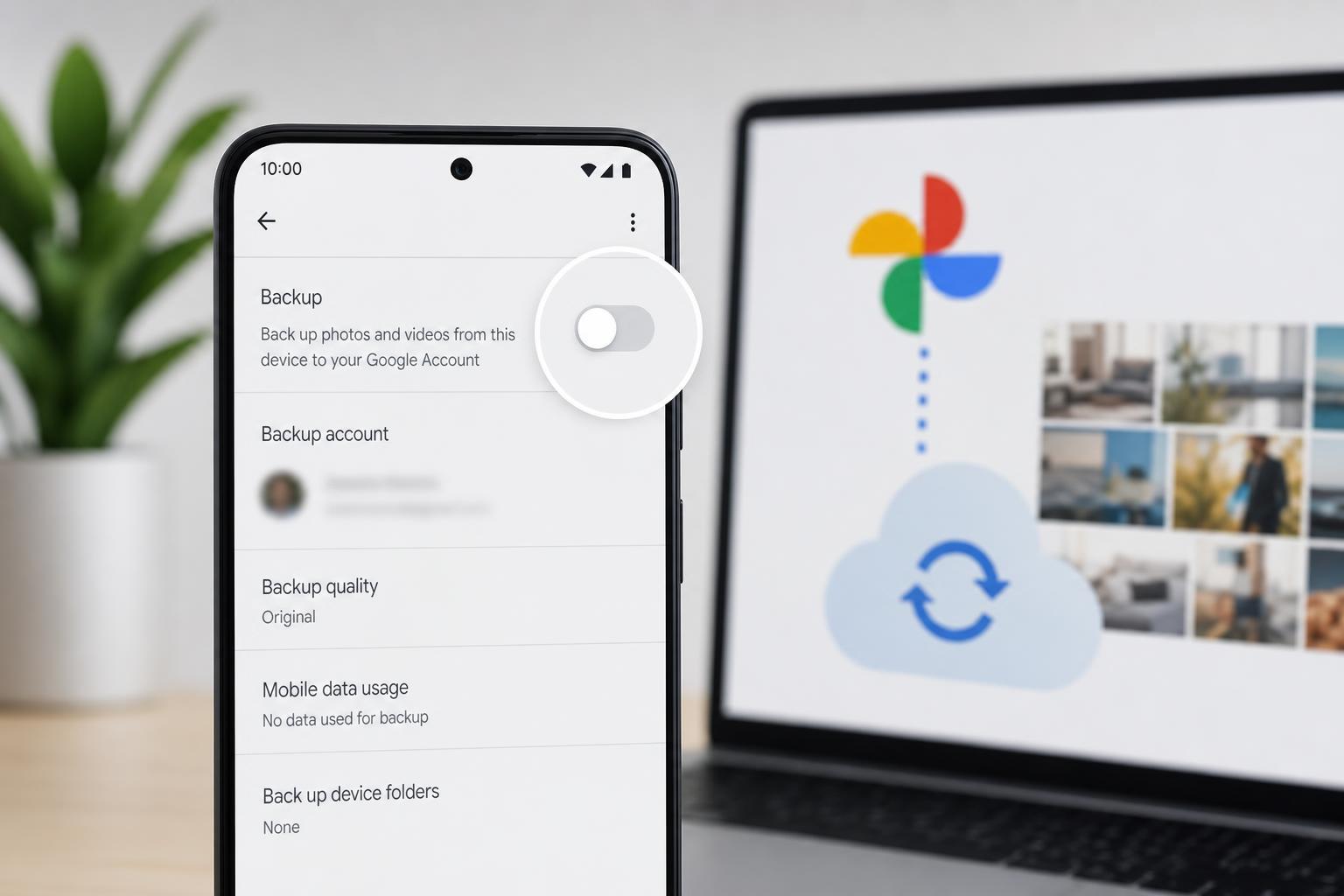
Turn Off Backup in the Google Photos App
The most direct way to stop automatic backup is inside the Google Photos app itself. This controls whether the app uploads new photos and videos from that device.
- Open the Google Photos app.
- Tap your profile picture or initial in the top-right corner.
- Select Photos settings.
- Tap Backup.
- Turn off Backup.
Once backup is off, Google Photos should stop uploading new items from that device. Existing photos already backed up in your Google account will stay there unless you delete them separately.
Stop Backup on Android
On Android, Google Photos often works closely with the phone’s account and device permissions, so you may also want to check the account tied to backup.
- Open Google Photos.
- Tap your profile picture.
- Confirm which Google account is currently backing up your photos.
- If needed, switch accounts first, then go back to Backup settings and turn Backup off for the account you do not want to use.
- If you only want to stop certain folders from uploading, open Backup and look for Device folders, then disable backup for specific folders such as screenshots or downloads.
Stop Backup on iPhone or iPad
On iPhone and iPad, Google Photos can still back up your camera roll if the feature is enabled, so it is worth checking the app settings even if you do not use it often.
- Open Google Photos on your iPhone or iPad.
- Tap your profile picture in the top-right corner.
- Tap Photos settings, then Backup.
- Turn off Backup.
Stop Backup for a Specific Device
If you use the same Google account on multiple phones or tablets, one device may still be backing up even after you disable it on another device. Check each device separately.
- Turn off Backup in the Google Photos app on every device you want excluded.
- Make sure the correct Google account is selected on each device.
- Check whether a second account in the same app is still uploading.
- Review device folders on Android if you only want certain folders to stay local.
Prevent Google Photos From Accessing New Pictures
Turning off backup stops uploads, but you can also limit access if you want an extra layer of control. This is especially helpful on iPhone and iPad.
- Open the device’s system settings.
- Find the app permissions for Google Photos.
- Set photo access to limited access or no access if you do not want the app to see your library.
- If you still want to use Google Photos manually, choose limited access instead of full access where available.
Pause Backup Temporarily
If you do not want to turn backup off completely, you may be able to pause it for a short time. This is useful when you are on mobile data, traveling, or cleaning up storage.
In some versions of Google Photos, backup status appears in the app’s backup screen, and you can pause or resume it depending on your current settings and network conditions. If you do not see a pause option, turning backup off and back on later is the simplest alternative.
What Happens to Photos Already Backed Up?
Disabling automatic backup does not delete anything that has already been uploaded to your Google account. Those photos and videos remain in Google Photos unless you remove them manually.
- New photos stop uploading after backup is turned off.
- Previously backed-up files stay in Google Photos.
- Deleting items from your device does not always delete them from the cloud if they were already uploaded.
- Deleting items from Google Photos can remove them from your account and synced devices, so check carefully before removing anything.
If Backup Keeps Turning Itself Back On
If Google Photos keeps re-enabling backup, the cause is usually one of a few settings or account issues rather than a random bug.
- You signed into a different Google account that still has backup enabled.
- A second device with the same account is still uploading.
- The app was reset or reconfigured after an update.
- Your device permissions were changed and Google Photos prompted you to set up backup again.
- Open Google Photos and verify the active account.
- Check backup status on each device where the app is installed.
- Review device folder backup settings on Android.
- Update the app if backup controls are missing or behaving oddly.
Manage Google Photos Without Automatic Backup
You can still use Google Photos as a gallery and organizer even if you do not want automatic uploads. The app can remain installed while backup stays disabled.
- Browse photos already stored in your Google account.
- Search by date, faces, places, and objects if available in your account.
- Manually upload only the files you choose.
- Keep local photos on your phone without syncing everything to the cloud.
How to Confirm Backup Is Really Off
After changing the setting, it helps to verify that Google Photos is no longer uploading new files.
- Take a new photo.
- Open Google Photos and wait a moment.
- Check the backup status message in the app.
- If the photo does not show as backed up, the setting is working as expected.
If the app still uploads the image, recheck the active account, app permissions, and any folder-specific backup settings.





