
Secret Conversations in Messenger are encrypted chats that add extra privacy for sensitive messages. If you want to start one, or you already have one and need to find it again, the steps are simple once you know where to look.
This guide explains how Secret Conversations work, how to begin a new one, how to view an existing thread on your phone, and what to do if the option is missing.
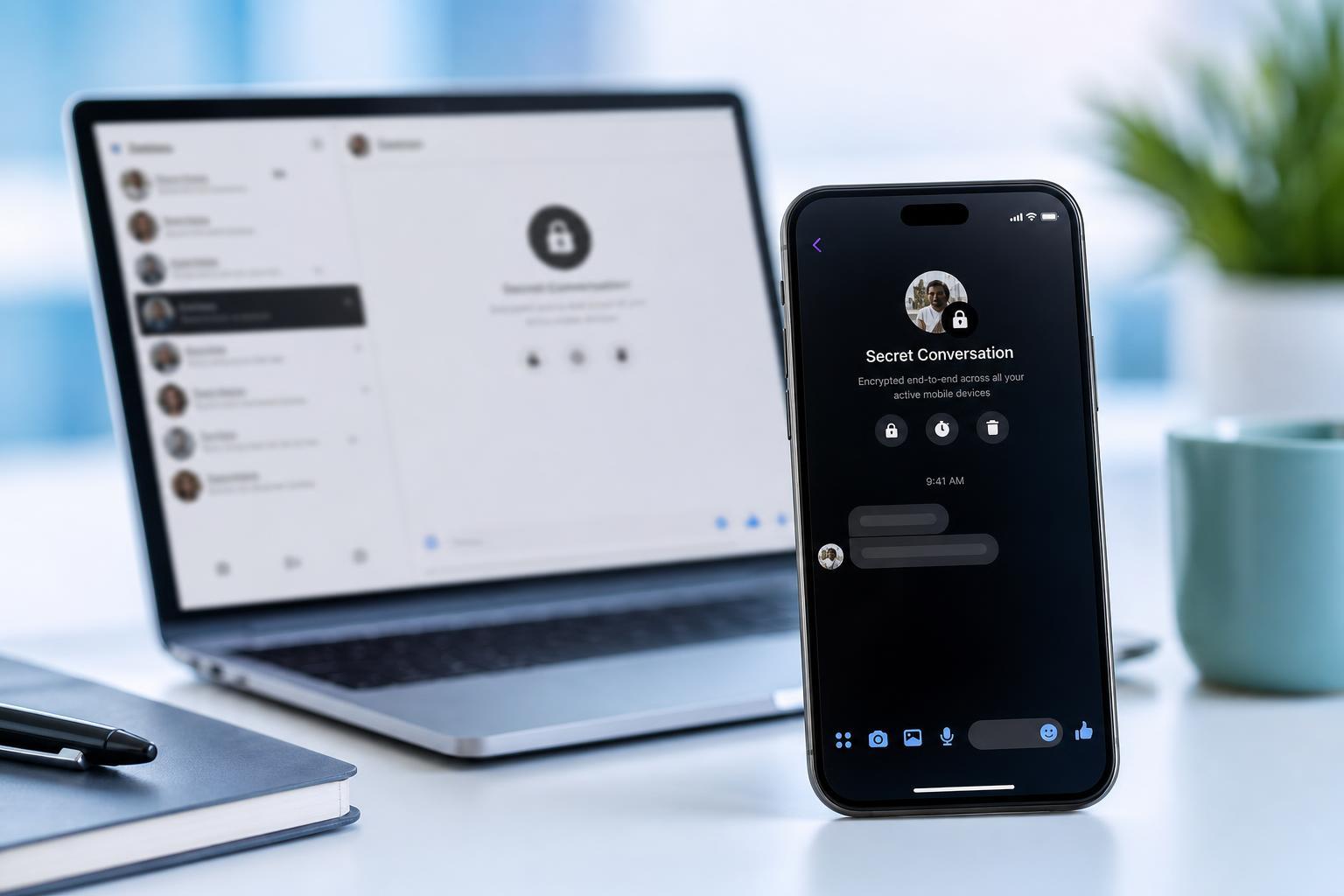
What Secret Conversations Are
Secret Conversations are Messenger chats that use end-to-end encryption. That means only you and the other person in the conversation can read the messages on supported devices.
How to Start a Secret Conversation on Messenger
- Open the Messenger app on your phone.
- Tap the new message icon to start a conversation.
- Choose the person you want to message.
- Open the conversation, then tap the person's name or the info icon at the top.
- Select Secret Conversation or Go to Secret Conversation, depending on your app version.
- If prompted, confirm the change and begin sending messages.
How to View an Existing Secret Conversation
If you already started a Secret Conversation, you usually need to open it from the same device or account setup where it was created. In Messenger, it may not appear in the same place as normal chats.
- Open Messenger on the device where you used the Secret Conversation.
- Use the search bar to type the person's name.
- Look for a thread marked as secret or encrypted.
- Open the chat from the search result if it appears.
- If you recently used the conversation, check your chat list and scroll through older threads.
If you cannot find it through normal browsing, search is often the fastest option. Secret Conversations may be hidden lower in your message list or separated from standard chats.
If You Cannot See Secret Conversations
- You may be using Messenger on the web, which does not support Secret Conversations in the same way as the mobile app.
- The conversation may have been started on another phone or a different installation of Messenger.
- Messenger may need an update before the option appears.
- Your app settings or device permissions may be limiting some chat features.
- The other person may not have an active Secret Conversation thread with you on the current device.
If the option is missing, update Messenger first. Then sign in on the phone where the conversation was originally created and check whether the encrypted thread appears there.
Useful Things to Know Before You Use Secret Conversations
- Secret Conversations use a separate encrypted thread from regular Messenger chats.
- Messages in a Secret Conversation may have disappearing message timers.
- Some features available in normal chats may not be available in encrypted chats.
- Not all devices or app versions handle Secret Conversations identically.
- Screenshots or message forwarding may be limited depending on the platform and settings.
When to Use Secret Conversations
Secret Conversations are best for private discussions where you want stronger message protection than a standard chat. They are useful for personal information, temporary details, or conversations that you do not want broadly exposed across devices.
Quick Check If You Still Cannot Find the Chat
- Confirm that you are signed into the correct Facebook or Messenger account.
- Check the phone where the conversation was first created.
- Search the person's name instead of scrolling manually.
- Update Messenger to the latest version.
- Open the chat details to look for Secret Conversation options rather than searching only in the inbox.
If the chat still does not appear, it is likely tied to a different device, account, or Messenger version than the one you are currently using.





