
If the Start menu is frozen, hidden, or just inconvenient to use, Windows still gives you several other ways to shut down the PC. Some methods are faster than clicking through menus, while others are useful when Windows is partly unresponsive.
This guide covers the most reliable ways to shut down Windows without the Start menu, from keyboard shortcuts to command-line options and hardware alternatives.
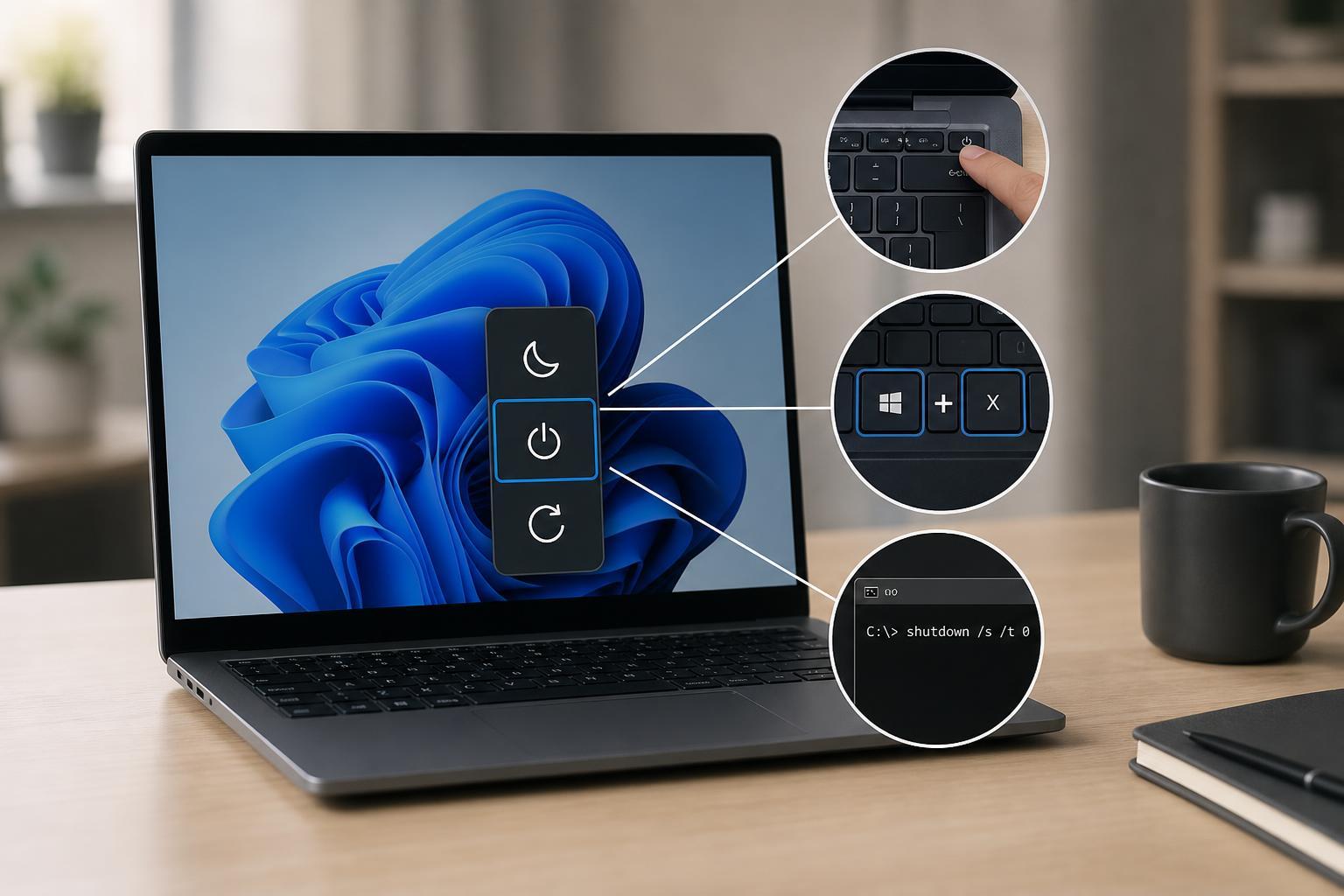
The Fastest Ways to Shut Down Windows
- Press Alt + F4 while you are on the desktop, then choose Shut down from the menu and press Enter.
- Press Ctrl + Alt + Delete, use the Power icon in the lower-right corner, and select Shut down.
- Press Windows + X, then choose Shut down or sign out if the menu is available on your system.
- Press Windows + L to lock the PC, then use the sign-in screen’s power button to shut down.
Use Alt + F4 From the Desktop
The Alt + F4 shortcut closes the active window. If you are on the desktop with no app focused, Windows opens the shutdown dialog instead.
- Minimize or close open windows until you can click the desktop.
- Press Alt + F4.
- In the dialog box, choose Shut down from the drop-down list.
- Press Enter or click OK.
Use Ctrl + Alt + Delete
If Windows is still responding but the taskbar or Start menu is not, Ctrl + Alt + Delete is one of the most dependable alternatives.
- Press Ctrl + Alt + Delete.
- Look for the power icon in the bottom-right corner.
- Select Shut down, Restart, or Sleep.
Shut Down Windows from Command Prompt or Run
If you prefer a direct method, Windows can shut itself down with a command. This is especially helpful when scripting or troubleshooting.
- Press Windows + R to open the Run dialog, or open Command Prompt / Windows Terminal by another method.
- Type shutdown /s /t 0 and press Enter.
- Windows will begin shutting down immediately.
- shutdown /s /t 0 = shut down immediately
- shutdown /r /t 0 = restart immediately
- shutdown /h = hibernate if supported on your device
Use the Power Button the Right Way
Most PCs and laptops can shut down from the physical power button if Windows is configured for a normal press. This is useful when the screen is frozen or the mouse is not responding.
- Tap the power button briefly, then wait to see whether Windows begins shutting down.
- If nothing happens, check your power button settings in Control Panel or Settings if you can still access them.
- Avoid holding the power button unless the system is completely frozen and you have no other choice.
Create a Shutdown Shortcut for Later
If you often want to avoid the Start menu, a desktop shutdown shortcut can save time.
- Right-click an empty area of the desktop and choose New > Shortcut.
- Enter shutdown /s /t 0 as the location.
- Click Next, give the shortcut a name such as Shut Down.
- Click Finish.
You can double-click that shortcut any time to shut down Windows instantly. If you want, you can also pin it to the taskbar or assign a keyboard shortcut through the shortcut’s properties.
Which Method Should You Use?
- Use Alt + F4 if you are already on the desktop and want the quickest normal shutdown.
- Use Ctrl + Alt + Delete if the Start menu is unavailable but Windows still responds.
- Use shutdown /s /t 0 when you want a command-based method or a reusable shortcut.
- Use the power button only when Windows is partially frozen or you need a hardware fallback.
If Windows Will Not Shut Down Normally
If none of these methods work, the problem may be more than just the Start menu. A system freeze, driver issue, or a background process that is not responding can prevent shutdown from completing properly.
- Wait a moment if Windows is finishing updates or closing apps in the background.
- Try Ctrl + Alt + Delete again to see whether the security screen still responds.
- If the system is completely locked up, use a long press on the power button as the last resort.





