
Microsoft Teams gives you several ways to control how messages and notifications reach you. If you want fewer interruptions, want to know when people have read your messages, or need to understand how Teams handles chat activity, it helps to know where these delivery-related settings are located.
The exact options available can vary depending on whether you use Teams for work or school, your organization’s policies, and whether you are using the new Teams desktop app, the web version, or mobile.
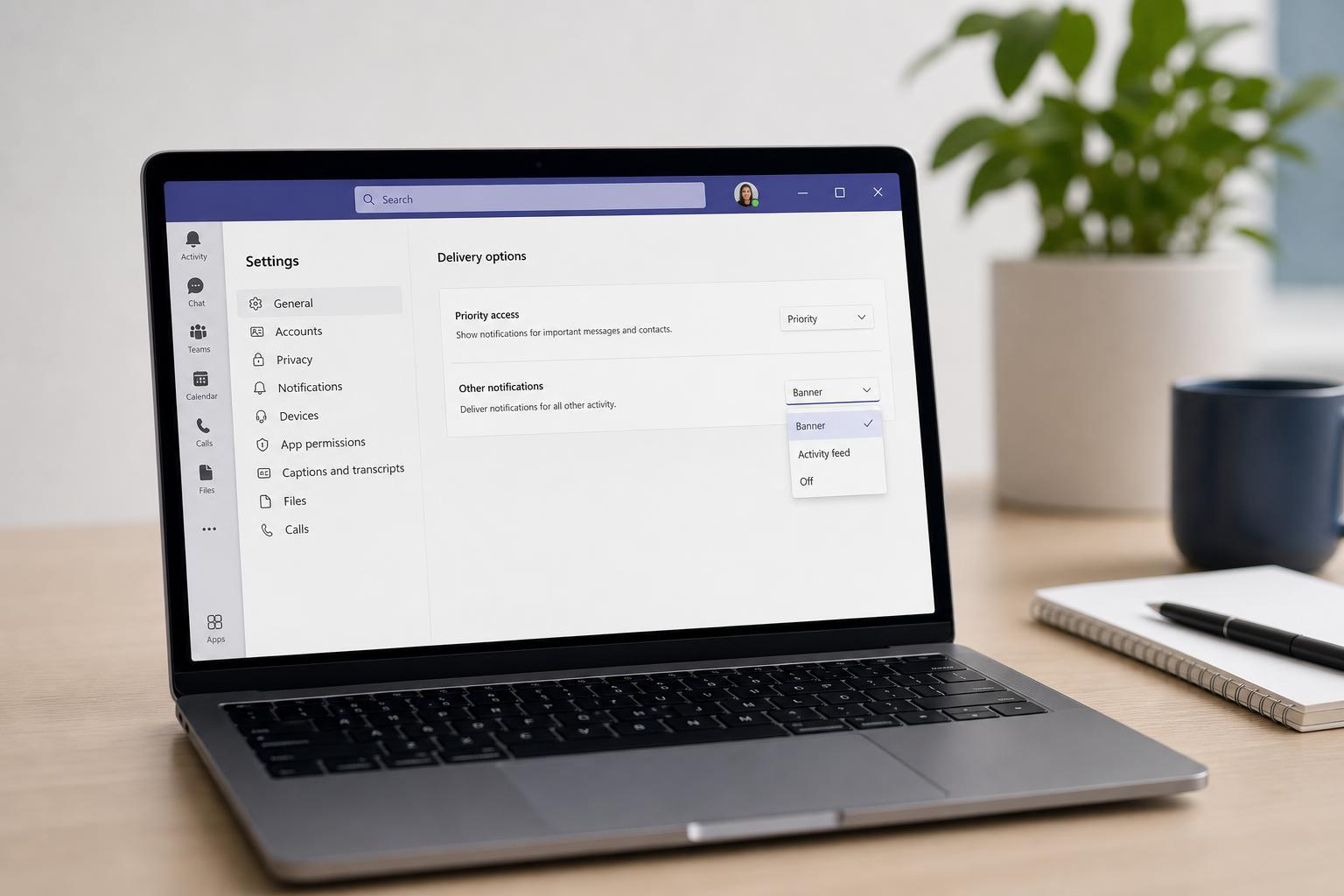
What “Delivery Options” Usually Means in Teams
In Microsoft Teams, delivery options can refer to a few different message and notification behaviors rather than one single setting. In practice, most people are looking for settings that affect how messages are delivered, noticed, or tracked.
- Read receipts for chats
- Notification behavior for chats, mentions, and activity
- Priority or urgent message handling in supported chats
- Email or banner notifications tied to Teams activity
- Whether messages appear in the chat list, activity feed, or both
Change Read Receipt and Message Delivery Behavior
If your goal is to control whether people can tell when you have read their messages, check the read receipt setting. This is the closest match to what many users mean by delivery options.
- Open Microsoft Teams.
- Select Settings and more, then choose Settings.
- Go to Privacy or Messages and chat, depending on your Teams version.
- Find Read receipts.
- Turn the setting on or off, if your organization allows it.
Adjust Notification Delivery in Teams
If you want to change how quickly or how prominently Teams alerts you about new messages, use the notification settings. This affects how delivery feels from your perspective, even though it does not change how the sender sends the message.
- Open Teams and select Settings and more.
- Choose Settings.
- Open Notifications and activity.
- Review each section for chat, meetings, mentions, and channel activity.
- Choose whether alerts appear as banners, in the feed, or by email where available.
- Banner notifications appear on screen and are harder to miss.
- Feed notifications collect activity inside Teams.
- Email notifications may be available for some activity types.
- Mentions usually trigger stronger alerts than ordinary chat messages.
Set Priority and Urgent Message Delivery
Some chats support priority or urgent message options. These are useful when a message needs immediate attention and should stand out more than a normal chat.
- Open the chat with the person or group you want to message.
- Start a new message.
- Look for the options menu in the compose box.
- Choose Priority or Urgent if available.
- Send the message normally.
Control How Chat Messages Appear Across Devices
Teams often syncs your chat and notification settings across devices, but some delivery behavior can still vary between desktop, web, and mobile. If something seems inconsistent, check each device separately.
- Desktop apps often offer the full set of settings.
- The web app may show slightly different menu names.
- Mobile settings can be simpler and may not include every option.
- Organization policies can override personal preferences on any device
If You Cannot Find the Delivery Setting
If the setting you expect is missing, the most common reason is that your organization controls it through policy. This is especially common for work and school accounts.
- Your admin may have disabled read receipts.
- Your tenant may restrict urgent message features.
- The app version may be outdated.
- The setting may have moved to a different menu in the new Teams interface.
- Check whether you are using the latest Teams app.
- Try Teams on the web to compare available settings.
- Look under both Privacy and Notifications.
- Ask your IT admin if the feature seems unavailable everywhere.
Which Setting Should You Change?
If you are not sure which option you need, use this quick guide.
- Want to stop others from knowing when you read messages: change read receipts.
- Want fewer pop-ups and less noise: change notifications.
- Want to make one message stand out: use priority or urgent delivery if available.
- Want to troubleshoot missing alerts: check notification permissions and app-specific settings.
Check Your Notification Permissions Too
Sometimes Teams settings are correct, but your device is blocking alerts. If messages are not arriving the way you expect, check the operating system notification permissions as well.
- Windows notification settings for Teams
- macOS notification permissions
- Mobile push notification settings
- Do Not Disturb or Focus Assist modes
- Battery saving features that restrict background activity
A Practical Way to Test Your Settings
After changing delivery-related settings, send a test message or ask a coworker to message you so you can confirm the new behavior. This is often the fastest way to see whether the change worked.
- Change one setting at a time.
- Send a test chat message.
- Check whether banners, sounds, or feed items appear as expected.
- Verify whether read receipts behave the way you want.
- Adjust the next setting only after confirming the first one.
When Delivery Options Are Limited by Policy
In many business and school environments, Teams features are controlled by administrators. That means you may not be able to fully customize delivery behavior on your own.
- Read receipts may be forced on or off
- Urgent messaging may be restricted
- Email notifications may be limited
- Some chat or meeting alerts may be standardized across the organization
What to Try Next
If your goal is to make Teams less distracting or more responsive, focus on the setting that matches the problem most closely. Notification controls solve most everyday delivery complaints, while read receipts and urgent messages handle specific chat behavior.
If you still cannot get the result you want, check whether your account is managed by work or school policy and compare the desktop, web, and mobile versions of Teams to see where the option is available.





