
Text replacement lets you type a short shortcut and have Windows expand it into a longer word, phrase, email address, or even a full message. It is a simple way to save time if you repeat the same text often.
Windows does not have one single text replacement feature that works exactly the same everywhere, but you can get the same result with built-in tools in some apps or with third-party utilities that work across the system.
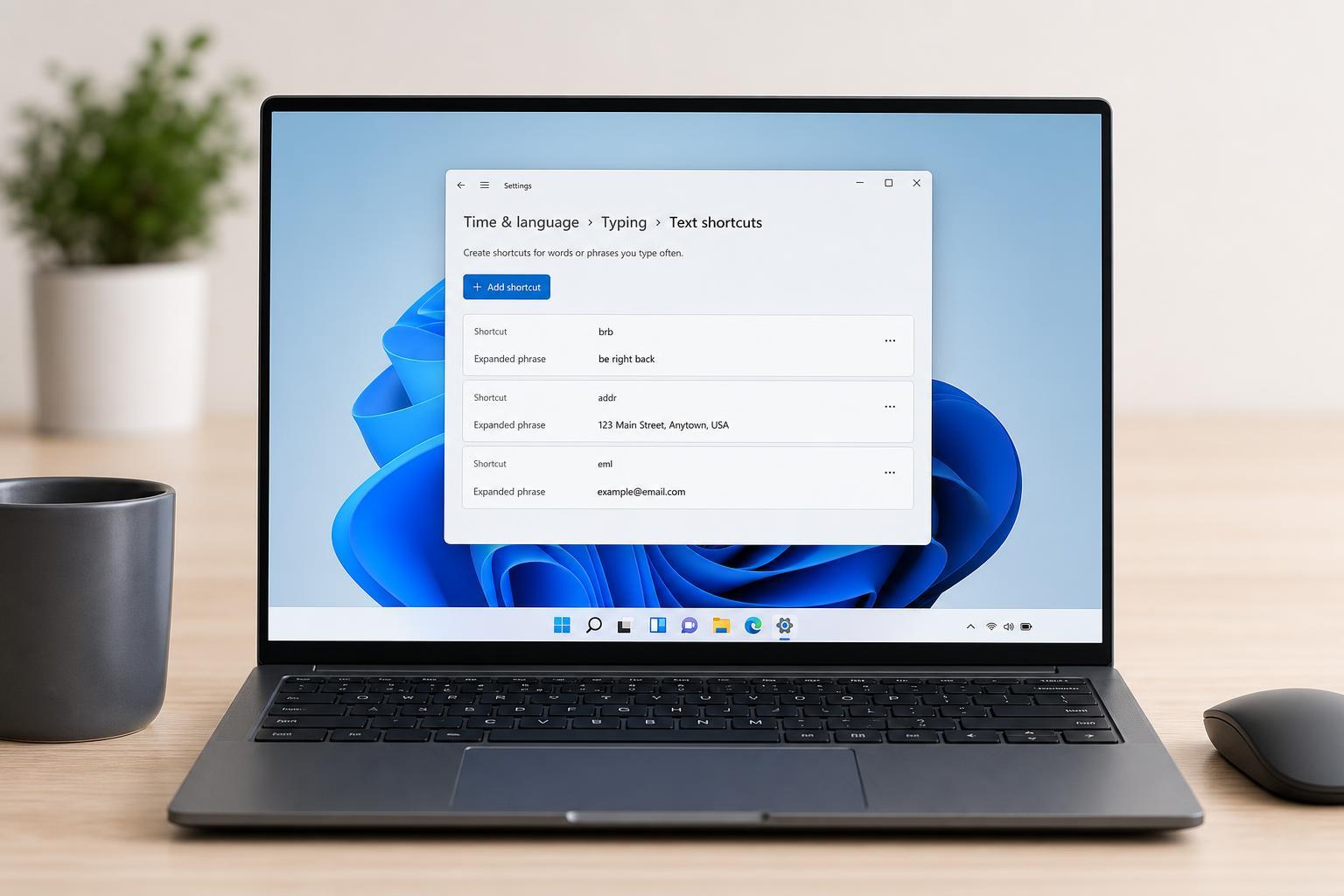
What Text Replacement Means on Windows
On Windows, text replacement usually means assigning a short trigger such as "addr" or "sig" to a longer block of text. When you type the trigger and activate the shortcut, the longer text appears automatically.
This is useful for repeating common replies, addresses, technical phrases, email signatures, and other text you do not want to type manually every time.
Use Built-in Text Replacement Where It Exists
Some Windows apps and input methods offer their own text replacement or text suggestion features. These are usually the easiest option if you only need shortcuts in a specific program.
- Microsoft Word and some Office apps can use AutoCorrect and text shortcuts.
- Windows touch keyboard and typing suggestions can help with faster input on some devices.
- Some email clients, note-taking apps, and chat tools include their own snippet or shortcut features.
Set Up AutoCorrect in Microsoft Word
If you mainly want text replacement in Word, AutoCorrect is already built in and works well for common phrases.
- Open Microsoft Word.
- Go to File, then Options.
- Select Proofing.
- Click AutoCorrect Options.
- In the Replace box, type your shortcut.
- In the With box, type the full text you want inserted.
- Click Add, then OK to save the entry.
After that, when you type the shortcut and press Space or Enter, Word replaces it with the longer text.
Use a Third-Party Text Expansion Tool for Windows-Wide Replacement
If you want text replacement to work in most apps, a third-party text expander is usually the best solution. These tools can expand shortcuts in browsers, email, chat apps, and many desktop programs.
- Fast typing of email addresses, replies, and signatures
- Consistent snippets across many apps
- Reusable text templates for work or support tasks
- More advanced options such as form fields or date insertion
Most text expansion tools follow the same general idea: create a shortcut, define the expanded text, and enable the tool so it can watch for your triggers while you type.
Typical Steps to Create a Text Replacement Shortcut
- Install and open a text expansion app.
- Create a new snippet or shortcut entry.
- Enter the short trigger you want to type.
- Paste or type the full replacement text.
- Choose whether the shortcut should expand automatically or only after a special key.
- Save the entry and test it in a text field.
Choose Good Shortcuts
The best shortcuts are short, easy to remember, and unlikely to appear in normal typing by accident. A good shortcut should feel fast to type but still be distinct enough that it does not trigger unexpectedly.
- Use unusual letter combinations such as ";sig" or "xaddr".
- Avoid common words unless the tool uses a safe trigger method.
- Keep shortcuts consistent so they are easy to remember.
- Use a prefix character if the tool supports it.
What to Do If Text Replacement Does Not Work
If a shortcut is not expanding, the problem is usually one of a few common issues.
- The feature is not enabled in the app you are using.
- The shortcut is conflicting with another shortcut or AutoCorrect entry.
- The app does not support text expansion.
- The text expander is not running in the background.
- The trigger is being typed in a protected field such as a password box.
Try testing the shortcut in a simple app such as Notepad or a plain text field first. If it works there but not elsewhere, the problem is probably app-specific.
Should You Use Built-in Tools or a Dedicated App?
If you only need a few replacements inside Microsoft Word or another single app, built-in AutoCorrect or app snippets are usually enough. If you want shortcuts that work everywhere, a dedicated text expansion app is the better choice.
- Built-in tools: best for simple, app-specific text replacement
- Third-party tools: best for system-wide snippets and heavier use
- Office users: often fine with AutoCorrect alone
- Support, sales, and admin users: usually benefit from a dedicated expander
Helpful Examples of Text Replacement
Here are a few practical shortcuts many Windows users create:
- A short trigger for an email signature
- A shortcut that expands into your full mailing address
- Common replies such as "Thanks, I’ll take a look"
- Frequently used technical terms or product names
- Support templates for closing messages or instructions
The Easiest Way to Get Started
If you want the quickest path, start with the tool you already use most. For Word, set up AutoCorrect. For everything else, install a trusted text expansion utility and create a few simple shortcuts first. Once those work, you can add more as needed.
That approach keeps setup simple and helps you avoid creating too many shortcuts before you know which ones are actually useful.





