
Google Chrome Remote Desktop is a simple way to access a Windows 11 PC from another computer, phone, or tablet. It is useful for remote support, accessing files, or controlling your home PC when you are away.
This guide walks through the setup process on Windows 11, how to connect from another device, and a few important settings and limitations to know before you rely on it.
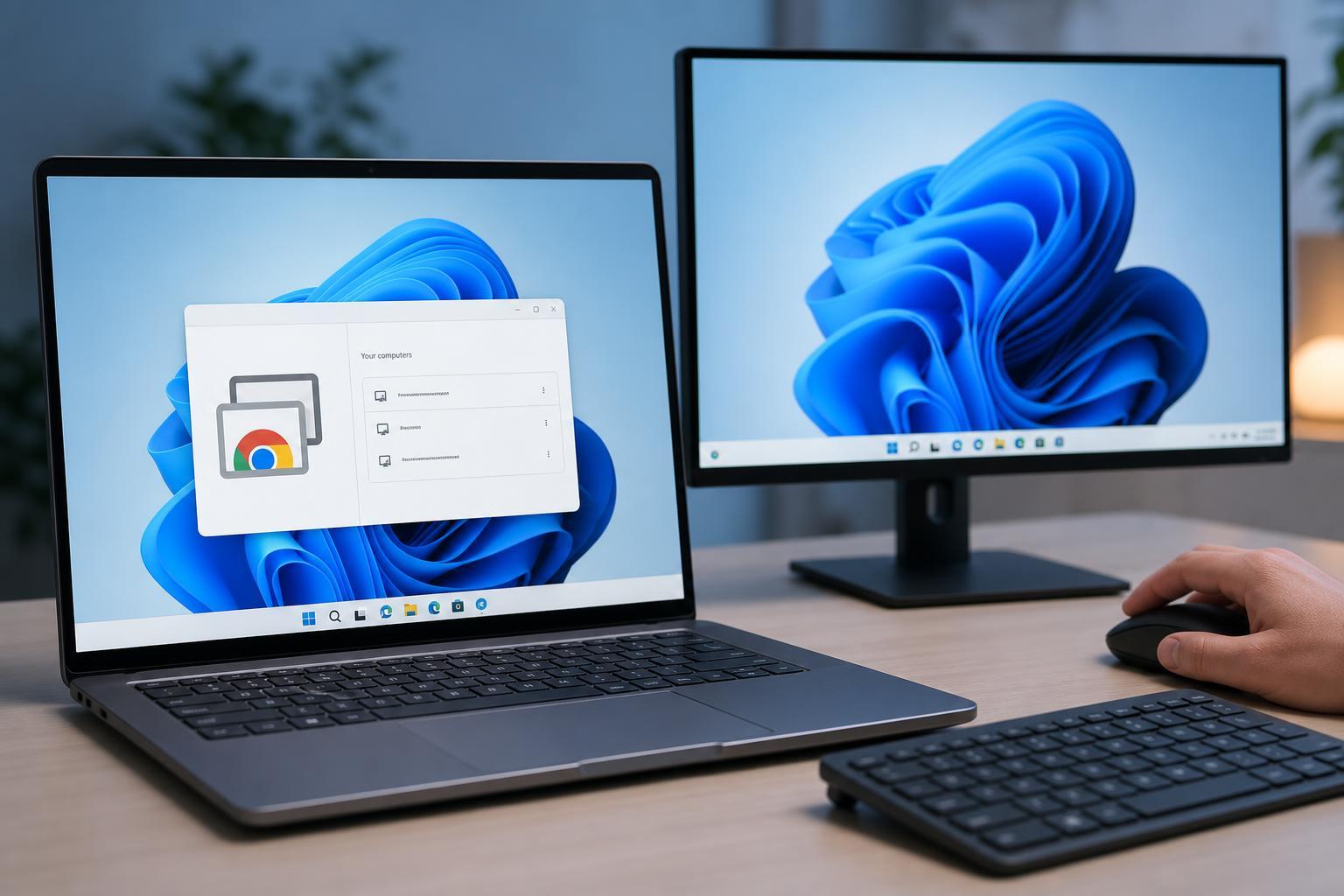
What You Need Before You Start
- A Windows 11 PC with internet access
- A Google account
- Google Chrome installed on the Windows 11 PC
- A second device to connect from, such as another computer, Android phone, iPhone, or tablet
Install Chrome and Open Chrome Remote Desktop
- If you do not already have it, install Google Chrome on the Windows 11 PC.
- Open Chrome and go to the Chrome Remote Desktop website.
- Sign in with your Google account if prompted.
- Choose the option to set up remote access for this computer.
Set Up Remote Access on the Windows 11 PC
- On the Chrome Remote Desktop page, select the option to turn on remote access.
- Download and install the Chrome Remote Desktop host when prompted.
- Give the computer a recognizable name so you can identify it later.
- Create a PIN that is at least six digits long.
- Confirm the PIN when asked to finish setup.
How to Connect to Your Windows 11 PC Remotely
- On the device you want to connect from, open Chrome and go to the Chrome Remote Desktop website.
- Sign in with the same Google account you used on the Windows 11 PC.
- Select the computer you want to access from the list.
- Enter the PIN you created during setup.
- Wait for the remote session to open, then control the Windows 11 PC from the other device.
Once connected, you can use the remote PC almost like you were sitting in front of it. You can open apps, browse files, work in settings, and copy text between devices in many cases.
Using Chrome Remote Desktop on a Phone or Tablet
You can also connect from the Chrome Remote Desktop app on Android or iPhone. After signing in with your Google account, the app will show any computers you have set up for remote access.
- Tap the computer name to connect
- Enter the PIN when prompted
- Use the on-screen controls to move the pointer and type text
- Use the keyboard shortcut menu if you need special keys such as Ctrl, Alt, or Esc
Useful Settings and Controls
Chrome Remote Desktop is intentionally simple, but a few controls are worth knowing because they make remote use easier.
- Full screen mode: makes the remote desktop easier to work with on a smaller screen
- Clipboard support: lets you copy and paste text between devices in many situations
- Keyboard shortcuts: helpful for actions like Task Manager, sign out, or switching apps
- Session disconnect: lets you end the remote session when you are finished
How to Remove or Disable Remote Access
If you no longer want remote access enabled, open Chrome Remote Desktop on the Windows 11 PC and remove the computer from the remote access list or turn off remote access for that device.
- Open Chrome Remote Desktop on the Windows 11 PC.
- Find the computer in the remote access section.
- Select the option to remove, disable, or turn off remote access.
- If needed, uninstall the Chrome Remote Desktop host from Windows 11.
Common Problems and What to Check
- The PC is offline or asleep
- You are signed into a different Google account
- The Chrome Remote Desktop host is not installed correctly
- The PIN was entered incorrectly
- A firewall, network filter, or work policy is blocking the connection
If the computer does not appear in your remote access list, confirm that it is powered on, connected to the internet, and signed in with the same Google account. On managed work devices, remote access may be restricted by company policy.
When Chrome Remote Desktop Is a Good Choice
- You want a free, straightforward remote access tool
- You need occasional access to a personal Windows 11 PC
- You want a method that is simple to set up without advanced networking
- You are helping someone else with basic computer tasks over the internet





