
WhatsApp lets you assign a custom notification tone to individual contacts, which is useful when you want to tell important messages apart from the rest. The exact steps vary a little between Android and iPhone, but the goal is the same: make alerts from certain people easier to recognize.
This is especially handy for family members, work contacts, or anyone whose messages you do not want to miss. In most cases, you only need to change the contact’s notification settings inside WhatsApp or the phone’s contact details.
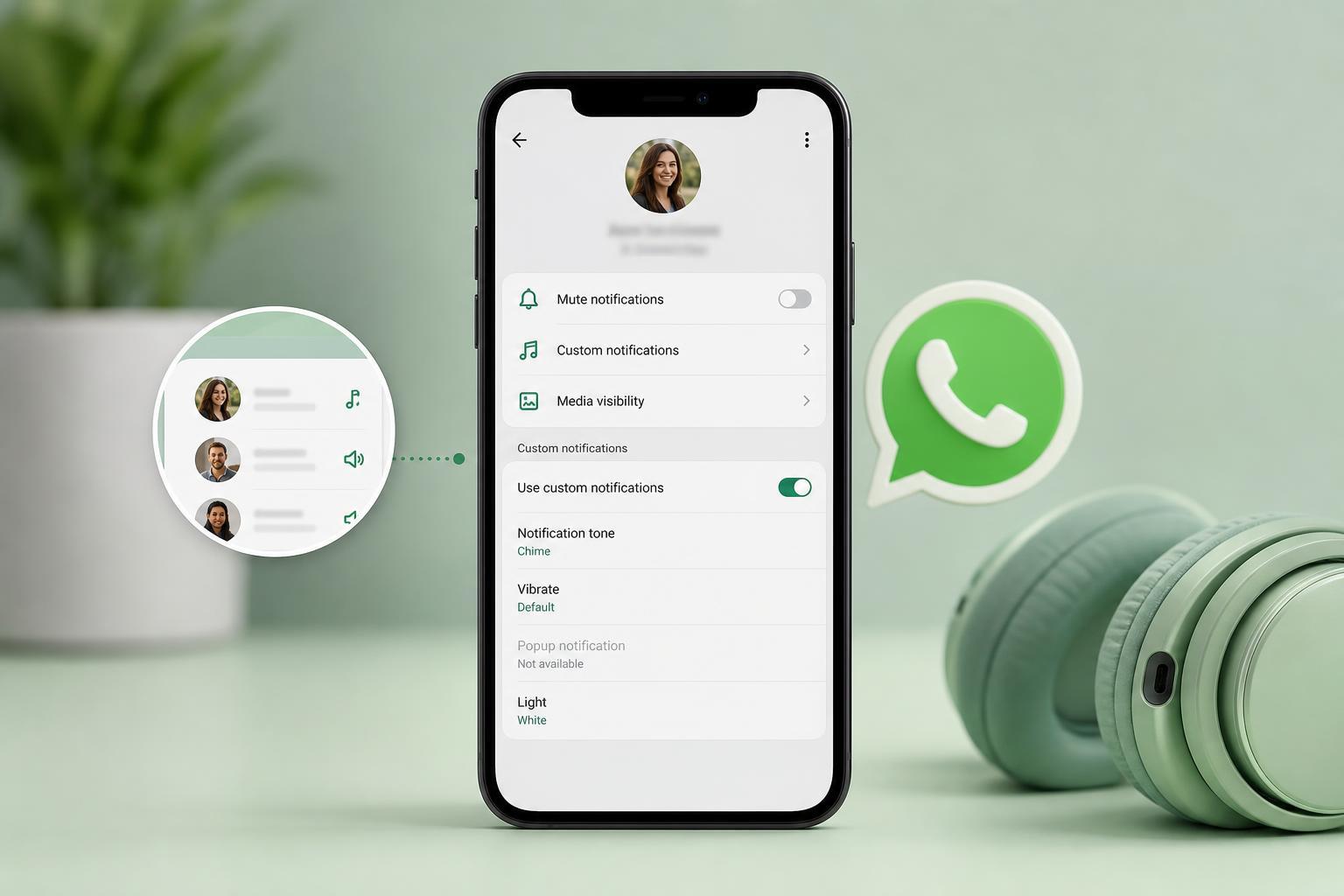
Before You Start
To use a custom sound for a specific contact, you generally need that person saved in your phone contacts. WhatsApp usually applies custom alerts to chats with saved contacts more reliably than to unsaved numbers.
- The contact should be saved in your phone address book
- WhatsApp notifications must be allowed on your device
- You may need to download or select a sound already available on your phone
- The exact menu names can differ slightly between Android and iPhone
How to Set a Custom Sound for a Contact in WhatsApp on Android
- Open WhatsApp and go to the chat for the contact you want to customize.
- Tap the contact name at the top of the chat to open their chat info.
- Select Custom notifications. If you do not see it immediately, look under notification or sound-related options.
- Turn on Use custom notifications.
- Tap Notification tone or Sound, then choose the alert you want for that contact.
- Save your changes if your phone asks you to confirm them.
Once this is set, WhatsApp should use that sound for messages from that person instead of the default chat tone. On some Android devices, the custom tone may also be influenced by the phone’s notification channel settings.
How to Set a Custom Sound for a Contact in WhatsApp on iPhone
- Open WhatsApp and open the chat for the contact you want to customize.
- Tap the contact name or profile picture at the top.
- Look for Wallpaper & Sound or Custom Tone, depending on your WhatsApp version.
- Choose the option to use a custom alert, then select the tone you want.
- If WhatsApp does not offer the option directly, open the contact in the iPhone Contacts app and check whether a custom text tone can be assigned there.
iPhone support for contact-specific WhatsApp sounds can be more limited than Android, and the available options may change depending on the app version. If you cannot find a direct WhatsApp setting, the phone’s Contacts app may offer the closest alternative for assigning an alert.
If You Want a Sound for Group Chats Instead
WhatsApp also lets you customize notification sounds for groups. The process is similar: open the group chat, tap the group name, and look for notification settings or custom alerts. This is useful if you want group messages to stand out from personal chats.
What to Check If the Custom Sound Does Not Work
- Make sure the contact is saved correctly in your phone and in WhatsApp
- Check that WhatsApp notifications are enabled in your phone settings
- Confirm that the custom tone is actually selected and saved
- Verify that the phone is not muted or in a focus mode such as Do Not Disturb
- Update WhatsApp if the option is missing or behaves differently
- Check whether battery saver or notification optimization is limiting background alerts
Best Way to Organize Important Contacts
If you message with a few key people often, it can help to assign each of them a different tone. Keep the sounds short and easy to tell apart, and avoid using too many similar tones, since that can make alerts harder to recognize in real life.
When the App Does Not Offer the Option
If you cannot find custom notifications in WhatsApp, the app version on your phone may not support that exact menu layout. In that case, check your phone’s system notification settings for WhatsApp, or use the Contacts app to see whether the person’s messages or calls can be given a custom alert through the device itself.





