
An out-of-office message in Outlook lets people know you are away and when they can expect a reply. You can use Outlook’s automatic replies feature to send a professional message while you are on vacation, traveling, or unavailable for a period of time.
The exact steps depend on which version of Outlook you use. This guide covers the common Outlook desktop app, Outlook on the web, and the settings you may need if your account does not support automatic replies.
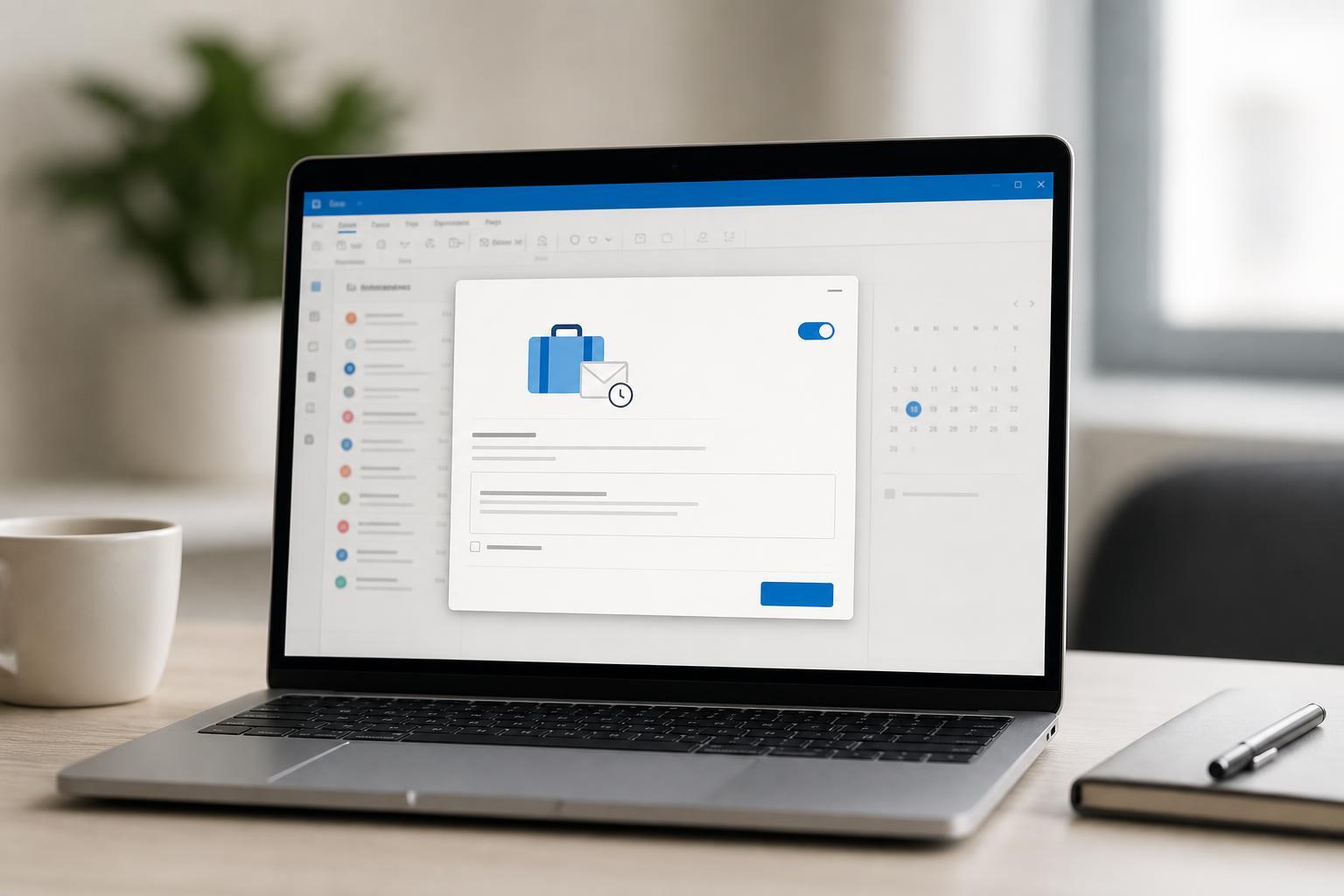
Before You Start
Automatic replies work best for Microsoft 365, Exchange, and some work or school accounts. If you use a personal email account like Outlook.com, the feature is usually available in Outlook on the web and in the Outlook app, but the menu names may be slightly different.
Set an Out-of-Office Message in Outlook for Windows Desktop
- Open Outlook.
- Select File in the top-left corner.
- Choose Automatic Replies (Out of Office).
- Select Send automatic replies.
- If needed, check Only send during this time range and set your start and end times.
- Type your message in the Inside My Organization tab.
- If you want different wording for people outside your organization, open the Outside My Organization tab and enable replies for external senders.
- Click OK to save the message.
Set an Out-of-Office Message in Outlook on the Web
- Sign in to Outlook on the web.
- Click the Settings gear icon.
- Choose Mail, then Automatic replies.
- Turn on Automatic replies.
- Set the date and time range if you want Outlook to stop sending replies automatically.
- Enter your message for internal recipients.
- If available, add a separate message for external recipients.
- Click Save.
Set an Out-of-Office Message in the New Outlook for Windows
- Open the new Outlook app.
- Click Settings.
- Go to Accounts and then Automatic replies.
- Turn on Automatic replies.
- Choose whether to send replies all the time or only during a time range.
- Type your message.
- Save your changes.
The new Outlook uses a simpler interface than classic Outlook, but the idea is the same: turn on automatic replies, write your message, and decide whether they should end automatically.
What to Put in Your Out-of-Office Message
- Your absence dates or the fact that you are away
- When you will return, if appropriate
- Whether you can check email occasionally
- An alternate contact for urgent issues
- A brief, professional tone
Keep the message short and clear. Most people only need to know that you are unavailable, when you will be back, and who to contact if the matter cannot wait.
Example Out-of-Office Messages
- Thank you for your email. I am out of the office until Monday, April 15, and will respond when I return. For urgent matters, please contact Jordan Lee at jordan@example.com.
- I am currently away and checking email occasionally. I may have limited access to messages, so please expect a delay in my response.
- Thank you for reaching out. I am out of office through Friday and will reply as soon as possible after my return.
If You Need Different Replies for Different People
Outlook can send one message to people inside your organization and a different one to external senders. This is useful if coworkers need short status information while customers or partners need fuller contact details.
How to Turn Off Automatic Replies
- Open the same Automatic Replies settings you used to create the message.
- Select Do not send automatic replies or turn the feature off.
- Save the change.
If you set a date range, Outlook will usually disable the message automatically when the end time arrives. If you turned it on without a range, you will need to switch it off manually.
If You Do Not See Automatic Replies
- Your account may be a POP or IMAP account that does not support server-based automatic replies.
- Your organization may control the feature through Microsoft 365 or Exchange settings.
- You may need to use Outlook on the web instead of the desktop app.
- Some personal accounts may need to use mailbox rules instead of built-in automatic replies.
If Outlook does not offer the feature, check whether your account type supports it. Automatic replies work through the mail server, so they are not available in every account setup.





